
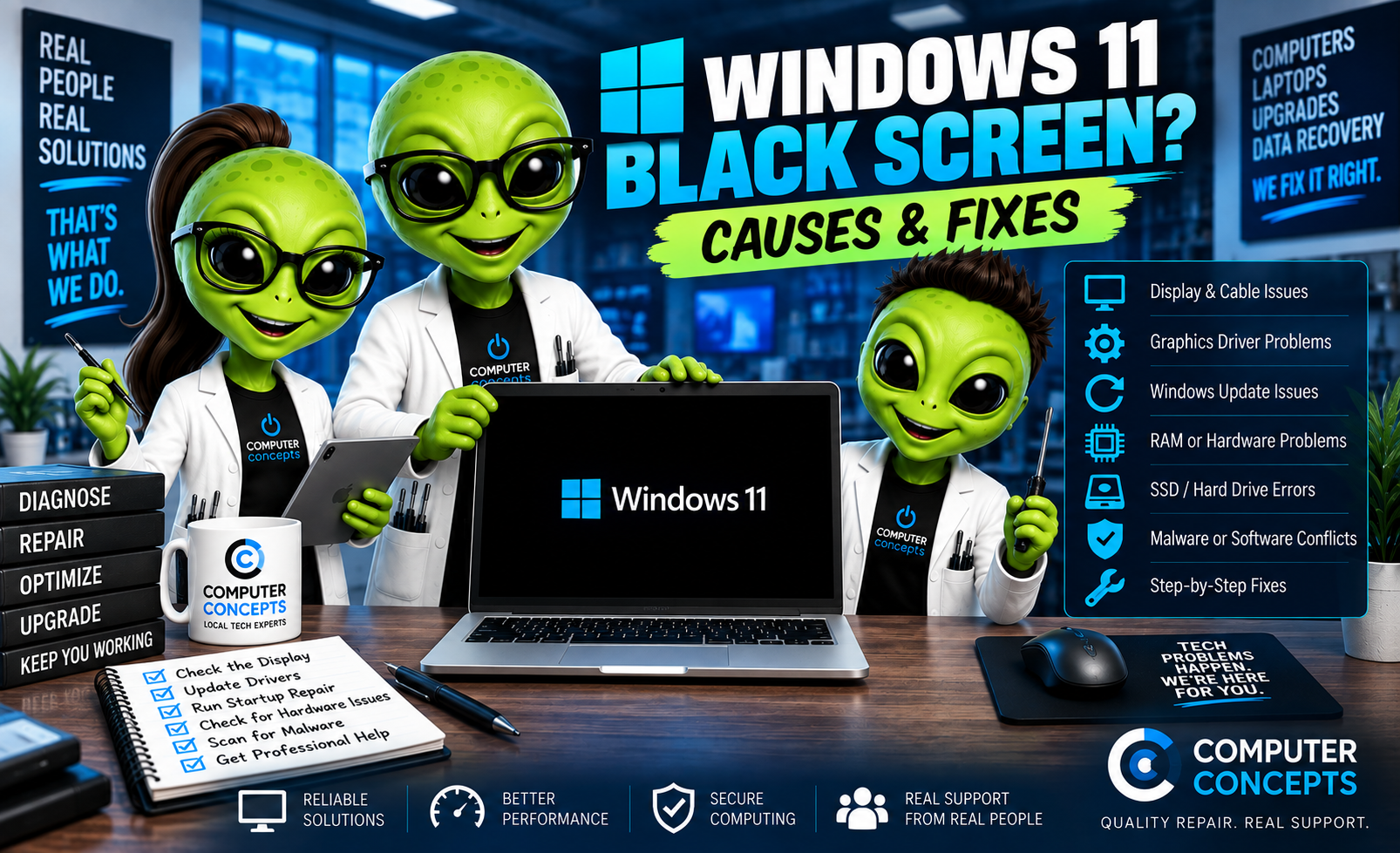
You turn on your computer and expect to see the Windows desktop—but instead, you're staring at a black screen.
Maybe you can still see your mouse pointer. Maybe Windows appears to start and then the screen goes black. Or perhaps the computer seems to be running, but there's no picture at all.
A Windows 11 black screen can have many different causes. Sometimes it's a simple display or cable issue. Other times, the problem can involve a graphics driver, Windows Update, corrupted system files, failing hardware, or the graphics card itself.
Before assuming the computer is dead, here's what to check.
First: When Does the Black Screen Appear?
This is one of the most important questions. Pay attention to exactly when the screen goes black.
Black screen immediately after pressing the power button
If you never see the computer manufacturer's logo, the problem may occur before Windows even starts. Possible causes include:
- Monitor or display problem
- HDMI or DisplayPort cable
- Graphics card
- RAM
- Power supply
- Motherboard
- Other hardware failure
You see the manufacturer logo, then the screen goes black
If you can see the startup logo or BIOS screen before everything goes black, the computer is producing a video signal. The problem may be related to:
- Windows
- Graphics drivers
- Windows Update
- Display settings
- Startup software
- System corruption
Black screen with a mouse cursor
If you see a movable mouse pointer on an otherwise black screen, Windows may have loaded partially but isn't displaying the desktop correctly. That distinction can help narrow down the problem.
1. Restart the Computer
Start with the basics. If Windows is responsive enough, perform a normal restart. If the computer is completely stuck on a black screen and won't respond, you may eventually need to hold the power button to shut it down.
Wait several seconds, then turn it back on. If Windows starts normally afterward, the problem may have been temporary. If the black screen keeps returning, something else needs attention.
2. Check the Monitor
For desktop computers, make sure the monitor itself is working. Check:
- Monitor power
- Power cable
- Correct input selection
- Brightness
- HDMI or DisplayPort connection
Try opening the monitor's built-in menu. If the monitor's menu appears, you know the screen itself is at least receiving power and capable of displaying an image. If possible, try another monitor or television.
3. Check the Display Cable
A bad or loose video cable can cause a black screen even when the PC is working normally. Disconnect and reconnect the cable at both ends. Common connections include:
- HDMI
- DisplayPort
- USB-C
- Thunderbolt on compatible systems
If you have another known-good cable, try it. Also inspect the ports for visible damage.
4. Make Sure You're Using the Correct Video Port
This is especially important with desktop and gaming PCs. If your computer has a dedicated graphics card, the monitor normally needs to be connected directly to that graphics card. It's easy to accidentally connect the monitor to the motherboard after moving or reconnecting a computer. And there's another complication:
Not every processor has integrated graphics.
That means the HDMI or DisplayPort connection on the motherboard may produce absolutely nothing even though the connector is physically there.
5. Try the Windows Graphics Reset Shortcut
If Windows appears to be running but the screen is black, you can try resetting the graphics driver.
Press:
Windows Key + Ctrl + Shift + B
The screen may briefly flicker, and you may hear a beep. If the display returns, the problem may involve the graphics subsystem or driver. This isn't a permanent repair if the problem keeps happening, but it can be a useful troubleshooting step.
6. Disconnect External Displays and Accessories
If you're using:
- Multiple monitors
- Docking station
- USB-C hub
- External GPU
- Projector
- Television
disconnect unnecessary display hardware and test with one screen. Also disconnect unnecessary USB accessories. Windows can occasionally send the desktop to a display you aren't expecting or have trouble with a dock or adapter. Simplifying the setup can help isolate the problem.
7. Try Windows Recovery and Safe Mode
If you can see the startup logo but Windows goes black while loading, Safe Mode can help determine whether software or drivers are involved. Windows may automatically enter the Windows Recovery Environment (WinRE) after repeated failed startups. From recovery, look for:
Troubleshoot → Advanced options → Startup Settings
Then restart and select an appropriate Safe Mode option. Safe Mode loads Windows with a limited set of drivers and services. If the display works normally in Safe Mode, that provides an important clue that a driver, startup application, or other software component may be involved.
8. Check the Graphics Driver
Graphics drivers are a common place to investigate when Windows loads but the display becomes black. Problems can occur because of:
- Corrupted driver
- Incompatible driver
- Failed driver update
- Windows Update conflict
- GPU software problems
If the issue began immediately after updating your graphics driver, that timing matters. Use drivers from Windows Update or the graphics/computer manufacturer's official support resources whenever possible. Avoid random "driver updater" utilities.
9. Did the Black Screen Start After Windows Update?
If the computer worked normally before an update and began showing a black screen immediately afterward, the update or a related driver change may need investigation. Windows Recovery provides tools that can sometimes help, including:
- Startup Repair
- Safe Mode
- System Restore
- Uninstall Updates
Don't automatically assume Windows Update is responsible, though. An update can also expose an existing hardware or storage problem because updates place additional demands on the system.
10. Check the RAM
If you don't see anything at all—not even the manufacturer's startup logo—RAM becomes one of the hardware components worth investigating. Memory problems can cause:
- Black screen
- No display
- Failure to POST
- Restart loops
- Diagnostic lights
- Beep codes
- Blue screens
This is especially relevant if the problem began after installing or upgrading RAM. If you're comfortable working inside a desktop computer, memory can be checked and reseated. Always disconnect power before working inside the computer. If you're not comfortable handling internal components, leave this step to a technician.
11. Check the Graphics Card
A failing or improperly connected GPU can cause a computer to power on with a completely black screen. Possible causes include:
- Graphics card not fully seated
- Loose GPU power connection
- Failed graphics card
- Damaged video port
- Overheating
- Insufficient or failing power supply
If the black screen occurs mainly while gaming, rendering, or placing the GPU under heavy load, that's useful diagnostic information.
12. Look for Motherboard Diagnostic Lights
Many gaming and custom-built PCs have motherboard diagnostic LEDs. You may see labels such as:
CPU | DRAM | VGA | BOOT
If the system stops on VGA, for example, graphics initialization deserves closer investigation. A DRAM light may point toward memory initialization. These lights are valuable clues, but they aren't always a final diagnosis. Check your motherboard manufacturer's documentation for the specific meaning.
13. Could the Power Supply Cause a Black Screen?
Yes. A computer doesn't have to be completely dead for the power supply to be failing. A weak or unstable power supply might provide enough power for:
- Fans
- RGB lighting
- Motherboard lights
But, it is still failing to reliably power the processor or graphics card. Possible symptoms include:
- Black screens
- Random restarts
- Shutdowns
- Crashes while gaming
- No display
- Failure under heavy load
Lights and spinning fans do not prove that the power supply is healthy.
14. Could Overheating Cause the Screen to Go Black?
Yes. A GPU or other component that overheats can become unstable. Watch for:
- Fans running extremely fast
- Computer becoming unusually hot
- Black screen while gaming
- Performance dropping before the screen goes black
- Random shutdowns or restarts
Dust buildup, failing fans, restricted airflow, or cooling-system problems can contribute to overheating. If your computer hasn't been internally cleaned in years, cooling should be part of the diagnosis.
Windows 11 Black Screen With Cursor
A black screen with a visible mouse cursor deserves special attention because Windows has usually progressed farther through startup. Possible causes can include:
- Windows Explorer failing to load
- Graphics driver problems
- Windows corruption
- Startup software conflicts
- Update problems
- User-profile issues
If you can open Task Manager with: Ctrl + Shift + Esc you may be able to determine whether Windows is actually running behind the black screen. For advanced troubleshooting, a technician may also investigate whether the Windows desktop shell is starting correctly.
Windows 11 Black Screen After Login
If everything looks normal until you sign in and then the desktop goes black, that provides another important clue. Possible causes include:
- Graphics driver
- Startup application
- User profile
- Windows Explorer
- Windows corruption
- Software conflict
Try to remember whether any software, driver, or Windows update was installed immediately before the problem began.
Windows 11 Black Screen After Sleep
If your laptop or desktop works normally until it goes to sleep and then wakes to a black screen, the issue may involve:
- Graphics driver
- Power management
- Windows
- BIOS/firmware
- Docking station
- External monitor
- Hardware
If restarting restores the display every time but waking from sleep doesn't, make note of that pattern. Patterns help with diagnosis.
What If My Laptop Screen Is Black but an External Monitor Works?
That's an important clue. If the laptop displays normally on an external monitor but the built-in screen remains black, possible causes include:
- Laptop display failure
- Display cable
- Backlight problem
- Display connection
- Other internal display hardware
That doesn't automatically prove the LCD itself needs replacement, but it helps narrow the problem significantly.
Are My Files Gone Because the Screen Is Black?
Usually, no. A black screen doesn't automatically mean your SSD or hard drive has failed. Your computer could have a problem with the:
- Display
- Graphics card
- RAM
- Motherboard
- Power supply
- Windows installation
while your storage drive and files remain intact. If the storage device itself is healthy, your photos, documents, business files, and other data may still be completely recoverable. Computers can be replaced. Your data is unique.
Should I Reset or Reinstall Windows?
Not yet. A Windows reinstall might help if the black screen is caused by serious operating-system corruption. But reinstalling Windows won't repair:
- Bad RAM
- Failed graphics card
- Failing power supply
- Motherboard problem
- Broken laptop display
- Overheating hardware
And if important files aren't backed up, resetting the computer can create another problem. Diagnose first. Repair second.
Windows 11 Black Screen Repair in Yorktown & Williamsburg, VA
If your Windows 11 computer has a black screen, Computer Concepts can help determine whether you're dealing with Windows, the display, graphics hardware, memory, power, or another problem. We've been helping Hampton Roads with computer problems since 2005, and our technicians work on laptops, desktops, gaming PCs, and custom-built computers. We can help with:
- Windows 11 black screens
- Black screen with cursor
- PC powers on but no display
- Laptop display problems
- Graphics card diagnostics
- RAM problems
- Power supply problems
- Windows startup issues
- Windows Update problems
- Overheating
- SSD and hard drive diagnostics
- Data backup and recovery
- Windows repair
With locations in Yorktown and Williamsburg, Virginia, Computer Concepts serves customers throughout Hampton Roads. A black screen doesn't mean it's time for a new computer. Find out what's actually wrong first. Quality repair. Real support.
Computer Concepts
Yorktown & Williamsburg, Virginia
mycomputerconcepts.com