
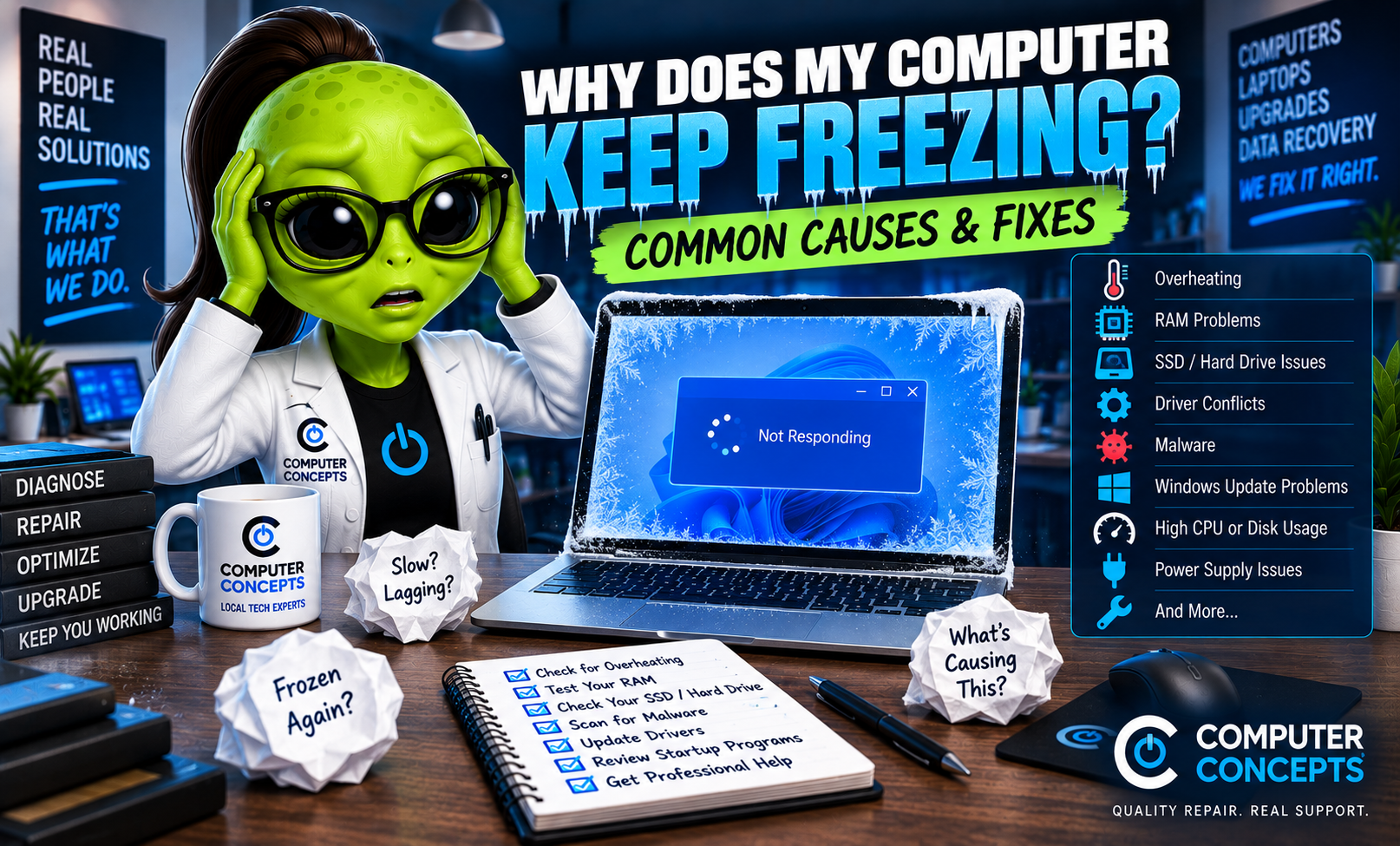
You're working normally when suddenly your computer stops responding. The mouse won't move. Programs won't close. The keyboard does nothing. Sometimes the computer comes back after a few seconds. Other times, you're forced to hold down the power button just to get it working again.
If your computer keeps freezing, don't assume it's just getting old. Frequent freezing is usually a symptom of an underlying software or hardware problem. It could be Windows, insufficient memory, overheating, a failing SSD, malware, drivers, or another component beginning to fail. Here are the most common causes—and what you can try.
What Does It Mean When a Computer Freezes?
A computer freeze happens when Windows or the hardware becomes unable to respond normally. You might experience:
- Mouse and keyboard stop responding
- Programs show “Not Responding”
- Screen completely freezes
- Computer pauses for several seconds at a time
- Windows becomes extremely slow
- Computer freezes while gaming
- System freezes shortly after startup
- Computer eventually restarts
- You have to hold the power button to shut it down
How and when the freezing happens can provide important clues.
1. Restart Your Computer
Start simple. If you normally close the laptop lid or put your computer to sleep, Windows may have been running for days or even weeks without a true restart. Go to: Start → Power → Restart
A restart clears temporary processes, reloads drivers, frees memory, and gives Windows a fresh start. If the problem disappears, it may have been temporary. If your computer freezes regularly, however, restarting is treating the symptom—not the cause.
2. Check Task Manager
If the computer becomes slow but still responds, open Task Manager by pressing: Ctrl + Shift + Esc. Look at:
- CPU
- Memory
- Disk
- GPU
If one of these is consistently at or near 100%, it may help identify what's causing the slowdown or freezing. For example, you might discover:
- An application consuming excessive CPU
- Memory nearly completely used
- Disk stuck at 100%
- A background process using significant resources
Don't randomly end Windows processes you don't recognize. Some are necessary for the operating system to function.
3. Check How Much RAM You're Using
RAM is your computer's short-term working memory. If Windows runs out of available memory, performance can drop dramatically. This often happens when you're running:
- Lots of browser tabs
- Multiple programs simultaneously
- Large spreadsheets
- Photo or video editing software
- Games
- Virtual machines
- Memory-intensive applications
Open Task Manager and check Memory usage. If your RAM is regularly almost completely used, you may simply need more memory—assuming your computer supports an upgrade. But high memory usage isn't the only RAM-related problem. Failing RAM can also cause freezing.
4. Test for Bad RAM
Faulty memory can cause unpredictable problems, including:
- Random freezing
- Blue screens
- Application crashes
- Corrupted files
- Random restarts
- Windows startup problems
Windows includes a basic tool called Windows Memory Diagnostic. Search Windows for: Windows Memory Diagnostic. You can then restart the computer and run a memory check. Keep in mind that a basic memory test doesn't catch every intermittent RAM problem. More extensive testing may be needed if the symptoms continue.
5. Check Your SSD or Hard Drive
This is an important one. A failing storage drive can make a computer appear to freeze because Windows is waiting for information that the drive isn't delivering properly. Possible warning signs include:
- Computer freezing frequently
- Extremely slow startup
- Programs taking forever to open
- Files becoming corrupted
- Windows updates failing
- Blue screens
- Automatic Repair appearing
- Windows failing to boot
If your computer has gradually become slower and the freezing is becoming more frequent, the SSD or hard drive should be checked.
Your Data Comes First
If you suspect storage failure and have important files on the computer, don't keep running random repair utilities hoping one will fix it. A failing drive can get worse. Back up important information while you still can, if possible. Computers can be replaced. Your data is unique.
6. Check Your Free Storage Space
A drive doesn't necessarily have to be failing to cause performance problems. It might simply be too full. Go to: Settings → System → Storage. If your Windows drive has very little free space remaining, Windows may struggle with temporary files, updates, virtual memory, and other operations. Remove files and programs you no longer need or move appropriate data elsewhere. Just don't start deleting Windows folders because an online video says they're unnecessary. Know what you're removing.
7. Check for Overheating
A computer that freezes after running for a while may have a heat problem. Processors and graphics cards generate heat, and the cooling system has to remove it. Over time, computers accumulate dust. Fans can wear out. Thermal paste can deteriorate. Air vents can become blocked. Signs of overheating can include:
- Fans constantly running loudly
- Computer becoming extremely hot
- Performance getting worse over time
- Freezing during demanding tasks
- Crashes while gaming
- Random shutdowns
- Random restarts
If the computer works fine when first turned on but starts having problems after 20 or 30 minutes, temperature is worth investigating.
8. Check Windows Update
Windows updates can contain security fixes, bug fixes, and reliability improvements. Go to: Settings → Windows Update
Check for available updates and restart when required. If the freezing began immediately after an update, make note of that as well. The timing doesn't necessarily prove the update caused the problem, but it's useful information when troubleshooting.
9. Check Your Drivers
Drivers allow Windows to communicate with hardware. A damaged, incompatible, or unstable driver can cause freezing. Pay particular attention if the problem started after:
- Installing a graphics card
- Adding new hardware
- Updating a driver
- Installing a printer
- Connecting a new device
- Updating Windows
Graphics drivers are particularly worth investigating if the computer freezes during gaming or other graphics-intensive work. Use Windows Update or the hardware manufacturer's official support resources whenever possible. Avoid questionable “driver updater” utilities.
10. Scan for Malware
Malware and unwanted software can consume system resources and interfere with Windows. Watch for other symptoms such as:
- Pop-ups
- Browser redirects
- Fake virus warnings
- Unknown programs
- Changed browser settings
- High CPU usage
- High disk usage
- Computer suddenly becoming much slower
Run a trusted security scan if something doesn't look right. And if a pop-up says Microsoft detected a virus and tells you to call a phone number, don't call it. That's a common tech-support scam.
11. Check Your Startup Programs
Too many programs running in the background can contribute to poor performance. Press: Ctrl + Shift + Esc and open Startup apps in Task Manager. Review what's configured to launch when Windows starts. Disable applications you know you don't need starting automatically. Be careful with anything you don't recognize. Don't disable security software or system components just because you don't know what they are.
12. Think About What Changed
Ask yourself one of the most useful troubleshooting questions: What happened right before the freezing started? Did you recently:
- Install new software?
- Install new RAM?
- Replace your SSD?
- Install a graphics card?
- Update Windows?
- Update drivers?
- Change BIOS settings?
- Start playing a new game?
- Install security software?
- Move or drop the computer?
If your computer worked perfectly until something changed, that's where troubleshooting should begin.
Why Does My Computer Freeze While Gaming?
Gaming puts significantly more stress on your hardware than browsing the web or checking email. A gaming PC freezing under load could be related to:
- GPU overheating
- CPU overheating
- Graphics drivers
- Bad RAM
- Power supply problems
- GPU problems
- Unstable overclocking
- Storage issues
- Game-specific problems
If the computer freezes only while gaming, pay attention to which games trigger it and how long you can play before the problem occurs. If it freezes immediately when the GPU is placed under heavy load, that's useful diagnostic information.
Why Does My Computer Freeze After Sitting Idle?
If your computer freezes after going to sleep or after sitting unused, the problem may involve:
- Sleep or power settings
- Drivers
- Windows
- BIOS/firmware
- Connected peripherals
- Hardware
If the problem consistently occurs after waking from sleep but not after a normal restart, that pattern is worth noting.
Why Does My Computer Freeze for a Few Seconds and Then Recover?
Short freezes or “micro-freezes” can have several causes. Possibilities include:
- Storage delays
- Background applications
- High CPU usage
- Insufficient RAM
- Driver problems
- Windows processes
- Malware
- Hardware instability
Task Manager can sometimes help identify what spikes when the freeze occurs. If the freezes are becoming longer or more frequent, don't ignore them.
Why Does My Computer Freeze on Startup?
If Windows freezes during startup, the cause could include:
- Windows corruption
- Failed update
- Driver problems
- Failing storage
- Bad RAM
- Startup software
- Hardware failure
If Windows can't reach the desktop at all, you may need Windows Recovery options or professional diagnosis. Before resetting or reinstalling Windows, consider whether you have important data that isn't backed up.
Is Holding the Power Button Bad?
If the computer is completely frozen and nothing responds, sometimes holding the power button is your only practical option. But it shouldn't become your normal shutdown method. Forcing the computer off can interrupt file operations and potentially contribute to corrupted files or Windows problems. If you're doing this several times a week because the computer keeps freezing, the freezing needs to be diagnosed.
Should I Reinstall Windows?
Maybe, but not as your first move. Reinstalling Windows can help if the freezing is caused by severe software corruption. It won't fix:
- Bad RAM
- Failing SSD
- Overheating
- Graphics card failure
- Power problems
- Motherboard failure
You could wipe the computer, reinstall everything, and still have exactly the same freezing problem. Worse, you could lose important data along the way. Diagnose first. Repair second.
Is It Time for a New Computer?
Not necessarily. A freezing computer could need something relatively straightforward, such as:
- Malware cleanup
- SSD upgrade
- Additional RAM
- Internal cleaning
- Thermal paste service
- Windows repair
- Driver correction
On an older computer with multiple hardware problems, replacement may make more sense. The important thing is knowing what's actually wrong before making that decision.
Computer Freezing Repair in Yorktown & Williamsburg, VA
If your computer keeps freezing, locking up, or becoming unresponsive, Computer Concepts can help determine why. We've been helping Hampton Roads with computer problems since 2005, and our technicians work on laptops, desktops, gaming PCs, and custom-built computers. We can help with:
- Computer freezing and lockups
- Windows 11 problems
- RAM testing and upgrades
- SSD and hard drive diagnostics
- SSD upgrades
- Overheating and thermal issues
- Malware removal
- Windows repair
- Gaming PC problems
- Driver issues
- Hardware diagnostics
- Data backup and recovery
With locations in Yorktown and Williamsburg, Virginia, Computer Concepts serves customers throughout Hampton Roads. If you're constantly holding down the power button just to get your computer working again, that's not normal. Let’s find out why.
Quality repair. Real support.
Computer Concepts
Yorktown & Williamsburg, Virginia
mycomputerconcepts.com