
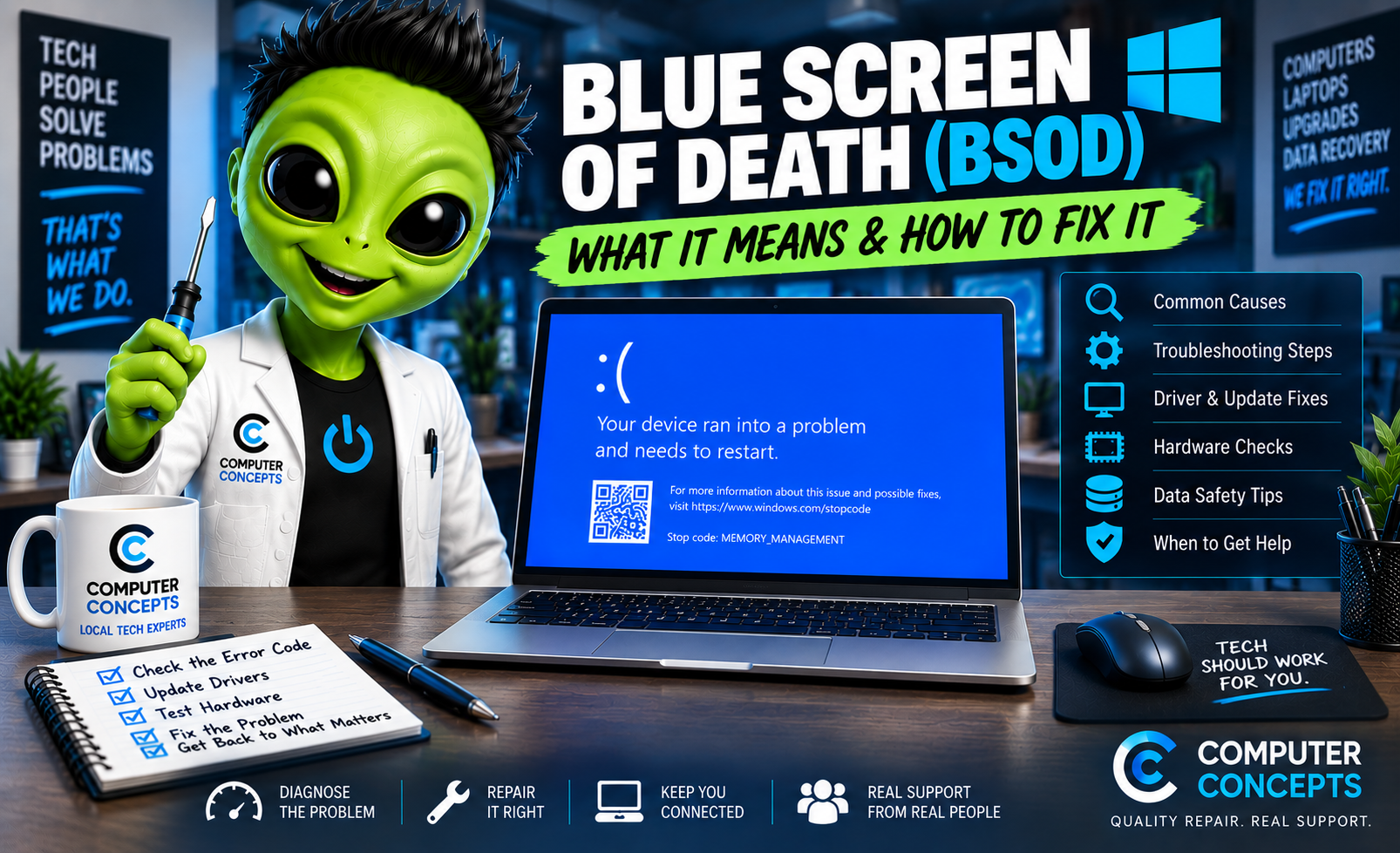
You're working on your computer when suddenly everything stops and Windows displays a blue screen saying something like: “Your device ran into a problem and needs to restart.”
That's commonly known as the Blue Screen of Death, or BSOD. It looks alarming, but one blue screen doesn't necessarily mean your computer is dying. Windows displays a BSOD when it encounters a serious error that it can't safely recover from.
Sometimes a restart is all that's needed. If the blue screens keep coming back, however, something is wrong and should be investigated. Here's what a Windows blue screen means, what commonly causes it, and what you can try before bringing your PC in for repair.
What Is the Blue Screen of Death?
A Blue Screen of Death occurs when Windows experiences a critical system error. Rather than continuing to operate and potentially corrupting data or causing additional problems, Windows stops the system and usually restarts the computer. You may see a stop code on the screen that provides a clue about what happened. Common BSOD stop codes include:
- CRITICAL_PROCESS_DIED
- MEMORY_MANAGEMENT
- SYSTEM_SERVICE_EXCEPTION
- IRQL_NOT_LESS_OR_EQUAL
- PAGE_FAULT_IN_NONPAGED_AREA
- DPC_WATCHDOG_VIOLATION
- WHEA_UNCORRECTABLE_ERROR
- VIDEO_TDR_FAILURE
- INACCESSIBLE_BOOT_DEVICE
The stop code can be extremely helpful when troubleshooting, so take a picture of the blue screen with your phone if you have time.
What Causes a Windows Blue Screen?
There's no single cause. A BSOD can be triggered by software, drivers, Windows itself, or failing hardware. Some of the most common causes include:
Bad or Failing RAM
Memory problems can cause crashes, corrupted data, freezing, and seemingly random blue screens. A failing RAM module can make a computer behave unpredictably.
SSD or Hard Drive Problems
Windows relies heavily on your storage drive. If an SSD or hard drive is failing, Windows may have trouble reading critical system files. You might notice other symptoms such as:
- Slow startup
- Freezing
- Corrupted files
- Applications crashing
- Windows failing to boot
- Automatic Repair loops
If important data is stored on the computer, drive health should be taken seriously.
Driver Problems
Drivers allow Windows to communicate with hardware such as your graphics card, Wi-Fi adapter, printer, motherboard components, and other devices. A damaged, outdated, or incompatible driver can sometimes cause Windows to crash. This is especially worth considering if the BSOD began immediately after installing or updating hardware or drivers.
Windows Update Problems
Windows updates provide important security and reliability improvements, but problems can occasionally occur during or after an update. A failed installation, software conflict, driver incompatibility, or underlying hardware problem may become apparent around the same time as an update.
Overheating
Computers generate heat, and that heat needs somewhere to go. Dust buildup, blocked airflow, failing fans, or deteriorated thermal paste can cause temperatures to rise. Possible overheating symptoms include:
- Fans constantly running at high speed
- Computer becoming unusually hot
- Performance slowing under load
- Random shutdowns
- Restarts
- System crashes
Cleaning the cooling system and addressing the underlying thermal problem may be necessary.
Graphics Card Problems
Gaming PCs and systems with dedicated graphics cards can experience blue screens because of:
- GPU drivers
- Overheating
- Power problems
- Unstable overclocking
- Failing graphics hardware
If crashes mostly happen while gaming, rendering video, or performing graphics-intensive work, the GPU deserves closer attention.
Power Supply Problems
An unstable or failing power supply can cause crashes, restarts, shutdowns, or other strange behavior. This is particularly important with desktop and gaming computers where higher-powered components can place significant demand on the power supply.
Malware or System Corruption
Malware, unwanted software, corrupted Windows files, and damaged system components can also contribute to instability. The solution depends on what actually caused the corruption.
What Should You Do When You Get a Blue Screen?
If it happens once, don't immediately panic. Let the computer restart and see whether Windows returns to normal. If it does, pay attention to whether the problem happens again. If you're able to see the BSOD long enough, take a picture of the stop code. That information can help tremendously if the problem becomes recurring.
1. Think About What Recently Changed
Ask yourself: What changed immediately before the blue screens started? Did you recently:
- Install a Windows update?
- Install new software?
- Update a driver?
- Add RAM?
- Install a graphics card?
- Upgrade the SSD?
- Connect a new device?
- Change BIOS settings?
- Overclock the computer?
If the crashes started immediately after a change, that's an important troubleshooting clue.
2. Restart the Computer
Sometimes a BSOD results from a temporary problem. A proper restart clears memory and reloads Windows, drivers, and system processes. If the blue screen doesn't return, it may have been an isolated incident. If it keeps happening, restarting isn't fixing the underlying problem.
3. Install Windows Updates
Go to: Settings → Windows Update; Check for available updates. Windows updates may contain bug fixes, security patches, and driver improvements that address system instability. Restart when required.
4. Check Your Drivers
Drivers are a common place to investigate when blue screens begin after a hardware or software change. Pay particular attention to drivers for:
- Graphics cards
- Chipsets
- Storage controllers
- Wi-Fi adapters
- Bluetooth devices
- Recently installed hardware
Don't download random "driver updater" programs from websites promising to update every driver on your PC. Whenever possible, obtain drivers through Windows Update or the hardware/computer manufacturer's official support resources.
5. Check for Overheating
If your computer crashes while gaming or performing demanding tasks, heat could be involved. Check that:
- Fans are spinning
- Air vents aren't blocked
- The computer isn't packed with dust
- The machine has adequate airflow
If the system hasn't been internally cleaned in years, it may need service. Thermal paste can also deteriorate over time and may need replacement when appropriate.
6. Test the RAM
Faulty memory can produce unpredictable BSOD errors. Windows includes Windows Memory Diagnostic, which can perform a basic memory check. Search Windows for: Windows Memory Diagnostic; Then choose the option to restart and check for problems. A basic test isn't guaranteed to catch every memory problem, so further testing may be necessary if the crashes continue.
7. Check the SSD or Hard Drive
If your PC is freezing, taking unusually long to start, corrupting files, or showing blue screens, the storage drive should be checked. This becomes especially important if you have important files that aren't backed up. A failing drive isn't something you want to repeatedly stress with repair utilities.
Protect the data first. Diagnose the drive second.
8. Scan for Malware
Run a trusted security scan if you suspect malware or unwanted software. Warning signs might include:
- Unexpected pop-ups
- Browser redirects
- Unknown applications
- Strange startup programs
- Unusually high resource usage
- Security tools being disabled
Malware isn't responsible for every blue screen, but it's worth ruling out when other suspicious behavior is occurring.
9. Remove Unstable Overclocks
If you've overclocked your CPU, GPU, or RAM, return the system to known stable settings and test again. The same applies to aggressive memory profiles or BIOS changes. A computer can appear stable during normal use but crash when a game or application pushes the hardware harder.
10. Don't Ignore Repeated Blue Screens
One random BSOD is one thing. Three blue screens this week is a pattern. Repeated crashes can lead to:
- File corruption
- Windows corruption
- Lost work
- Boot problems
- Data loss
- Additional hardware problems
If you're repeatedly searching the stop code and trying different fixes without finding the cause, it's time to properly diagnose the machine.
What Does the BSOD Stop Code Mean?
The stop code helps identify the type of failure Windows detected, but it doesn't always identify the exact component responsible. For example, a memory-related error doesn't automatically mean the RAM is bad. The real cause could potentially involve:
- RAM
- Drivers
- Storage
- Motherboard
- CPU
- Corrupted Windows files
- Software
Think of the stop code as a clue, not necessarily a final diagnosis. That's why replacing parts solely based on the wording of a BSOD can become expensive.
My PC Blue Screens While Gaming. What Does That Mean?
Gaming places significant load on the CPU, graphics card, memory, storage, cooling system, and power supply. If your computer primarily crashes during games, possible causes include:
- GPU overheating
- CPU overheating
- Graphics drivers
- Unstable RAM
- Power supply problems
- GPU failure
- Overclocking instability
- Game or software conflicts
Testing the computer under controlled conditions can help determine which component is causing the instability.
Can a Blue Screen Cause Data Loss?
Potentially. The BSOD itself is Windows responding to a serious problem, but an unexpected crash can cause you to lose unsaved work. Repeated crashes can also contribute to file or Windows corruption.
More importantly, if the BSOD is being caused by a failing storage drive, your files may already be at risk. If the computer contains important photos, documents, business records, or other irreplaceable information, make sure you have a current backup.
Computers can be replaced. Your data is unique.
Should I Reset or Reinstall Windows?
Not necessarily. Reinstalling Windows may help if the problem is software-related, but it won't repair:
- Bad RAM
- A failing SSD
- An overheating processor
- A failing graphics card
- A bad power supply
- Motherboard problems
Wiping Windows before checking the hardware can also complicate matters when important data hasn't been backed up. A better approach is: Diagnose first. Repair second.
Blue Screen Repair in Yorktown & Williamsburg, VA
If your Windows computer keeps blue screening, Computer Concepts can help determine why. We've been helping customers with computer problems since 2005, and our technicians work on everyday laptops and desktops as well as gaming computers and custom-built PCs. We can help with:
- Blue Screen of Death diagnostics
- Windows 11 crashes
- RAM testing
- SSD and hard drive diagnostics
- Overheating problems
- Driver issues
- Windows corruption
- Malware removal
- Gaming PC crashes
- Hardware diagnostics
- Data backup and recovery
- Windows installation and repair
With locations in Yorktown and Williamsburg, Virginia, Computer Concepts serves customers throughout Hampton Roads. Don't keep guessing at blue-screen errors. Find out what's actually causing them.
Quality repair. Real support.
Computer Concepts
Yorktown & Williamsburg, Virginia
mycomputerconcepts.com