
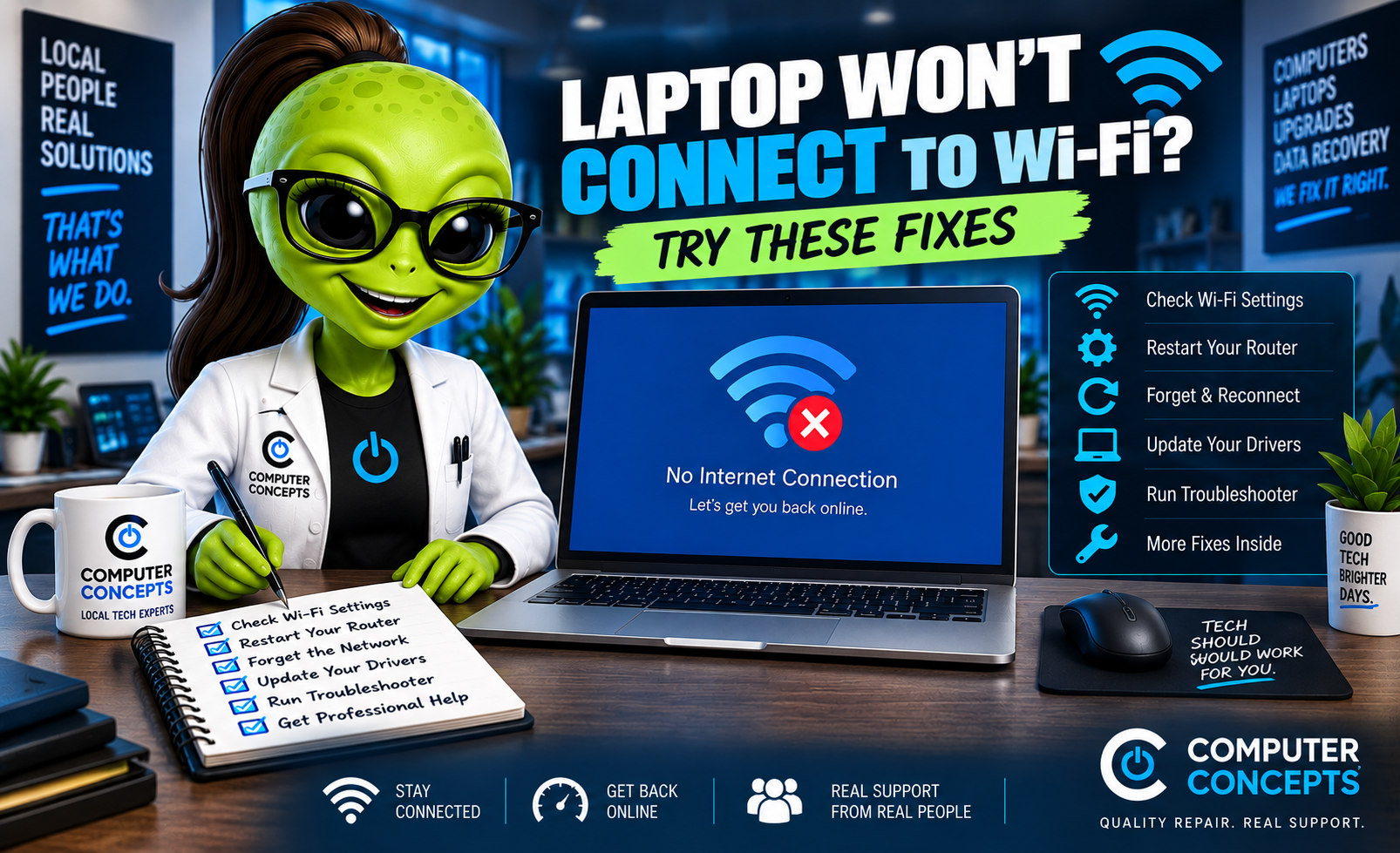
Your laptop was online yesterday, but today it refuses to connect. Maybe your Wi-Fi network has disappeared. Maybe Windows says “No Internet” even though you're connected. Or perhaps every other device in the house works perfectly while your laptop won't get online.
A laptop that won't connect to Wi-Fi doesn't necessarily mean the wireless card has failed. The problem could be your router, Windows settings, a driver issue, saved network information, malware, or the laptop's wireless hardware. Before assuming you need a repair, try these troubleshooting steps.
1. Check Whether Other Devices Can Connect
Before changing anything on your laptop, figure out whether the problem is actually your computer. Try connecting another device to the same Wi-Fi network:
- Smartphone
- Tablet
- Another laptop
- Smart TV
If nothing can connect, the problem is probably with your router, modem, or internet provider. If every other device works but your laptop doesn't, concentrate your troubleshooting on the laptop. This simple test can save a lot of time.
2. Make Sure Wi-Fi Is Turned On
It sounds obvious, but check it anyway. In Windows 11, click the network, sound, and battery area on the taskbar and make sure Wi-Fi is enabled. Also check that Airplane mode is turned off. Some laptops also have a physical wireless switch or keyboard function key that can disable Wi-Fi. It's surprisingly easy to turn wireless off accidentally.
3. Restart the Laptop
Yes, really. If you haven't restarted recently, do it before digging deeper. Choose: Start → Power → Restart
Don't just close the lid and reopen it. That normally puts the laptop to sleep rather than fully restarting Windows. A restart reloads Windows services and your wireless driver and can resolve temporary networking problems.
4. Restart Your Router and Modem
If multiple devices are having trouble, your network equipment may need to be restarted. Depending on your setup, you may have:
- A modem
- A separate router
- A combination modem/router
- A mesh Wi-Fi system
Follow your internet provider or equipment manufacturer's recommended restart procedure. After the equipment comes completely back online, try connecting the laptop again. Don't repeatedly factory-reset your router. That's very different from simply restarting it and can erase your network configuration.
5. Forget the Wi-Fi Network and Reconnect
Windows stores information about networks you've previously joined. Occasionally that saved configuration can cause connection problems. Go to: Settings → Network & internet → Wi-Fi → Manage known networks.
Find your network and choose: Forget Then reconnect to the Wi-Fi network and enter the password again.
Make Sure You Know the Password First! Once you forget the network, Windows will need the Wi-Fi password to reconnect. If you don't know it, find the password before removing the saved network.
6. Double-Check the Wi-Fi Password
If Windows says it can't connect to a network you've never used before, verify the password. Wi-Fi passwords are case-sensitive. Watch for characters that are easy to confuse, such as:
- O and 0
- I, l, and 1
- Uppercase and lowercase letters
If the router's Wi-Fi password was recently changed, your laptop may still be trying to use the old saved credentials. Forgetting the network and reconnecting can solve that.
7. Move Closer to the Router
Wi-Fi signal strength matters. If the laptop connects near the router but struggles from another room, you may be dealing with a coverage problem rather than a laptop problem. Wi-Fi signals can be affected by:
- Distance
- Walls
- Floors
- Large appliances
- Building materials
- Interference
- Router placement
If your connection regularly drops in certain areas of your home or business, your network may need better coverage. A properly configured mesh system or additional access points may be a better solution than repeatedly troubleshooting the computer.
8. Run Windows Network Troubleshooting
Windows 11 includes automated network troubleshooting through its settings and Get Help tools.
Search Windows for: Get Help and search for Wi-Fi or network troubleshooting. You can also look under: Settings → System → Troubleshoot. The exact options can change as Microsoft updates Windows 11. Automated troubleshooting may identify problems with the network adapter, configuration, or connection.
9. Check the Wi-Fi Adapter
Windows communicates with your laptop's wireless hardware through a network adapter. Open Device Manager and expand: Network adapters; Look for your wireless adapter. Warning signs can include:
- Yellow warning symbol
- Adapter missing entirely
- Adapter repeatedly disappearing
- Device showing an error
- Adapter being disabled
If Windows can't properly communicate with the Wi-Fi hardware, the laptop won't connect reliably.
10. Check the Wi-Fi Driver
A damaged or incompatible wireless driver can cause:
- Wi-Fi disappearing
- Networks not appearing
- Random disconnects
- “Can't connect to this network” errors
- Slow wireless performance
- Wi-Fi failing after a Windows update
Drivers may sometimes be updated through Windows Update or through your laptop manufacturer's official support resources. Avoid random websites and "driver updater" utilities that claim your computer has dozens of outdated drivers. Use trusted sources.
11. Check Windows Update
If your Wi-Fi problem is caused by a Windows bug or driver issue, an available update may help. Go to: Settings → Windows Update; Check for updates and restart when required.
There's another side to this, too. If your Wi-Fi stopped working immediately after an update, that timing is worth noting. A driver or software conflict may need additional troubleshooting.
12. Try Another Wi-Fi Network
This is one of the best diagnostic tests. Try connecting the laptop to another network. For example, you could temporarily test it using a trusted mobile hotspot.
If the laptop connects elsewhere: The laptop's Wi-Fi hardware is probably functioning, and the problem may involve your home or business network configuration.
If the laptop won't connect anywhere: The problem is more likely related to Windows, the wireless driver, network settings, or the Wi-Fi hardware itself. That distinction can dramatically narrow down the problem.
13. What If Wi-Fi Completely Disappeared From Windows?
Sometimes the problem isn't that the laptop won't connect. The Wi-Fi option itself is gone. You may open Windows and find that there's no Wi-Fi button at all. Possible causes include:
- Disabled network adapter
- Driver failure
- Windows problem
- Wireless hardware failure
- BIOS/UEFI configuration
- Internal connection problem
Check Device Manager to see whether Windows still detects the wireless adapter. If the adapter isn't detected at all, additional diagnosis may be necessary.
14. What Does “Connected, No Internet” Mean?
This message is confusing because your laptop technically is connected—just not necessarily to the internet. Think of Wi-Fi and internet access as two different things. Your laptop can successfully connect to the router while the router itself doesn't have a working internet connection. Possible causes include:
- Internet provider outage
- Modem problem
- Router problem
- DNS issue
- Windows networking problem
- Incorrect network configuration
Check whether other devices connected to the same Wi-Fi network can access the internet. If nothing has internet access, your laptop probably isn't the problem.
15. Consider a Network Reset
Windows includes an option to reset certain networking components. This can help with some stubborn configuration problems, but it isn't something I'd use as the first troubleshooting step. A network reset can remove and reinstall network adapters and reset networking settings.
Depending on your configuration, you may need to reconnect to networks or reconfigure certain networking software afterward. Make sure you understand what will be affected before proceeding.
Why Does My Laptop Keep Disconnecting From Wi-Fi?
Intermittent Wi-Fi can sometimes be more frustrating than having no connection at all. Common causes include:
- Weak signal
- Wi-Fi interference
- Router problems
- Wireless driver issues
- Power-management settings
- Failing wireless hardware
- Network congestion
- Windows problems
Pay attention to where and when it happens. If the laptop disconnects only in one part of the house, signal strength may be the issue. If it disconnects everywhere while every other device remains connected, the laptop deserves a closer look.
Why Is My Laptop Wi-Fi Slow but My Phone Is Fast?
Don't automatically assume your internet provider is responsible. If your phone gets excellent speeds in the same location while your laptop is extremely slow, possible causes include:
- Older Wi-Fi hardware
- Driver problems
- Weak antenna connection
- Background downloads
- Malware
- Windows Update activity
- VPN software
- Security software
- Network configuration problems
Different devices can also support different Wi-Fi standards, frequencies, and capabilities, so they won't always achieve identical speeds.
Could Malware Cause Internet Problems?
It can. Malware and unwanted software can modify browser or networking settings and consume system resources or bandwidth. Warning signs may include:
- Browser redirects
- Unexpected pop-ups
- Unknown browser extensions
- Fake security alerts
- Unusual programs
- Changed proxy settings
- Overall computer slowdown
If the Wi-Fi issue is happening alongside other suspicious behavior, a security scan is worth considering.
What If Ethernet Works but Wi-Fi Doesn't?
That's another useful clue. If the laptop works perfectly when connected by Ethernet but can't connect wirelessly, your internet connection itself is probably working. The problem is more likely related to:
- Wi-Fi adapter
- Wireless driver
- Windows wireless configuration
- Wi-Fi network compatibility
- Wireless hardware
That helps narrow down the diagnosis.
Can a Laptop Wi-Fi Card Fail?
Yes. Wireless hardware can fail just like any other computer component. Symptoms may include:
- Wi-Fi randomly disappearing
- Wireless adapter missing from Device Manager
- Constant disconnections
- Very poor range
- No networks detected
- Driver repeatedly failing
But don't automatically replace the Wi-Fi card. The driver, Windows, antennas, motherboard, or network itself can produce similar symptoms. Diagnose first. Repair second.
When Should You Get Professional Help?
If you've restarted the laptop and router, forgotten and reconnected to the network, tested another Wi-Fi network, and checked Windows and your drivers but still can't connect, it's probably time for deeper troubleshooting. Especially if:
- Wi-Fi has completely disappeared
- The wireless adapter isn't detected
- The connection constantly drops
- Windows reports hardware errors
- Other devices work normally
- The problem started after a repair or hardware change
- Windows is experiencing other problems too
There's no reason to replace an otherwise good laptop because its Wi-Fi stopped working without first finding out what's actually wrong.
Laptop Wi-Fi Help in Yorktown & Williamsburg, VA
If your laptop won't connect to Wi-Fi, keeps disconnecting, or Windows has lost the Wi-Fi option entirely, Computer Concepts can help. We've been helping Hampton Roads with computer problems since 2005, and our technicians work on Windows laptops, desktops, gaming PCs, and home and small-business networking problems. We can help with:
- Laptop Wi-Fi problems
- Windows 11 networking issues
- Wi-Fi adapter problems
- Driver troubleshooting
- Internet connection problems
- Malware removal
- Router and network setup
- Home and small-business networking
- Windows repair
- Hardware diagnostics
With locations in Yorktown and Williamsburg, Virginia, Computer Concepts serves customers throughout Hampton Roads. Whether the problem is the laptop, Windows, or the network, we'll help figure out where the connection is breaking down.
Quality repair. Real support.
Computer Concepts
Yorktown & Williamsburg, Virginia
mycomputerconcepts.com