
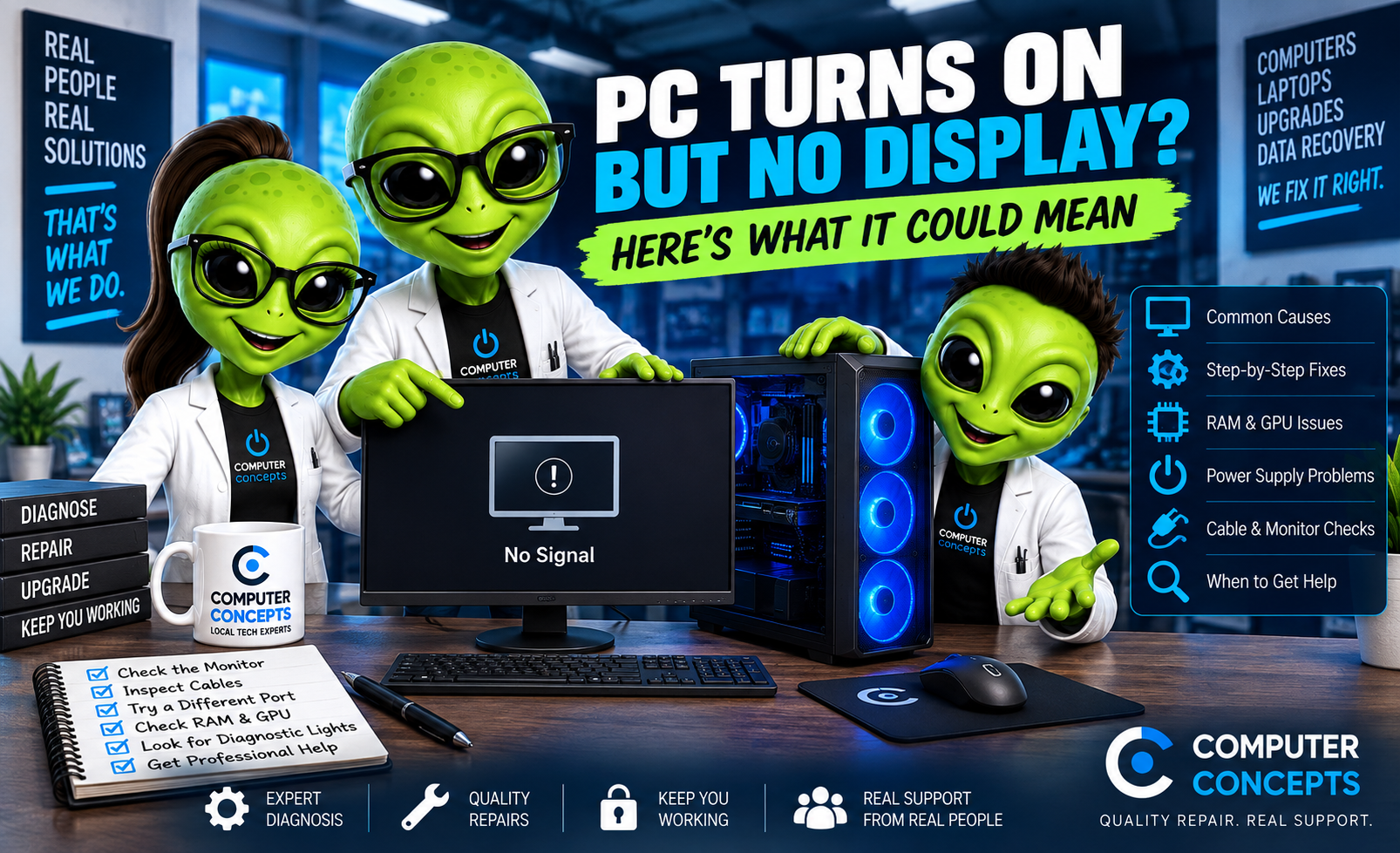
You press the power button and the computer seems to start normally. The fans spin. Lights come on. Maybe you can even hear Windows starting. But the monitor stays completely black.
A PC that turns on but has no display can be frustrating because the computer clearly has power—you just can't see what's happening.
Sometimes the solution is as simple as a loose HDMI cable or the monitor being set to the wrong input. Other times, a black screen can indicate bad RAM, a graphics card problem, a power issue, or even motherboard failure. Before assuming your computer is dead, here's what you should check.
First: Is the Computer Actually Turning On?
Pay attention to what happens when you press the power button. Look for:
- Fans spinning
- Power lights
- RGB lighting
- Keyboard or mouse lights
- Drive activity
- Startup sounds
- Manufacturer logo appearing briefly
- Windows sounds
If absolutely nothing happens, you're dealing with a computer that won't power on, which is a different problem. If the computer clearly receives power but nothing appears on the screen, continue troubleshooting.
1. Check the Monitor
Start with the simplest possibility. Make sure the monitor itself is powered on. Look for a power indicator and try opening the monitor's built-in menu. If the monitor's menu doesn't appear at all, the monitor or its power source could be the problem rather than the PC. If possible, test the computer with another monitor or television.
2. Check the HDMI or DisplayPort Cable
A loose or damaged display cable can make a perfectly functioning computer look dead. Check both ends of your:
- HDMI cable
- DisplayPort cable
- USB-C display connection
- Other video cable
Disconnect the cable and reconnect it firmly. If you have another compatible cable available, try it. Cables do fail.
3. Make Sure the Monitor Is on the Correct Input
Many monitors have multiple inputs. For example:
- HDMI 1
- HDMI 2
- DisplayPort
- USB-C
If your computer is connected through DisplayPort but the monitor is looking for HDMI, you'll see a black screen or No Signal message. Use the monitor's controls to verify that the correct input is selected.
4. Make Sure You're Plugged Into the Right Video Port
This is especially important with gaming PCs and custom-built computers. If your desktop has a dedicated graphics card, your monitor will usually need to be connected to the ports on the graphics card—not the video ports built into the motherboard. This is a very common mistake after moving a PC or disconnecting everything.
Look at the back of the computer. Motherboard video connections are typically located near the USB and network ports. Graphics card connections are normally lower on the case in the expansion-slot area. If you have a dedicated GPU, check where your monitor is connected.
Important: Motherboard Video Doesn't Always Work
Not every processor has integrated graphics. That means plugging your monitor into the motherboard's HDMI or DisplayPort connector may produce no picture at all, even though the connector physically exists.
5. Disconnect Unnecessary Accessories
Shut the computer down and disconnect unnecessary external devices. Remove things such as:
- USB drives
- External hard drives
- Printers
- Controllers
- USB hubs
- Webcams
- Card readers
- Docking stations
Leave only the essentials connected. Then try starting the computer again. A faulty peripheral or connected device can occasionally interfere with startup.
6. Try a Power Reset
A basic power reset can sometimes clear an unusual hardware state.
- Shut down the computer.
- Disconnect the power cable.
- Disconnect unnecessary accessories.
- Hold the power button for approximately 15–30 seconds.
- Reconnect power.
- Try starting the computer again.
If you're working with a laptop, procedures vary depending on the battery and model. Don't disassemble a modern laptop just to remove an internal battery unless you know what you're doing.
7. Check the RAM
RAM is one of the most common hardware components to investigate when a desktop powers on but doesn't complete startup. If memory isn't detected properly, the computer may:
- Power on with no display
- Restart repeatedly
- Show diagnostic lights
- Produce beep codes
- Fail to reach the manufacturer logo
This is particularly worth considering if the problem started after:
- Installing new RAM
- Moving the computer
- Cleaning the computer
- Building the PC
- Performing an upgrade
If you're comfortable working inside a desktop, RAM can be checked and reseated. Always disconnect power before working inside the computer. If you aren't comfortable handling internal components, leave this step to a technician.
8. Check the Graphics Card
If your PC uses a dedicated graphics card, the GPU becomes another major suspect. Possible graphics-card-related causes include:
- Loose graphics card
- Loose GPU power cable
- Failed graphics card
- Power supply problems
- Damaged video port
- GPU overheating
- Hardware failure
A graphics card can fail while the rest of the computer still powers on normally. You may see fans and lights even though the PC can't produce an image.
Did You Recently Install a New Graphics Card?
If the no-display problem began immediately after a GPU upgrade, check:
- Whether the card is fully seated
- GPU power connections
- Power supply capacity
- Display cable location
- Compatibility
- Any hardware changed during installation
Don't assume a brand-new component can't be involved in the problem.
9. Look for Diagnostic Lights or Beep Codes
Many modern motherboards provide diagnostic information when the computer can't complete its startup checks. You might see LEDs labeled: CPU | DRAM | VGA | BOOT
Some computers use beep codes instead. If one diagnostic light stays illuminated, it can help narrow down where startup is failing. For example, a DRAM light may point toward memory initialization, while VGA relates to graphics initialization.
These indicators are clues—not always a final diagnosis. Check the motherboard or computer manufacturer's documentation for what the specific light or beep sequence means.
10. Think About What Happened Before the Screen Went Black
This can be one of the most valuable diagnostic clues. Ask yourself: What happened immediately before the computer stopped displaying an image? Did you:
- Move the computer?
- Install new RAM?
- Install a graphics card?
- Clean the computer?
- Update the BIOS?
- Experience a power outage?
- Have a lightning storm?
- Notice overheating?
- Hear a pop?
- Smell something burning?
- Have the computer crash while gaming?
If the problem began immediately after something changed, start there.
Why Does My PC Say “No Signal”?
A monitor displaying No Signal usually means the monitor is powered on but isn't receiving a usable video signal from the computer. Possible causes include:
- Wrong monitor input
- Loose HDMI or DisplayPort cable
- Bad display cable
- Wrong video output
- Graphics card problem
- RAM problem
- Computer failing POST
- Motherboard problem
- Power supply problem
The message doesn't automatically mean your monitor is bad. It simply means the monitor isn't receiving the video signal it expects.
What If the PC Turns On but Doesn't Reach the BIOS?
Before Windows starts, the computer performs hardware initialization commonly associated with POST—the Power-On Self-Test. If you never see the manufacturer's logo or BIOS/UEFI screen, the problem may be occurring before Windows even becomes involved. Possible causes include:
- RAM failure
- Graphics card problems
- CPU problems
- Motherboard failure
- Power supply issues
- BIOS/UEFI problems
In that situation, reinstalling Windows isn't going to solve the problem. Windows hasn't even started yet.
What If I See the Logo and Then the Screen Goes Black?
That's different. If you can see the manufacturer's logo or BIOS screen but lose the picture when Windows begins loading, the hardware has at least produced a video signal during startup. Possible causes may include:
- Graphics drivers
- Windows corruption
- Display configuration
- Windows Update problems
- Software conflicts
- GPU problems
That distinction can help narrow down the diagnosis.
Could the Power Supply Cause No Display?
Yes. A failing power supply doesn't always result in a completely dead computer. A PSU may provide enough power to spin fans and illuminate LEDs while failing to provide stable power to the graphics card, processor, or other components. Symptoms can include:
- No display
- Random shutdowns
- Restarts
- Crashes while gaming
- Failure under heavy load
- Intermittent startup
This is why seeing lights and spinning fans doesn't automatically prove the power supply is good.
Could It Be the Motherboard?
Unfortunately, yes. Motherboard problems can prevent the system from properly initializing the processor, memory, graphics card, or other components. But a motherboard shouldn't automatically be replaced just because the PC has no display. RAM, GPU, power supply, cabling, BIOS settings, and other components should be considered during diagnosis.
Replacing expensive parts based on a guess can get costly very quickly.
Are My Files Gone If the Computer Has No Display?
Usually, no. Your files are stored on your SSD or hard drive. A computer can have a failed:
- Graphics card
- Motherboard
- Monitor
- Power supply
- RAM module
- Display connection
while the storage device and your data remain intact. If the SSD or hard drive itself is healthy, your files may still be recoverable even if the computer won't display anything. That's why a black screen doesn't automatically mean your photos, documents, business files, or other data are gone. Computers can be replaced. Your data is unique.
Should I Start Replacing Parts?
Not unless you've identified the problem. It's tempting to buy RAM, then a power supply, then a graphics card and hope one of them fixes it. That's not diagnosis. A technician can test components individually and determine where startup is failing. That can save you from replacing perfectly good hardware.
Diagnose first. Repair second.
PC No Display Repair in Yorktown & Williamsburg, VA
If your computer turns on but nothing appears on the screen, Computer Concepts can help figure out why. We've been helping Hampton Roads with computer problems since 2005, and our technicians work on everyday desktops and laptops as well as gaming PCs and custom-built computers. We can help diagnose:
- PC powers on but no display
- Monitor showing No Signal
- Black screen problems
- RAM problems
- Graphics card failures
- Power supply problems
- Motherboard issues
- Gaming PC startup problems
- Windows black screens
- Overheating
- SSD and hard drive problems
- Data backup and recovery
- Custom PC troubleshooting
With locations in Yorktown and Williamsburg, Virginia, Computer Concepts serves customers throughout Hampton Roads. Fans and lights don't always mean everything inside the computer is working. Let’s find the actual problem before replacing parts.
Quality repair. Real support.
Computer Concepts
Yorktown & Williamsburg, Virginia
mycomputerconcepts.com