
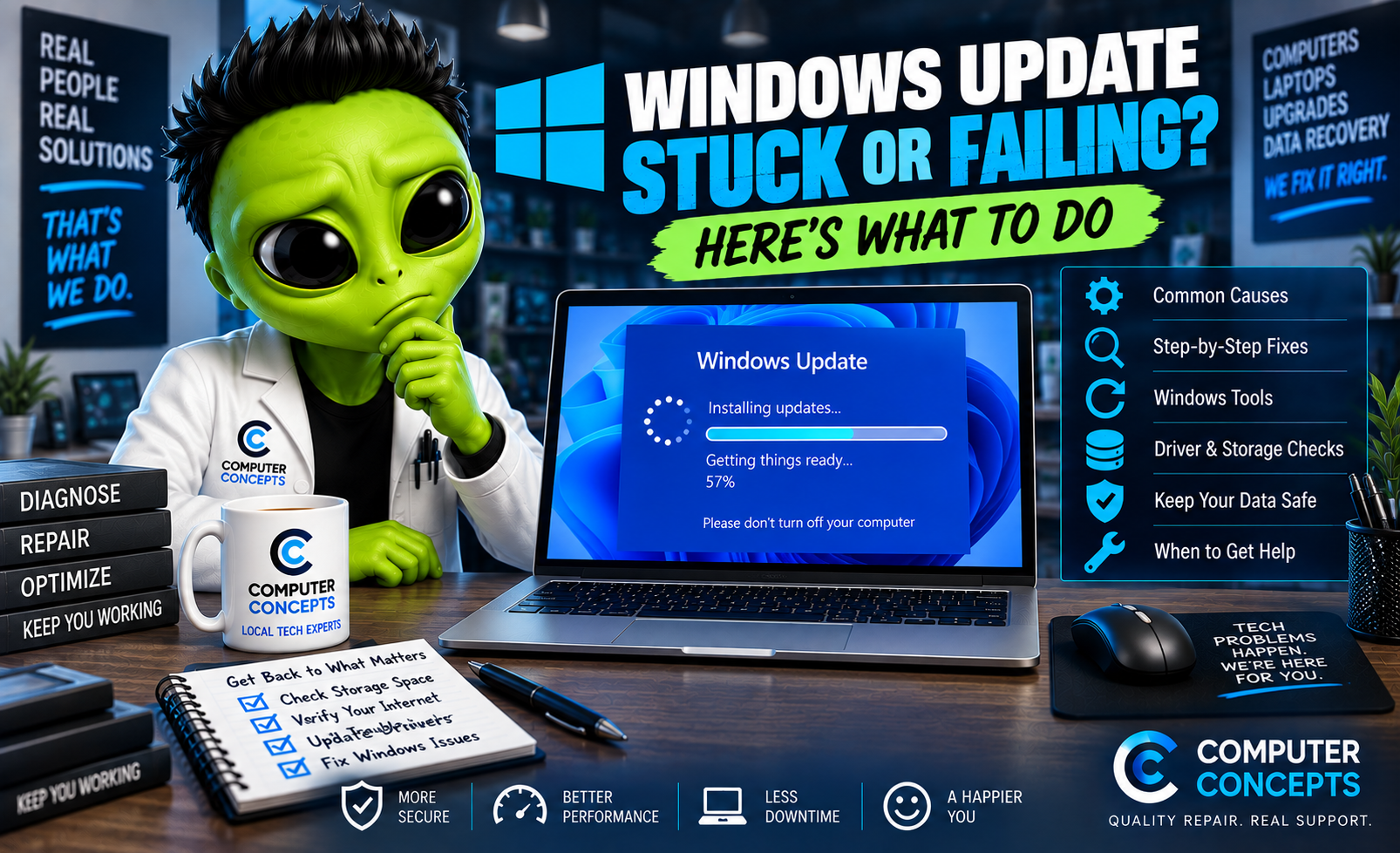
Windows Update is supposed to keep your computer secure, stable, and up to date. But sometimes an update seems to sit at 0%, 99%, or “Installing” forever. Other times, Windows downloads the update only to fail, roll it back, or display an error message.
If your Windows 11 update is stuck or keeps failing, don't immediately shut the computer off or start deleting system files.
The problem could be something simple like low storage space or a temporary download issue—or it could point to Windows corruption, driver conflicts, or even a failing SSD. Here’s what to check.
Why Do Windows Updates Get Stuck or Fail?
Windows updates involve more than downloading a file. Windows has to download the update, verify it, prepare system files, install components, restart the computer, and complete configuration. A problem anywhere in that process can cause an update to fail. Common causes include:
- Not enough free storage space
- Internet connection problems
- Corrupted update files
- Damaged Windows system files
- Driver conflicts
- Security software conflicts
- A previous update that didn't install correctly
- SSD or hard drive problems
- Unexpected shutdown during an update
- Windows Update service problems
The first step is figuring out whether Windows is actually stuck.
1. Give the Update Some Time
Some Windows updates take longer than others. You may see messages such as: Working on updates | Installing updates | Updates are underway | Please keep your computer on
The percentage may appear to stop moving for quite a while. That doesn't necessarily mean the computer has frozen. Large updates can take considerably longer on older computers or systems with slower storage. If you still see signs of activity, give Windows time to finish.
Don't Immediately Force the Computer Off
Holding down the power button during an update should generally be a last resort. Interrupting Windows while it's modifying system files can potentially cause:
- Windows corruption
- Failed startup
- Automatic Repair loops
- Boot problems
If the computer is clearly frozen for an unusually long period and there is no other option, a forced shutdown may eventually be necessary—but don't make it your first troubleshooting step.
2. Restart the Computer
If Windows is still usable but an update keeps failing, perform a normal restart. Go to: Start → Power → Restart; Then return to: Settings → Windows Update and check again. A restart can clear temporary processes and complete pending changes that may have been preventing another update from installing.
3. Check Your Internet Connection
Windows needs a reliable connection to download updates. If an update won't download or repeatedly stops, make sure your internet connection is stable. Try:
- Opening several websites
- Restarting your router if necessary
- Disconnecting and reconnecting Wi-Fi
- Using Ethernet when available
If everything else online works normally, the problem may be somewhere else.
4. Check Your Free Storage Space
Windows needs free drive space to download, unpack, and install updates. Go to: Settings → System → Storage; If your Windows drive is nearly full, free up some space. You may be able to remove:
- Temporary files
- Old downloads you no longer need
- Unused applications
- Large files that can be moved elsewhere
Windows also includes Storage Sense to help manage temporary files. Be Careful What You Delete! Don't randomly remove Windows folders or system files because an online guide says they're "taking up space." And before deleting important personal files, make sure they're backed up.
5. Check Windows Update Again
Go to: Settings → Windows Update; Look for an error message or error code. If Windows gives you a specific error code, write it down or take a picture. That code can help narrow down what's preventing the update from installing. Also look for options such as: Retry or Check for updates - Sometimes Windows successfully installs the update on the next attempt.
6. Run the Windows Update Troubleshooter
Depending on your current Windows 11 version, Microsoft provides automated troubleshooting through the Get Help experience and Windows troubleshooting settings. Search Windows for: Get Help and look for Windows Update troubleshooting. You can also check: Settings → System → Troubleshoot; The available options can vary as Microsoft updates Windows. Automated troubleshooting won't solve every update problem, but it can identify and correct some common configuration issues.
7. Disconnect Unnecessary Accessories
Occasionally, connected hardware or its drivers can interfere with an update. Disconnect unnecessary devices such as:
- External hard drives
- USB flash drives
- Printers
- USB hubs
- Controllers
- Docking stations
Keep your keyboard, mouse, monitor, and necessary network connection attached. Then restart and try Windows Update again.
8. Check for Driver Problems
Drivers allow Windows to communicate with your computer's hardware. An incompatible or damaged driver can sometimes prevent an update from installing properly. This may be especially relevant if update problems started after installing:
- A new graphics card
- New RAM or storage
- A printer
- A Wi-Fi adapter
- Other new hardware
Use drivers from Windows Update or the computer/component manufacturer's official support resources whenever possible. Avoid third-party programs claiming they can magically update every driver on your computer.
9. Check Windows System Files
Corrupted Windows system files can interfere with Windows Update. Windows includes tools such as DISM and System File Checker (SFC) that can help diagnose and repair certain Windows component and system-file problems. These are more advanced troubleshooting tools. If you're comfortable using an elevated Terminal or Command Prompt, Microsoft commonly uses tools such as: DISM.exe /Online /Cleanup-Image /RestoreHealth; followed by: sfc /scannow
Let each process complete before closing the window. These tools can help with certain forms of Windows corruption, but they won't repair failing hardware.
10. Consider the Health of Your SSD or Hard Drive
This one is easy to overlook. If Windows Update repeatedly fails along with other problems, the update itself might not be the real issue. Watch for symptoms such as:
- Computer running unusually slow
- Frequent freezing
- Blue screens
- Files becoming corrupted
- Programs crashing
- Windows struggling to start
- Updates repeatedly failing
- Automatic Repair appearing
Those symptoms could point toward a storage problem. Windows Update performs a significant amount of reading and writing. A weak or failing storage device may reveal itself during an update.
Protect Your Data
If you suspect your SSD or hard drive is failing, your files become more important than getting the update installed. Don't keep hammering a failing drive with repair attempts. Back up important data if possible or have the drive evaluated. Computers can be replaced. Your data is unique.
What If Windows Update Is Stuck at 100%?
Seeing 100% doesn't necessarily mean Windows has finished. Windows may still be configuring files and completing background tasks. If the computer is showing signs of activity, give it additional time. Repeatedly shutting the computer down because the percentage hasn't changed can create a bigger problem than the original update.
What If Windows Says “Undoing Changes Made to Your Computer”?
This usually means Windows attempted to install an update but couldn't complete it successfully. Windows is trying to return the system to its previous working state. Let that process finish. If Windows repeatedly attempts the same update and then displays Undoing changes, there is likely an underlying problem preventing installation. Possible causes include:
- Windows corruption
- Driver conflicts
- Insufficient storage
- Failed update components
- Storage problems
At that point, continuing to retry the same update may not solve anything.
What If Windows Won't Boot After an Update?
That's a different level of problem. If Windows fails to start after an update, you may need to use the Windows Recovery Environment (WinRE). Depending on the situation, recovery options can include:
- Startup Repair
- Safe Mode
- System Restore
- Uninstall Updates
- Other advanced troubleshooting tools
Be particularly careful before choosing options that reset or reinstall Windows if important data isn't backed up.
Should I Reset Windows Because Updates Keep Failing?
Not immediately. Resetting or reinstalling Windows may solve serious software corruption, but it shouldn't automatically be the first solution. A Windows reset won't repair:
- A failing SSD
- Bad RAM
- Motherboard problems
- Other failing hardware
You could reinstall Windows only to have the exact same problem return. And depending on the options selected, resetting Windows can affect applications, settings, and data.
Diagnose first. Repair second.
Is It Safe to Ignore Windows Updates?
Generally, no. Windows updates aren't just about adding features. They frequently contain important:
- Security fixes
- Reliability improvements
- Bug fixes
- Compatibility changes
If Windows Update has been failing repeatedly, it's better to determine why than simply stop updating the computer. A properly functioning Windows 11 computer should normally be able to receive supported updates.
Windows Update Repair in Yorktown & Williamsburg, VA
If Windows Update keeps failing, gets stuck, or your computer won't boot after an update, Computer Concepts can help determine what's actually causing the problem. We've been helping Hampton Roads with computer problems since 2005, and our technicians work on Windows laptops, desktops, gaming PCs, and custom-built computers. We can help with:
- Windows 11 update failures
- Windows updates stuck installing
- Windows Update error messages
- Windows corruption
- Windows startup problems
- Automatic Repair loops
- SSD and hard drive diagnostics
- RAM and hardware testing
- Driver problems
- Malware removal
- Data backup and transfer
- Windows installation and repair
With locations in Yorktown and Williamsburg, Virginia, Computer Concepts serves customers throughout Hampton Roads. If Windows keeps trying the same update over and over, don't keep fighting it—find out what's stopping it.
Quality repair. Real support.
Computer Concepts
Yorktown & Williamsburg, Virginia
mycomputerconcepts.com