
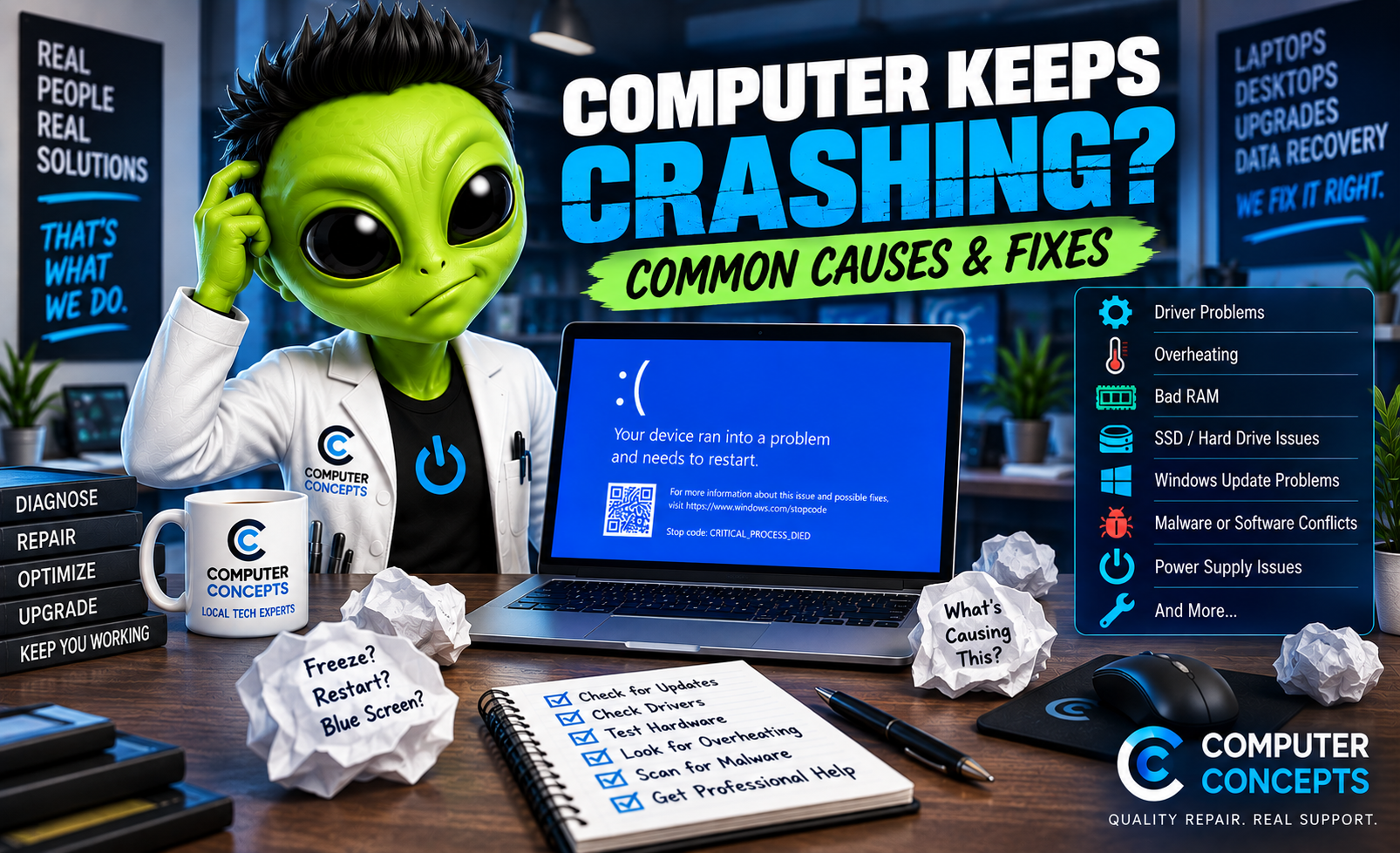
One minute you're working normally. The next, your computer freezes, restarts, shows a blue screen, or shuts down completely. If this happens once, it could be a temporary glitch. But if your computer keeps crashing, don't ignore it.
Repeated crashes are usually a sign that something isn't working correctly. The cause could be Windows, a bad driver, overheating, failing RAM, a bad SSD, malware, or another hardware problem. The key is figuring out why the computer is crashing instead of randomly replacing parts or reinstalling software. Here are some of the most common causes and what you can try.
What Does “Computer Crashing” Actually Mean?
People use the word "crash" to describe several different problems. Your computer might:
- Completely freeze
- Restart without warning
- Shut itself off
- Display a Blue Screen of Death (BSOD)
- Crash only while gaming
- Lock up when opening certain programs
- Show a black screen
- Become extremely slow before freezing
- Fail to boot after crashing
Pay attention to exactly what happens. Those symptoms can provide valuable clues about the cause.
1. Restart Your Computer
Start with the simplest fix. If your computer has been running for days or weeks, restart it. A restart clears memory, closes background processes, reloads drivers, and gives Windows a fresh start. If the crash was a one-time event and doesn't happen again, you may not have anything to worry about.
But if the computer continues crashing, something else is going on.
2. Check for Windows Updates
Windows updates contain security fixes, bug fixes, and other improvements. Go to: Settings → Windows Update' Install available updates and restart the computer when required.
If the crashes started immediately after a recent update, make note of that too. The timing can be an important troubleshooting clue. Remember that an update occurring around the same time as a crash doesn't necessarily mean the update caused it. A failing drive, corrupted Windows installation, or other existing problem may become noticeable during an update.
3. Check Your Drivers
Windows uses drivers to communicate with your hardware. A corrupted, outdated, or incompatible driver can cause freezing, crashes, and blue screens. Pay particular attention to drivers for:
- Graphics cards
- Motherboard chipsets
- Storage controllers
- Wi-Fi adapters
- Bluetooth
- Audio hardware
- Recently installed devices
If the crashes started immediately after installing a new device or updating a driver, that's worth investigating. Avoid random "driver updater" utilities that claim your computer has dozens of outdated drivers. Whenever possible, use Windows Update or the manufacturer's official drivers.
4. Check for Overheating
Heat is a major cause of unstable computers. Your CPU and graphics card generate significant heat, particularly during demanding tasks such as gaming, video editing, rendering, or running multiple applications. If cooling isn't working properly, the system may slow itself down, crash, restart, or shut off to protect the hardware.
Signs your computer may be overheating include:
- Fans constantly running at high speed
- Computer becoming unusually hot
- Performance dropping after using it for a while
- Crashes during gaming
- Random shutdowns
- Computer restarting under heavy workloads
- Fans making unusual noises
Dust buildup can restrict airflow through fans and heatsinks. Older systems may also have dried or deteriorated thermal paste between the processor and heatsink. A proper internal cleaning and thermal service can make a significant difference when overheating is the problem.
5. Test the RAM
Bad RAM can cause some of the strangest computer problems. Symptoms can include:
- Random freezing
- Blue screens
- Programs unexpectedly closing
- Corrupted files
- Failed installations
- Random restarts
- Windows refusing to boot
Windows includes a basic memory-testing utility called Windows Memory Diagnostic. Search Windows for: Windows Memory Diagnostic; Then choose the option to restart and check for memory problems.
Keep in mind that basic memory testing doesn't always detect intermittent failures. Additional testing may be necessary when RAM is strongly suspected.
6. Check Your SSD or Hard Drive
A failing storage drive can cause far more than lost files. Because Windows and your applications are constantly reading and writing information, storage problems can result in:
- Freezing
- Extremely slow performance
- Crashes
- Blue screens
- Corrupted files
- Failed Windows updates
- Startup problems
- Automatic Repair loops
If your computer was becoming progressively slower before it started crashing, the drive should definitely be investigated.
Important: Think About Your Data! If you suspect the SSD or hard drive is failing and you have important files on the computer, don't repeatedly run repair tools without considering your data first. A failing drive can get worse.
Computers can be replaced. Your data is unique.
7. Scan for Malware
Malware and unwanted software can sometimes cause Windows to become unstable. Watch for other warning signs such as:
- Unexpected pop-ups
- Browser redirects
- Unknown applications
- Fake security warnings
- Unusual startup programs
- High CPU or disk usage
- Security software being disabled
- Significant unexplained slowdown
Run a trusted security scan if you suspect something isn't right. And don't call phone numbers displayed in random pop-ups claiming to be Microsoft support. Those warnings are commonly scams.
8. Check Your Storage Space
A nearly full Windows drive can create performance and reliability problems. Go to: Settings → System → Storage; See how much free space remains. If you're running extremely low, remove unnecessary files and applications or move large files to appropriate storage. Before deleting anything important, make sure you have a backup.
9. Think About What Changed
This is one of the most valuable troubleshooting steps. Ask yourself: What changed immediately before the crashes started? Did you recently:
- Install new software?
- Install a Windows update?
- Add RAM?
- Upgrade the SSD?
- Install a new graphics card?
- Update your graphics driver?
- Change BIOS settings?
- Overclock the computer?
- Install a new game?
- Connect a new peripheral?
If the computer was perfectly stable until something changed, start your investigation there.
10. Remove Overclocks and Unstable Settings
This is particularly important for gaming PCs. CPU, GPU, and memory overclocking can improve performance, but unstable settings can also cause crashes. A computer might appear perfectly stable while browsing the internet but crash as soon as a game places the system under heavy load. If you've changed:
- CPU clock speeds
- GPU clock speeds
- GPU memory settings
- Voltage settings
- RAM timings
- Memory profiles
- BIOS performance settings
Return the computer to known stable settings and test again.
Why Does My Computer Keep Crashing While Gaming?
If your PC primarily crashes during games, that's an important clue. Gaming places heavy demand on several components simultaneously:
Graphics card – Games can push the GPU close to maximum load. | Processor – Modern games can heavily utilize the CPU. | RAM – Games can consume significant system memory. | Power supply – The GPU and CPU may draw considerably more power while gaming. | Cooling system – More power consumption means more heat. | Storage – Games continuously load large amounts of data. Common gaming-crash causes include:
- GPU overheating
- CPU overheating
- Graphics driver problems
- Insufficient or failing power supply
- Bad RAM
- GPU failure
- Unstable overclocking
- Game-specific software problems
This is why replacing the graphics card isn't automatically the answer. The system needs to be diagnosed.
Why Does My Computer Freeze but Not Shut Down?
A complete freeze can have many of the same causes as a crash. Possible causes include:
- RAM problems
- Storage failure
- Windows corruption
- Driver problems
- Overheating
- Software conflicts
- Malware
- Graphics problems
- Motherboard issues
If the mouse and keyboard stop responding and you have to hold the power button to shut the computer down, keep track of how frequently it happens and what you were doing at the time. Patterns are useful.
Why Does My Computer Randomly Restart?
Unexpected restarts may point toward a different set of problems. Possible causes include:
- Windows crashes
- Overheating
- Power supply problems
- RAM instability
- Motherboard problems
- Driver failures
- Windows Update
- Hardware instability
If the computer simply loses power and immediately restarts without displaying an error, the power supply and hardware should be considered as part of the diagnosis.
When Should You Worry About Computer Crashes?
One unexplained crash doesn't necessarily mean you have a serious problem. Repeated crashes are different. You should consider having the computer checked if:
- It crashes several times per week
- Crashes are becoming more frequent
- You regularly see blue screens
- The computer randomly shuts off
- It crashes whenever you play games
- Windows frequently becomes corrupted
- The computer has trouble starting afterward
- Important files are stored on the computer
A computer shouldn't require constant restarting just to remain usable.
Should I Reinstall Windows?
Maybe—but don't jump there immediately. Reinstalling Windows can help when the cause is software corruption, but it won't fix:
- Bad RAM
- A failing SSD
- An overheating CPU
- A failing GPU
- A bad power supply
- Motherboard problems
You could spend hours reinstalling Windows only to have the computer crash again because the underlying hardware problem was never addressed. And if your data isn't backed up, wiping the computer can create an entirely new problem.
Diagnose first. Repair second.
Computer Crash Repair in Yorktown & Williamsburg, VA
If your computer keeps crashing and you're tired of guessing why, Computer Concepts can help diagnose the problem. We've been helping Hampton Roads with computer problems since 2005, and our technicians work on everyday laptops and desktops as well as gaming PCs and custom-built computers. We can help with:
- Random computer crashes
- Windows 11 crashes
- Blue Screen of Death errors
- Computer freezing
- Random restarts and shutdowns
- RAM testing
- SSD and hard drive diagnostics
- Overheating and cooling problems
- Malware removal
- Windows repair
- Gaming PC diagnostics
- Power supply problems
- Data backup and recovery
- Hardware upgrades
With locations in Yorktown and Williamsburg, Virginia, Computer Concepts serves customers throughout Hampton Roads. Don't keep restarting your computer and hoping the problem disappears. Let's figure out what's actually causing it.
Quality repair. Real support.
Computer Concepts
Yorktown & Williamsburg, Virginia
mycomputerconcepts.com