
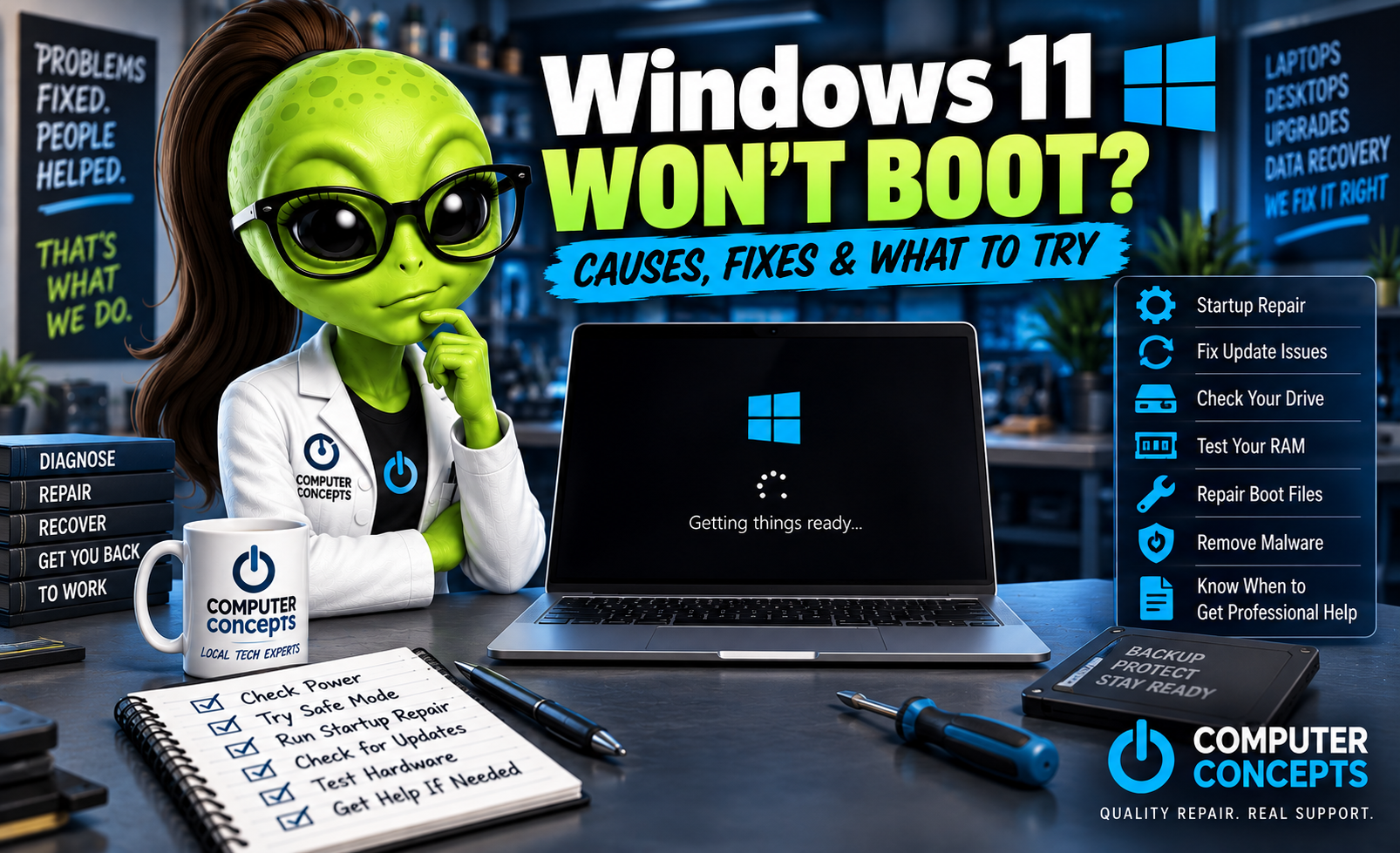
You press the power button, your computer comes to life—but Windows 11 never loads. Maybe you're stuck on the Windows logo. Maybe you see a spinning circle forever. Perhaps the computer keeps restarting, shows a black screen, or sends you straight into Automatic Repair.
The good news is that a Windows 11 PC that won't boot isn't necessarily a dead computer. The problem could be a failed update, corrupted Windows files, a storage issue, a driver problem, or another hardware or software failure. Before assuming the worst, here's what you can try.
First: Does the Computer Have Power?
There's an important difference between a computer that won't turn on and one that won't boot. If you press the power button and get absolutely nothing—no lights, fans, sounds, or screen activity—you're probably dealing with a power or hardware problem rather than a Windows boot problem. If the computer powers on but Windows 11 doesn't load, continue with the steps below.
1. Disconnect Unnecessary USB Devices
Start simple. Shut down the computer and disconnect unnecessary external devices, including:
- USB flash drives
- External hard drives
- Printers
- Memory card readers
- USB hubs
- Controllers
- Docking stations
Leave only the essentials connected and try starting the computer again. Occasionally, a PC can attempt to boot from the wrong device or have trouble during startup because of a connected peripheral.
2. Restart the Computer
If Windows is stuck on a loading screen, a restart may be enough to clear a temporary problem. If the computer is completely frozen, you may need to hold the power button until it shuts down, wait several seconds, and then turn it back on. Don't make a habit of forcing the computer off repeatedly. If Windows consistently freezes during startup, there's probably an underlying problem that needs attention.
3. Pay Attention to What Happens During Startup
The point where the computer stops can tell you a lot.
Stuck on the manufacturer's logo - The computer may be having trouble completing its initial hardware checks or locating the boot drive.
Windows logo appears but never finishes loading - This could indicate:
- Corrupted Windows files
- Failed updates
- Driver problems
- Storage problems
- Software conflicts
Black screen after the Windows logo - Possible causes include display drivers, Windows corruption, updates, hardware problems, or the system loading without properly displaying the desktop.
Automatic Repair keeps appearing - Windows has detected that startup isn't completing normally. If you see: Preparing Automatic Repair or Diagnosing your PC, Windows is attempting to repair the startup problem. If it repeatedly returns to the same screen, you're likely dealing with an Automatic Repair loop.
4. Try Windows Recovery Options
Windows 11 includes a recovery environment called Windows Recovery Environment, or WinRE. Depending on the problem, Windows may enter recovery automatically after repeated failed startups. From the recovery menu, choose: Troubleshoot → Advanced options; You'll find several troubleshooting tools.
5. Try Startup Repair
One of the first recovery tools worth trying is Startup Repair. Go to: Troubleshoot → Advanced options → Startup Repair; Windows will attempt to identify and repair certain problems preventing the operating system from starting. Startup Repair can't fix every boot problem, but it's a reasonable first step because it doesn't require manually changing system files.
6. Try Safe Mode
Safe Mode starts Windows with a limited set of drivers and services. If Windows works in Safe Mode but won't boot normally, that gives you an important clue. The problem may involve:
- A recently installed driver
- Startup software
- Security software
- A Windows update
- Another third-party application
From Windows Recovery, look under: Troubleshoot → Advanced options → Startup Settings; Restart and select the appropriate Safe Mode option. If the computer successfully starts in Safe Mode, think about what changed immediately before the problem began.
7. Did the Problem Start After a Windows Update?
Windows updates are important for security and reliability, but occasionally an update can contribute to startup problems. If the PC stopped booting immediately after an update, Windows Recovery may provide an option to uninstall a recent update. Go to: Troubleshoot → Advanced options → Uninstall Updates
Depending on the available options, Windows may allow you to remove the latest quality update or feature update. Don't automatically blame an update just because one was recently installed. A failing storage drive or other existing problem can sometimes become noticeable during a large update because the system is reading and writing significant amounts of data.
8. Try System Restore If Available
If System Restore was enabled and a restore point exists, you may be able to return Windows system files and settings to an earlier state. From Windows Recovery: Troubleshoot → Advanced options → System Restore
This can be useful when the problem started after installing software, drivers, or certain system changes. System Restore isn't the same as restoring a personal backup, and availability depends on how the PC was configured before the problem occurred.
9. Check Whether the SSD or Hard Drive Is Detected
Windows can't boot if the computer can't find the drive containing Windows. A missing boot drive can be caused by:
- Failed SSD
- Failed hard drive
- Loose connection
- Motherboard issue
- Storage controller problem
- Incorrect BIOS/UEFI configuration
If you're comfortable navigating your computer's BIOS or UEFI, you may be able to check whether the storage drive is detected.
Be careful changing BIOS settings! If you don't know what a setting does, don't change it just to see what happens.
10. Watch for Signs of a Failing SSD or Hard Drive
Storage failure is one of the more serious reasons a Windows computer may stop booting. Warning signs can include:
- Extremely slow startup before the failure
- Frequent freezing
- Files becoming corrupted
- Blue screens
- Windows repair loops
- Drive disappearing intermittently
- Clicking or unusual sounds from a mechanical hard drive
SSDs don't normally make mechanical failure noises, so an SSD can fail without providing the same warning signs as a traditional hard drive. If your data is important and you suspect the drive is failing, avoid repeatedly attempting repairs or reinstalling Windows until you've considered the data.
11. Don't Reinstall Windows Until You Think About Your Data
This is important. When Windows won't boot, it's tempting to immediately reset the PC or reinstall Windows. But before doing that, ask yourself: Is there anything on this computer I can't afford to lose?
Photos, documents, business files, schoolwork, videos, financial records, and other important information may still be on the drive even though Windows isn't working. Certain reset, formatting, partitioning, or installation procedures can make data recovery more difficult. If the data matters, deal with the data first and the Windows installation second.
Computers can be replaced. Your data is unique.
12. Windows 11 Still Won't Boot? It May Be Hardware
Not every Windows boot problem is actually caused by Windows. Possible hardware issues include:
- Failing SSD or hard drive
- Bad RAM
- Motherboard problems
- Overheating
- Graphics card failure
- Power supply problems
- Damaged storage connections
This is why good diagnostics matter. You don't want to reinstall Windows only to discover that the SSD was failing the entire time.
What Causes Windows 11 to Stop Booting?
Some of the most common causes include:
Corrupted Windows files – Important operating system files may have become damaged.
Failed or interrupted Windows update – An update that doesn't complete properly can sometimes cause startup problems.
Driver problems – A damaged or incompatible driver may prevent Windows from loading normally.
SSD or hard drive failure – Windows can't load reliably if the storage device is failing.
Boot configuration problems – Windows may not be able to locate or correctly start the operating system.
Malware or unwanted software – Certain infections can damage Windows or interfere with startup.
Hardware failure – RAM, motherboard, power, storage, and other hardware problems can sometimes look like Windows failures.
Can My Files Be Recovered If Windows Won't Boot?
Often, yes. Windows not starting doesn't automatically mean your files are gone. If the storage drive is healthy, your data may still be accessible even when the Windows installation itself is damaged.
If the drive is failing, recovery becomes more complicated. That's why repeatedly trying random repair utilities isn't always the best idea when important data is involved. The condition of the storage device should be evaluated before taking actions that could put the data at additional risk.
Should I Reset Windows 11?
A Windows reset can solve certain software problems, but it shouldn't automatically be the first solution. Before resetting, consider:
- Is your data backed up?
- Is the SSD or hard drive healthy?
- Could the problem be hardware-related?
- Do you have software that will need to be reinstalled?
- Do you have the necessary account information and passwords?
- Have less destructive repair options been attempted?
Sometimes repairing Windows makes sense. Sometimes a clean installation makes sense. And sometimes Windows isn't the problem at all.
Diagnose first. Repair second.
Windows 11 Boot Repair in Yorktown & Williamsburg, VA
If your computer powers on but Windows 11 won't boot, Computer Concepts can help determine what's actually causing the problem. We've been helping Hampton Roads with computer problems since 2005, and our technicians work on laptops, desktops, gaming PCs, and custom-built computers. We can help with:
- Windows 11 startup problems
- Automatic Repair loops
- Black screens
- Blue screens
- Windows Update problems
- SSD and hard drive diagnostics
- Windows corruption
- Malware removal
- Hardware diagnostics
- Data backup and transfer
- Data recovery
- Windows installation and repair
Computer Concepts has locations in Yorktown and Williamsburg, Virginia, serving customers throughout Hampton Roads. Before wiping the computer or replacing it, find out what's actually wrong.
Quality repair. Real support.
Computer Concepts
Yorktown & Williamsburg, Virginia
mycomputerconcepts.com