
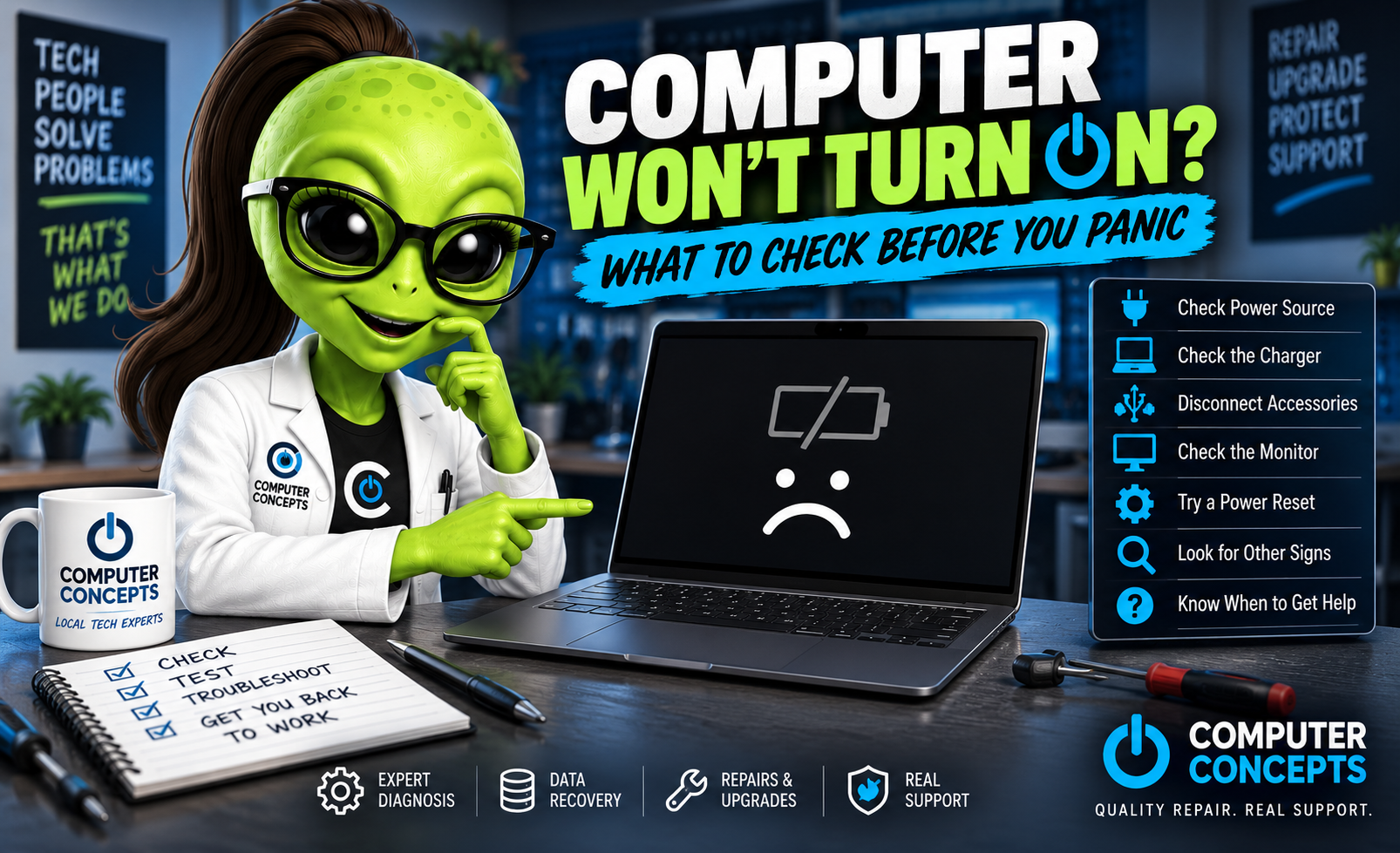
You press the power button and… nothing. No screen. No Windows logo. Maybe no lights or fans at all.
Before assuming your computer is dead—or that you’ve lost everything—there are several things worth checking. A computer that won’t turn on can be caused by something as simple as a loose power cable or as serious as a failed power supply, motherboard, or other internal component.
The good news is that a computer that won’t power on does not automatically mean your data is gone. Here’s what to check before you panic.
1. Check the Power Source
Start with the obvious. Make sure the computer is actually receiving power. For a desktop PC:
- Check that the power cable is firmly connected to the computer.
- Check the connection at the wall or surge protector.
- Make sure the surge protector is switched on.
- Try a different electrical outlet.
- If the power supply has a switch on the back, make sure it hasn't accidentally been turned off.
You'd be surprised how often a completely "dead" computer turns out to have a simple power problem.
2. If It's a Laptop, Check the Charger
A laptop with a completely drained battery may appear dead if the charger isn't working properly. Plug the laptop into power and give it a few minutes before trying again. Look for any charging or power indicator lights. If nothing happens, inspect the charger for:
- Frayed or damaged cables
- Bent connectors
- A loose charging port
- Physical damage to the adapter
- Signs of overheating
If the laptop uses USB-C charging, remember that not every USB-C charger provides enough wattage to power every laptop. When possible, use the manufacturer's correct charger.
3. Disconnect Accessories
A faulty peripheral can occasionally interfere with startup. Disconnect everything that isn't necessary, including:
- USB drives
- External hard drives
- Printers
- Webcams
- USB hubs
- Controllers
- Docking stations
- External monitors
Then try turning the computer on again. If it starts normally, reconnect your accessories one at a time to help identify the problem.
4. Look and Listen Carefully
What happens when you press the power button? Small details can help determine what's wrong.
Absolutely nothing happens - No lights, fans, sounds, or activity could indicate a problem with the:
- Charger
- Battery
- Power jack
- Power supply
- Power button
- Motherboard
Lights come on but there's no picture - That's a different problem. The computer may actually be turning on but failing to display an image. Possible causes include:
- Monitor problems
- Display cable issues
- RAM problems
- Graphics card failure
- Laptop display failure
- Motherboard problems
- Failed startup or POST
It turns on and immediately shuts off - This can point toward:
- Power supply problems
- Overheating
- RAM issues
- Motherboard failure
- Short circuits
- Other hardware faults
These differences are important when diagnosing a computer that won't start.
5. Make Sure It Isn't Just the Monitor
Desktop users should make sure the computer itself is actually the problem. Check that your monitor is powered on and that the correct input is selected. Also check your HDMI or DisplayPort cable. If your desktop has a dedicated graphics card, make sure the display cable is connected to the correct video output. A computer can be running perfectly while a monitor or cable makes it look completely dead.
6. Try a Power Reset
Sometimes residual power or a hardware state can prevent a computer from starting normally. For many laptops and desktops, you can try:
- Shut the computer down.
- Disconnect the power cable or charger.
- Disconnect external accessories.
- If the battery is easily removable, remove it.
- Hold the power button for approximately 15–30 seconds.
- Reconnect power.
- Try starting the computer again.
Battery-removal procedures vary by model. Don't disassemble a modern laptop just to try this step if you aren't comfortable working inside it.
7. Think About What Happened Before It Stopped Working
This is one of the most useful troubleshooting questions: What happened immediately before the computer stopped turning on? Did you recently:
- Experience a power outage or storm?
- Spill liquid on the computer?
- Drop the laptop?
- Install new RAM?
- Replace a graphics card?
- Build or upgrade the PC?
- Notice overheating?
- Smell something burning?
- Hear a pop?
- Have the computer unexpectedly shut down?
That information can dramatically narrow down the cause. If the problem started immediately after installing or replacing hardware, recheck the work before assuming another component failed.
8. Don't Ignore Signs of Liquid Damage
If liquid was spilled on the computer, stop trying to turn it on repeatedly. Electricity and liquid are a bad combination. Even if the computer initially continues working, liquid can cause shorts and corrosion that lead to additional damage. Disconnect power when it is safe to do so and have the machine inspected. Rice isn't going to repair corrosion or remove liquid trapped underneath electronic components.
9. Be Careful After a Power Surge or Lightning Storm
If your computer stopped working during or immediately after a storm, outage, or power surge, don't assume Windows caused the problem. Electrical events can damage:
- Power supplies
- Motherboards
- Chargers
- Network equipment
- Storage devices
- Other internal components
Sometimes the power supply sacrifices itself while the rest of the computer survives. Other times the damage can extend farther into the system. Proper diagnostics are the safest way to determine what failed.
10. Know When to Stop Troubleshooting
If you've checked the power source, charger, monitor, cables, and basic connections and the computer still won't start, it's probably time for professional diagnostics. Continuing to repeatedly power on a computer with a serious electrical or liquid-related problem can sometimes make matters worse. A technician can test individual components instead of guessing and replacing parts unnecessarily.
Does a Computer That Won't Turn On Mean My Data Is Gone?
Usually, no. This is one of the biggest concerns we hear from customers. Your Windows installation, documents, photos, videos, and other files are stored on your SSD or hard drive—not simply in the computer's power supply or motherboard. A computer can have a failed:
- Power supply
- Motherboard
- Screen
- Battery
- Charger
- Graphics card
- Power button
…and the storage drive may still be perfectly readable. That's why you shouldn't automatically assume you've lost your files just because the computer won't power on. However, if the storage device itself has failed or suffered physical or electrical damage, data recovery can become more complicated.
Computers can be replaced. Your data is unique.
What Are the Most Common Reasons a Computer Won't Turn On?
Some of the problems we commonly look for include:
Power supply failure – Particularly common with desktop PCs.
Failed charger or battery – A laptop may appear completely dead when it isn't receiving proper power.
Loose internal connection – Especially after a computer has been moved, dropped, repaired, or upgraded.
RAM problems – Failed or improperly seated memory can prevent a system from completing startup.
Motherboard failure – Power delivery or other board-level faults can prevent startup.
Graphics problems – The PC may actually be running but unable to display an image.
Overheating – Cooling problems can cause shutdowns and eventually prevent reliable startup.
Storage failure – The computer may power on but be unable to load Windows.
The symptoms help determine where the diagnosis should begin.
Should You Repair or Replace the Computer?
A computer that won't turn on isn't automatically ready for recycling. The decision depends on:
- Age of the computer
- Overall condition
- Hardware specifications
- Cost of the repair
- Availability of replacement parts
- Value of the data
- What you use the computer for
A failed power supply in an otherwise good desktop could be well worth repairing. A major motherboard failure in a very old laptop may be a different story. A good diagnosis should come before the repair-or-replace decision.
Windows PC Help in Yorktown & Williamsburg, VA
If your computer won't turn on and you've already checked the basics, bring it to Computer Concepts. We've been helping customers with computer problems since 2005, and our technicians work on laptops, desktops, gaming computers, and custom-built PCs. We can help diagnose:
- Computers that won't power on
- Black screens and no-display problems
- Power supply failures
- Laptop charging problems
- Failed SSDs and hard drives
- RAM problems
- Overheating
- Windows startup problems
- Hardware failures
- Data recovery and data transfer
- Custom PC problems and upgrades
With locations in Yorktown and Williamsburg, Virginia, Computer Concepts serves customers throughout Hampton Roads. Don't replace the whole computer until you know what's actually wrong.
Quality repair. Real support.
Computer Concepts
Yorktown & Williamsburg, Virginia
mycomputerconcepts.com