
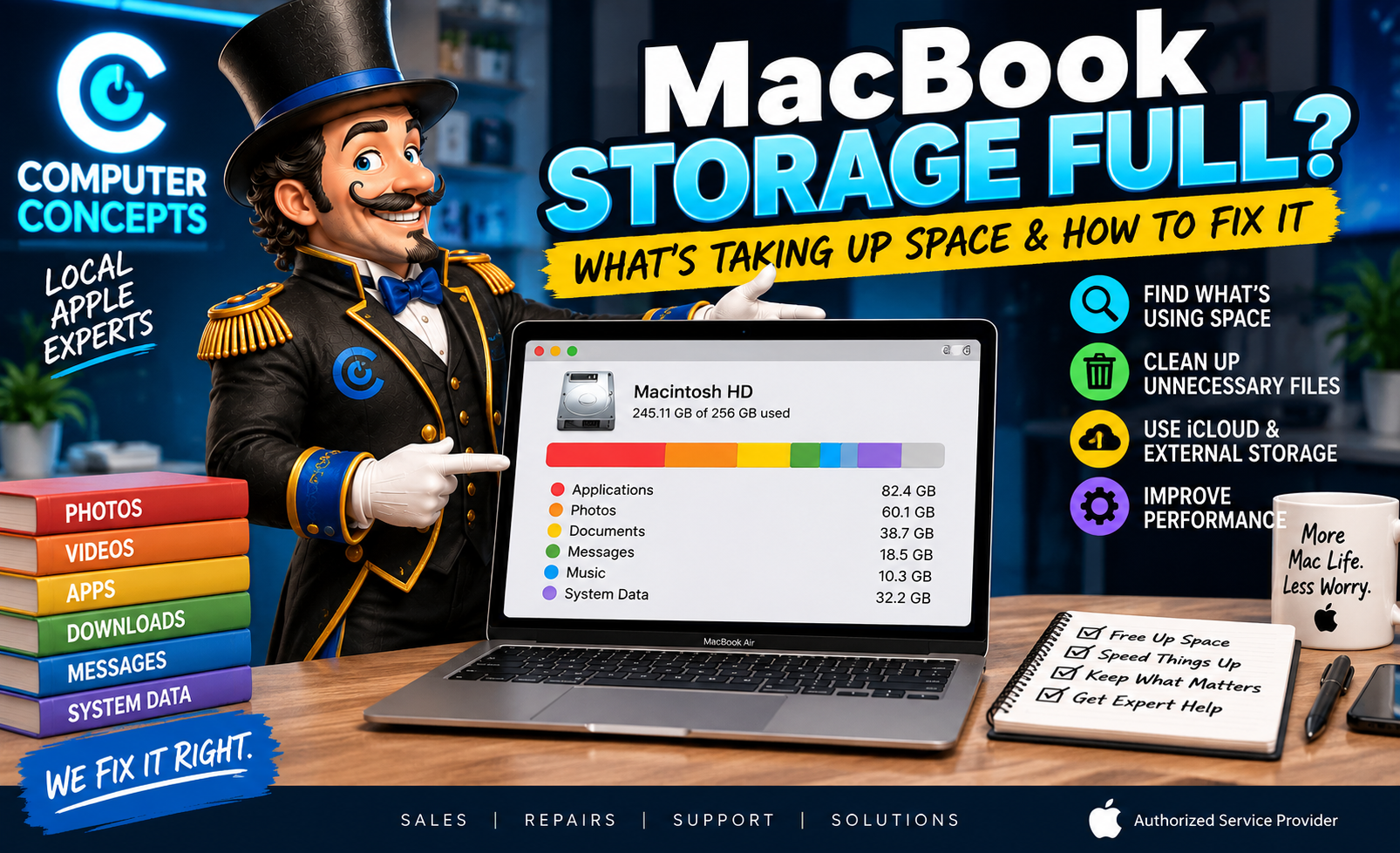
You try to download a file, install a macOS update, or save a few photos—and suddenly your MacBook tells you: Your disk is almost full. Or maybe you've checked your storage and discovered something even more confusing: “System Data” is taking up a huge amount of space.
Where did all your storage go?
A full MacBook doesn't necessarily mean you need a bigger computer. Photos, videos, applications, downloads, messages, backups, caches, and forgotten files can quietly consume hundreds of gigabytes over time.
And when your Mac gets extremely low on available storage, it can affect more than your ability to save files—it can also affect performance and normal macOS operation. Here's how to find what's filling your MacBook, safely free up space, and determine when you may need a better long-term storage solution.
Why Is My MacBook Storage Full?
Your MacBook stores much more than the files sitting on your Desktop. Storage can be consumed by:
- Photos and videos
- Applications
- Downloads
- Documents
- Messages and attachments
- Music
- Mail attachments
- iPhone or iPad backups
- macOS
- Temporary files
- Application data
- Caches
- System Data
- Virtual machines
- Creative projects
- Cloud files downloaded locally
The first step isn't deleting things randomly. It's figuring out what's actually using the space.
1. Check Your MacBook Storage
Start by looking at macOS's built-in storage information. Go to: Apple menu > System Settings > General > Storage. Your Mac will analyze its storage and divide usage into categories. Depending on your version of macOS, you may see categories such as:
- Applications
- Documents
- Photos
- Messages
- Music
- macOS
- System Data
This gives you a much better starting point than opening random folders and looking for things to delete.
2. Check Your Downloads Folder
The Downloads folder is one of the easiest places to reclaim storage. It's also one of the easiest folders to forget about. Over time it can accumulate:
- macOS installers
- Application installers
- ZIP files
- PDFs
- Videos
- Photos
- Email attachments
- Documents
- Disk images
- Files you downloaded once and never needed again
Open Downloads and sort the files by size. You might be surprised by what has been sitting there for years.
Before deleting anything make sure it isn't something you actually need.
3. Large Videos and Photos Can Fill a Mac Quickly
Modern photos and especially video files can be enormous. If you edit or store:
- 4K video
- High-resolution photos
- iPhone videos
- Drone footage
- Music videos
- YouTube projects
- Final Cut Pro libraries
- Adobe Premiere projects
storage can disappear quickly. A handful of large video projects can use more space than thousands of normal documents. Consider moving completed projects to an appropriate external storage device or other properly backed-up archive.
Important: Moving the only copy of your files to an external drive is not a backup. If that drive fails, your files are gone. Important data should exist in more than one location.
4. Applications May Be Taking More Space Than You Think
Some applications are much larger than people realize. Games and professional applications can consume tens or even hundreds of gigabytes when their associated content is included. Review your installed applications.
Ask yourself: Do I still use this? If you haven't opened an application in two years, it may not need to remain on the computer. However, uninstall applications properly rather than randomly deleting pieces of them from system folders.
5. Check for Old iPhone and iPad Backups
This one can be a storage hog. If you've backed up iPhones or iPads to your Mac over the years, old device backups may still be stored locally. Depending on how much data was on the device, those backups can be large.
Before deleting a device backup, make sure you understand what it contains and whether you still need it. Don't delete the only backup of important information just to reclaim a few gigabytes.
6. Messages and Attachments Can Use Significant Storage
If you've used Messages on your Mac for years, all those conversations can add up. The text itself isn't usually the problem. It's the attachments:
- Photos
- Videos
- GIFs
- Audio
- Documents
- Other shared files
A conversation containing years of videos and photos can consume substantial storage. Check the Messages category in your Mac's Storage settings to see whether it's a significant contributor.
7. Mail Attachments Can Accumulate Too
Email doesn't seem like something that should fill a computer. But years of attachments can add up. Large:
- PDFs
- Photos
- Videos
- Presentations
- ZIP archives
- Business documents
may be stored locally depending on your Mail configuration. If Mail is consuming a significant amount of space, review the situation carefully before deleting data. For business users in particular, email can contain important records.
8. Empty the Trash
This sounds obvious, but it's easy to forget. Moving a file to the Trash doesn't necessarily immediately reclaim the storage it was using. If you're certain you no longer need what's in there, empty the Trash.
Check first. Once files are permanently deleted, recovering them may be difficult or impossible.
9. What Is “System Data” on a Mac?
This is the category that confuses almost everyone. You open Storage and see: System Data: 87 GB
What exactly is that? System Data can include various files that don't fit neatly into Apple's other storage categories. Depending on your Mac and software, this can include things such as:
- Caches
- Logs
- Temporary files
- Application support files
- Plug-ins
- Local data
- Virtual memory
- Certain backup-related data
- Other system resources
The amount can fluctuate as macOS operates.
System Data Isn't Automatically Junk
This is extremely important. Don't search the internet for: “How to delete System Data” and then start manually deleting folders from Library or System directories. Some of those files are necessary for macOS and your applications.
10. Restart Your MacBook
Yes, we're saying it again. Restart your Mac. Temporary files and processes can sometimes contribute to confusing storage readings. A proper restart may allow macOS to clean up certain temporary resources and recalculate storage usage.
It won't magically delete 200 GB of personal files, but it's an easy and safe troubleshooting step.
Why Does My MacBook Say Storage Is Full When I Barely Have Any Files?
Because the files you can easily see aren't necessarily the files using all the storage. You might have only a handful of things on your Desktop while storage is being consumed by:
- Photo libraries
- Video libraries
- Application data
- Messages
- Device backups
- Cloud files
- System Data
- Hidden application-support files
This is why storage analysis should come before deletion.
Can iCloud Help Free Up MacBook Storage?
Potentially. Apple provides storage optimization features that can help manage locally stored files when using iCloud. Depending on your configuration, macOS may be able to keep certain files in iCloud while reducing the amount of local storage they consume. But it's important to understand the difference between:
Cloud Synchronization and Backup aren't always the same thing. If deleting a synchronized file removes it everywhere, that isn't the same as maintaining an independent backup copy. Know how your cloud service works before deleting important files.
Should I Move Files to an External Drive?
For large media libraries, completed projects, archives, and other files that don't need to live on the internal SSD, external storage can be very useful. But choose the drive based on what you're doing. For example:
Fast external SSD: Good for frequently accessed files and active projects.
Larger external storage: Useful for archives and backups depending on your requirements.
Time Machine drive: Designed for maintaining Mac backups.
And remember, One external drive containing the only copy of your files is still one copy. Important data should be backed up.
Can a Full MacBook Make It Run Slow?
Yes. macOS uses available storage for normal system operations, temporary files, updates, caches, and virtual memory. When your MacBook gets extremely low on free storage, you may notice:
- Slower performance
- Applications freezing
- Difficulty installing updates
- Problems saving files
- Increased beach balls
- Applications crashing
- Strange system behavior
If your MacBook is both slow and nearly full, storage should be one of the first things you investigate.
How Much Free Space Should I Keep on My MacBook?
There's no single perfect amount for every Mac. Someone using a MacBook for email and web browsing has very different storage requirements from someone editing 4K video. Instead of trying to maintain one magic percentage, give macOS enough breathing room for:
- Updates
- Temporary files
- Application needs
- Virtual memory
- Your normal workload
If you're constantly operating with only a tiny amount of free storage, you're probably too close to the limit.
Why Does My MacBook Keep Filling Up After I Delete Files?
If storage keeps disappearing, something may be continuously generating or downloading data. Possible causes include:
- Cloud synchronization
- Large application caches
- Video editing libraries
- Messages attachments
- Device backups
- Virtual machines
- Backup-related files
- An application generating excessive data
If you free up 30 GB and it's mysteriously gone again a few days later, don't keep deleting random files. Find out what's growing.
Be Careful With “Mac Cleaner” Apps
Search for “Mac storage full” and you'll quickly encounter software promising: FREE UP 100 GB IN ONE CLICK! Be careful.
Some utilities may be legitimate, but blindly deleting files because an application labels them “junk” can cause problems. Before allowing any utility to remove large amounts of data, understand:
- What it's deleting
- Where those files are located
- Whether they're recoverable
- Whether applications depend on them
Deleting important data is a much bigger problem than having a full drive.
Don't Manually Delete Files From macOS System Folders
This is another important warning. If you don't know exactly what a file does, don't start deleting things from:
- System
- Library
- Application Support
- Hidden macOS folders
because an internet post said they were safe to remove. Some files can be recreated. Others are important. And some may contain application data you actually need. If you're unsure, ask before deleting.
What If “System Data” Is Huge?
If System Data appears abnormally large, start with the safe steps:
- Restart the Mac
- Install appropriate macOS updates
- Review storage categories
- Check large applications and their data
- Review local backups and device backups
- Look for unusually large files
If the amount still doesn't make sense, professional troubleshooting can help determine what's consuming the space without blindly deleting system files.
Can You Upgrade MacBook Storage?
This depends heavily on the MacBook model. On many modern MacBooks, internal storage is integrated into the computer and isn't a traditional removable SSD that can simply be upgraded later. That's why storage capacity is an important consideration when purchasing a new Mac. If your internal storage can't be upgraded, options may include:
- Cleaning unnecessary data
- External storage
- Cloud storage
- Moving large libraries
- Changing workflow
- Replacing the Mac with a higher-capacity model when appropriate
Before replacing the computer, determine whether your actual problem is insufficient capacity or simply years of unnecessary files.
256GB vs. 512GB vs. 1TB: How Much Mac Storage Do You Need?
It depends entirely on your workload.
256GB: May be sufficient for lighter users who primarily use:
- Web browsing
- Office applications
- Cloud storage
- Streaming
512GB: Provides more room for:
- Larger photo libraries
- More applications
- Moderate creative work
- Local documents
- Everyday business use
1TB or More: Can make sense for:
- Video editing
- Photography
- Music production
- Large creative libraries
- Virtual machines
- Large local data collections
- Users who want substantial storage headroom
The best time to think about storage is before buying the Mac, especially on models where internal storage can't later be upgraded.
Before Deleting Anything Important: BACK IT UP
Cleaning a MacBook isn't supposed to become a data-recovery job. Before deleting large amounts of data, make sure important files exist somewhere else. Apple's Time Machine is one option for maintaining regular Mac backups. Protect your:
- Photos
- Business records
- Schoolwork
- Music
- Videos
- Financial documents
- Creative projects
- Personal files
Deleting the wrong folder can happen very quickly. Recovering it may not be nearly as easy.
Computers can be replaced. Your data is unique.
When Should You Get Professional Help?
Consider professional help if:
- You can't determine what's using your storage
- System Data seems abnormally large
- Storage immediately fills back up
- Your MacBook is extremely slow
- macOS updates won't install because of low storage
- You're afraid of deleting important files
- You need help moving data safely
- You need a backup strategy
- You need help deciding between external, cloud, or internal storage options
Sometimes you don't need a repair. You need someone to help you understand where your data is and how to manage it safely.
MacBook Storage Full in Hampton Roads? We Can Help.
If your MacBook is constantly telling you it's out of space, don't start deleting random folders. Computer Concepts can help determine what's consuming your storage and find a sensible way to manage it.
We're an Apple Authorized Service Provider serving Hampton Roads from our Yorktown and Williamsburg, Virginia locations.
Whether you need help with: Mac storage, Data transfer, Backup setup, External storage, Performance problems, macOS issues or simply figuring out where all your space went, we're here to help.
We can also spend one-on-one Time With a Tech helping you understand your Mac, organize your storage, and create a better backup strategy.
Computer Concepts — Local Apple Experts
Quality repair. Real support. We fix it right. Visit mycomputerconcepts.com.
Frequently Asked Questions
Why is my MacBook storage suddenly full?
Large downloads, photos, videos, applications, Messages attachments, Mail data, device backups, application data, cloud synchronization, or System Data can all contribute to rapidly decreasing available storage.
What is System Data on a Mac?
System Data is a broad macOS storage category that can include caches, logs, temporary files, application-support files, virtual memory, and other data that doesn't fit neatly into another category.
Can I delete System Data on my Mac?
Some data categorized as System Data may be temporary or removable, but you shouldn't blindly delete files from macOS system or Library folders. Determine what's consuming the storage before deleting anything.
Will deleting files make my MacBook faster?
If your Mac is extremely low on available storage, freeing space may improve normal operation. However, storage isn't the only possible cause of a slow MacBook.
Why isn't my Mac storage decreasing after deleting files?
Check whether the files remain in the Trash. macOS may also need time to recalculate storage categories. Cloud synchronization and application data can further complicate what you're seeing.
Can I upgrade the SSD in my MacBook?
Many modern MacBooks don't have a conventionally replaceable internal SSD. Upgrade options depend on the exact model, so check before assuming the internal storage can be expanded.
How do I find the biggest files on my MacBook?
Start with System Settings > General > Storage and review the available storage categories. You can also use Finder to locate and sort files based on size.
Can Computer Concepts help move my files to an external drive?
Yes. Computer Concepts offers data transfer, backup, storage, and one-on-one technical assistance for customers who need help managing their files safely.