
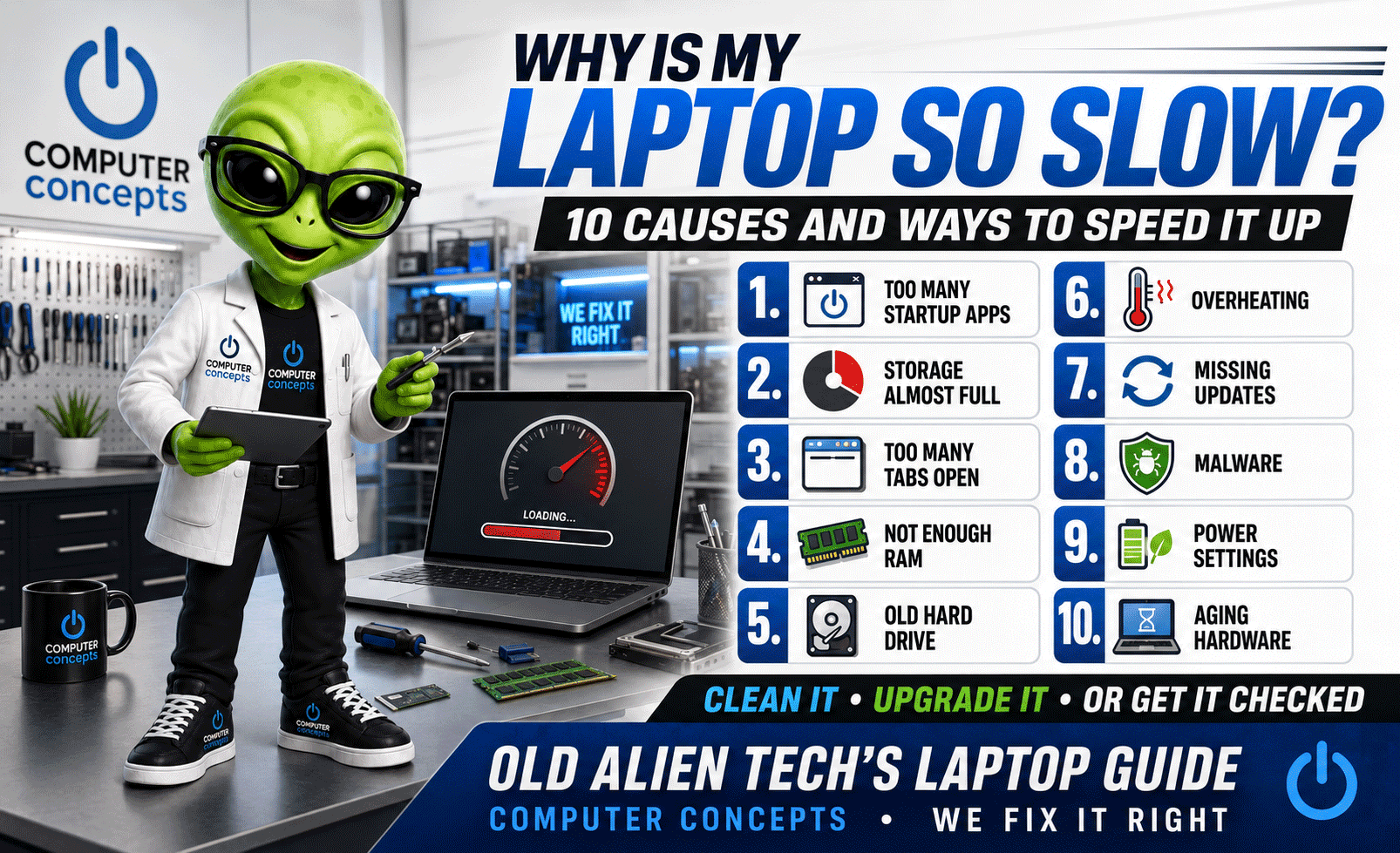
Why Is My Laptop So Slow? 10 Causes and Ways to Speed It Up
A slow laptop can make even simple tasks frustrating. Programs take longer to open, websites hesitate, the computer takes forever to start, and the fan sounds like it is preparing for liftoff.
The Older Alien Tech has worked on enough Earth computers to know one thing:
“Laptops rarely become slow for no reason. Something is using the resources, blocking the airflow, filling the storage, or simply getting too old for the job.”
Before replacing your laptop, identify what is causing the slowdown. Some problems can be corrected with basic maintenance, while others require a memory upgrade, solid-state drive, internal cleaning, or professional repair.
1. Too Many Programs Start With the Laptop
Many applications automatically start when you sign in. Cloud-storage tools, messaging programs, game launchers, printer utilities, update services, and other background applications can consume memory and processor resources before you open anything.
Check Startup Apps in Windows
- Press Ctrl + Shift + Esc to open Task Manager.
- Select Startup apps.
- Review which programs are enabled.
- Disable nonessential applications you recognize.
Do not disable security software or unfamiliar system services without researching them first. Microsoft confirms that reducing unnecessary startup applications can improve startup time and background performance. Read Microsoft’s Windows performance recommendations.
Check Login Items on a Mac
Open System Settings, select General, and then choose Login Items & Extensions. Remove applications that do not need to start automatically.
Older Alien Tech says: “If twelve programs rush through the door at startup, don’t be surprised when the laptop gets crowded.”
2. The Storage Drive Is Almost Full
Windows, macOS, web browsers, and applications require free storage for updates, temporary files, virtual memory, and normal operation.
When the drive becomes extremely full, you may notice:
- Slower startup
- Applications taking longer to open
- Failed updates
- Freezing or spinning cursors
- Low-storage warnings
- Difficulty saving files
In Windows, open Settings > System > Storage. Microsoft recommends using Storage Sense and the Temporary Files section to safely reclaim space.
On a Mac, open System Settings > General > Storage to review recommendations and identify large files.
Move important files to a properly backed-up external drive or trusted cloud service. Remove applications you no longer use, but avoid random “PC cleaner” or “registry cleaner” programs.
3. Too Many Browser Tabs or Applications Are Open
Each browser tab and open application uses memory. Video, social media, web applications, cloud documents, advertising, and browser extensions may continue using resources even when the tab is in the background.
Try closing applications and tabs you no longer need. Restart the browser and compare performance.
In Windows, open Task Manager and check the Processes and Performance sections. On a Mac, use Activity Monitor to see which applications are consuming the most processor time and memory.
Apple recommends checking whether an application is using more processor or memory resources than expected when a Mac runs slowly. See Apple’s guidance for a slow Mac.
4. The Laptop Does Not Have Enough RAM
RAM is the short-term working memory used by Windows, macOS, applications, browser tabs, and background processes.
When available memory runs low, the laptop relies more heavily on its storage drive. This can cause delays when switching between applications, opening files, browsing with multiple tabs, or attending video meetings.
Common signs of insufficient RAM include:
- Slow multitasking
- Programs freezing when several are open
- Browser tabs constantly reloading
- High memory usage after startup
- Poor performance during video calls
- Delays when opening large documents or photographs
Some laptops allow memory upgrades, while others have memory permanently attached to the motherboard. A professional inspection can confirm whether an upgrade is possible and worthwhile.
5. It Still Uses a Mechanical Hard Drive
Older laptops may contain a mechanical hard-disk drive instead of a solid-state drive. Mechanical drives use moving parts and are substantially slower when starting the operating system, loading applications, installing updates, and searching files.
Replacing a healthy hard drive with an SSD can dramatically improve the responsiveness of a compatible older laptop.
However, extreme slowness accompanied by clicking, grinding, corrupted files, or repeated disk errors may indicate that the drive is failing. Back up important information immediately and avoid repeatedly restarting or heavily using a potentially failing drive.
Older Alien Tech says: “An SSD upgrade can make an old laptop feel younger, but a dying drive needs attention before your files disappear into space.”
6. The Laptop Is Overheating
Laptops reduce performance when temperatures become too high. This protects the processor and other internal components, but it can make the computer feel extremely slow.
Overheating may be caused by:
- Dust blocking the cooling system
- A failing fan
- Blocked vents
- Dried thermal compound
- Using the laptop on a bed or blanket
- Heavy background activity
- A damaged cooling assembly
Warning signs include constant fan noise, excessive heat, reduced performance after several minutes, unexpected shutdowns, or a fan that no longer spins.
Use the laptop on a hard, flat surface. Do not insert tools into vents or blast fans with excessive air pressure. Internal laptop cleaning requires care because fans, cables, and connectors can be damaged easily.
7. Updates or Drivers Are Missing
Operating-system and driver updates can include performance improvements, compatibility corrections, and security fixes.
For Windows 11, go to Settings > Windows Update and select Check for updates. Microsoft also recommends reviewing available optional driver updates when troubleshooting performance.
On a Mac, open System Settings > General > Software Update.
A laptop may temporarily run slowly while installing an update, indexing files, syncing cloud data, or completing maintenance after a major upgrade. If the slowdown continues for several days, further troubleshooting may be required.
8. Malware or Unwanted Software Is Running
Malware, browser hijackers, adware, and unwanted applications may consume processor, memory, disk, and network resources.
Possible warning signs include:
- Unexpected pop-ups
- Browser searches redirecting elsewhere
- New extensions or applications you did not install
- High processor use while the computer is idle
- Security tools being disabled
- The laptop becoming slow without an obvious reason
Windows users can open Windows Security > Virus & threat protection and run a scan. Microsoft specifically recommends malware scanning as part of slow-PC troubleshooting.
Avoid security warnings that appear inside websites and instruct you to call a phone number. Legitimate security software does not require payment through gift cards or demand remote access from an unsolicited caller.
9. The Power or Battery Settings Limit Performance
Laptops balance speed, temperature, noise, and battery life. A battery-saving mode can reduce processor performance and make demanding work feel slower.
In Windows, open Settings > System > Power & battery and review the selected Power Mode. Microsoft notes that Best Performance mode can increase speed when needed, but it also consumes more battery and may make the laptop run warmer.
On compatible Mac laptops, review Low Power Mode under Battery settings.
If the laptop is significantly faster when connected to power, the battery, charger, power plan, or internal power system may need further investigation.
10. The Hardware No Longer Meets Your Needs
Software becomes more demanding over time. A laptop that was comfortable with basic browsing years ago may struggle with current operating systems, video meetings, cloud applications, modern games, or creative software.
Older hardware may have:
- A slow processor
- Limited RAM
- An outdated mechanical hard drive
- Integrated graphics with limited performance
- A battery that cannot provide consistent power
- An unsupported operating system
Microsoft acknowledges that older computers with outdated hardware may not improve significantly through software adjustments alone. An upgrade or replacement may be the better long-term solution.
That does not automatically mean the laptop is finished. A memory upgrade, SSD installation, internal cleaning, fresh operating-system installation, or battery replacement may extend its useful life.
Quick Steps to Speed Up a Slow Laptop
Try these steps in order:
- Restart the laptop.
- Close unused programs and browser tabs.
- Disable unnecessary startup applications.
- Install operating-system and driver updates.
- Check available storage space.
- Remove programs you no longer use.
- Run a malware scan.
- Review CPU, memory, and disk usage.
- Check for overheating or unusually loud fans.
- Back up your important files.
Change one thing at a time and test performance again. This makes it easier to identify what actually helped.
Avoid “Miracle” Speed-Up Programs
Be careful with programs promising to make your laptop dramatically faster with one click.
Some optimization programs can:
- Delete useful files
- Change important system settings
- Install unwanted software
- Display exaggerated warnings
- Charge for fixes you do not need
- Introduce additional performance problems
Use the cleanup and security tools built into Windows or macOS whenever possible. If you are unsure, ask a trusted technician before installing third-party repair software.
When a Slow Laptop Needs Professional Help
Bring the laptop to an expert if:
- It remains slow after basic troubleshooting
- Startup takes several minutes
- The drive makes clicking or grinding noises
- Programs frequently freeze or crash
- The laptop becomes extremely hot
- The fan runs constantly or has stopped working
- Files become corrupted or disappear
- The computer reports drive or memory errors
- You suspect malware
- You need help deciding whether to upgrade or replace it
At Computer Concepts, we can diagnose the actual cause of slow laptop performance instead of guessing.
We can help with:
- Windows and Mac laptop diagnostics
- SSD upgrades
- Memory upgrades
- Malware and virus removal
- Startup optimization
- Internal dust cleaning
- Overheating and fan problems
- Operating-system repair
- Data backup and recovery
- Repair-versus-replacement advice
If you need help with a slow laptop in Yorktown, Williamsburg, Newport News, or the surrounding Hampton Roads area, Computer Concepts is ready to help.
“A slow laptop may need a cleanup, an upgrade, or retirement. The trick is knowing which one before spending your Earth money.” — Older Alien Tech
Computer Concepts — We Fix It Right.