
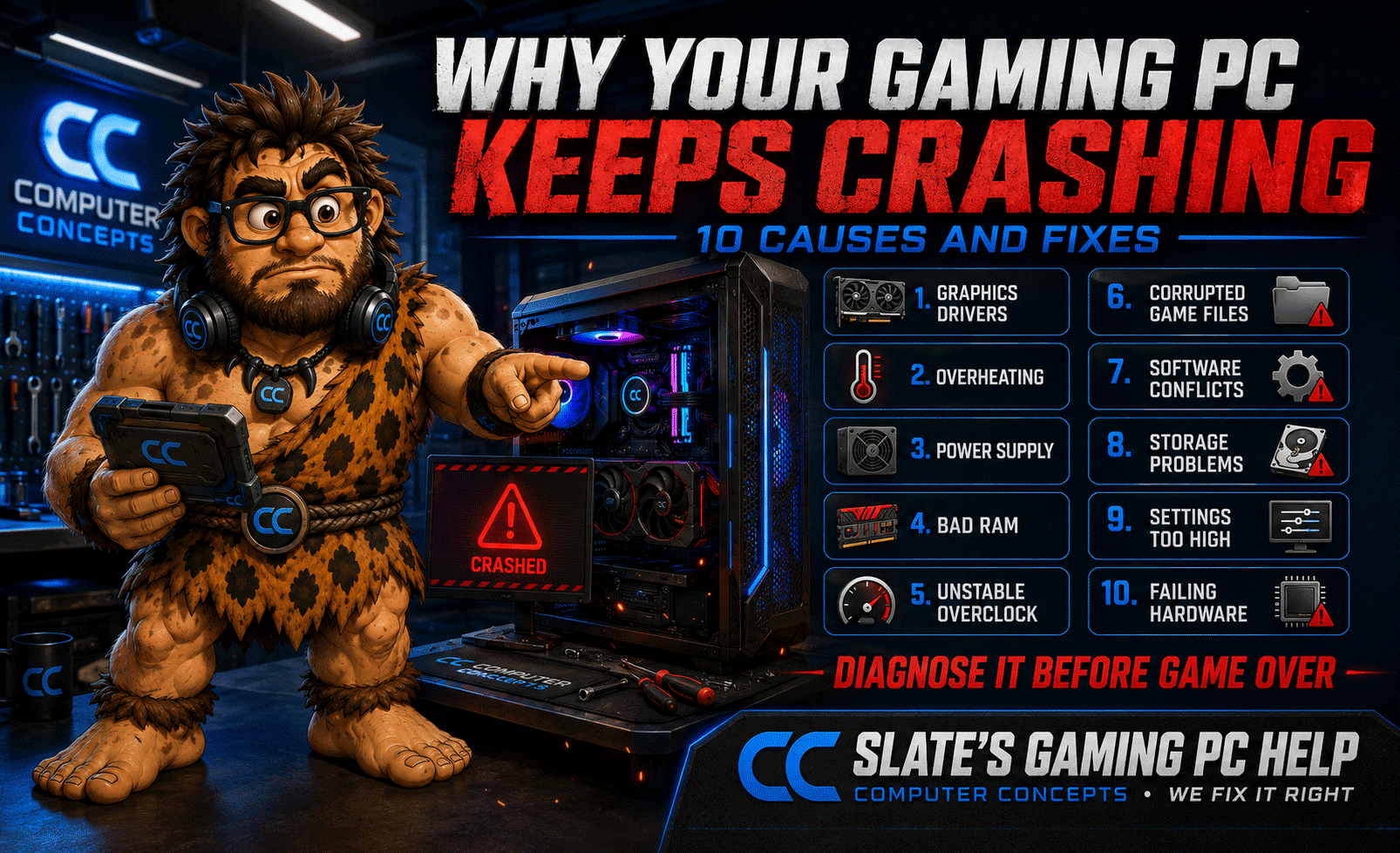
Nothing ruins a gaming session faster than a frozen screen, sudden restart, blue screen, or game that closes without warning. One crash may be a temporary glitch. Repeated gaming PC crashes usually mean something needs attention.
Slate the Gamer’s opinion is simple:
“A gaming PC that keeps crashing isn’t being dramatic—it’s trying to tell you something.”
The cause could be a corrupted game file, outdated graphics driver, overheating component, failing memory, unstable overclock, inadequate power supply, or another hardware problem. Here is how to narrow it down before a minor issue becomes a larger repair.
First, Identify What Kind of Crash Is Happening
The way your gaming computer crashes provides valuable clues.
Only One Game Crashes
If Windows remains operational but one particular game closes, freezes, or returns to the desktop, the likely causes include:
- Corrupted or missing game files
- An incompatible game update
- Graphics settings that exceed available resources
- Mods or overlays creating conflicts
- A problem with that game’s installation
Every Game Crashes
If several different games crash, investigate the graphics driver, temperatures, RAM, power supply, Windows installation, and system stability.
The Entire Computer Restarts or Shuts Down
A sudden restart—especially without an error message—can indicate overheating, power-delivery trouble, unstable memory, an aggressive overclock, or failing hardware.
You Receive a Blue or Black Screen
Record or photograph the exact stop code. Microsoft explains that unexpected Windows restarts can be caused by hardware, drivers, or software, and the displayed stop code may help identify the source. Review Microsoft’s stop-code troubleshooting guide.
1. Your Graphics Driver Is Corrupted or Outdated
Graphics drivers allow Windows, your games, and your GPU to communicate. A damaged, incompatible, or outdated driver can cause:
- Games closing to the desktop
- Black screens
- Display-driver errors
- Flickering or visual artifacts
- Freezing during gameplay
- Crashes after a game or Windows update
Install the appropriate driver directly from NVIDIA, AMD, or Intel. Avoid random driver-download websites and “automatic driver updater” utilities.
If crashes began immediately after a driver update, the newest driver may not be the best driver for your particular game or system. In that case, rolling back to a previous stable version may help.
Slate says: “Newer doesn’t always mean better for every cave. Stable wins.”
2. The CPU or Graphics Card Is Overheating
Gaming places sustained demand on the processor and graphics card. If cooling cannot remove that heat, the system may reduce performance, freeze, restart, or shut down.
Common causes of gaming PC overheating include:
- Dust blocking fans, vents, radiators, or heat sinks
- Failed or slowing fans
- Poor case airflow
- Dried or improperly applied thermal compound
- A loose CPU cooler
- Excessive voltage or overclocking
- A liquid cooler with a failing pump
Warning signs include fans running at full speed, unusually hot air leaving the case, declining performance during longer gaming sessions, or crashes that occur only after the computer has been running for a while.
Clean visible dust from external filters and make sure vents are not blocked. Internal cleaning and cooler removal should be handled carefully to avoid damaging fans, cables, connectors, or components.
3. The Power Supply Cannot Handle the Load
A gaming PC may work normally on the desktop but restart when a demanding game places the CPU and GPU under load. That pattern can indicate a power-supply problem.
Possible causes include:
- Insufficient wattage
- A failing or low-quality power supply
- Loose graphics-card power connections
- Incorrect use of modular power cables
- A newly installed GPU that requires more power
- Transient power spikes under heavy load
Never mix modular power-supply cables from different brands or models. The connectors may physically fit while using a different internal pin layout, potentially damaging the graphics card or other components.
If crashes began after a graphics-card upgrade, confirm that the power supply meets the card manufacturer’s requirements and provides the correct dedicated connectors.
4. Your Gaming PC Has Unstable or Failing RAM
Faulty memory can cause game crashes, corrupted files, application errors, blue screens, and unpredictable restarts.
Memory can become unstable because of:
- A failing RAM module
- Incorrect installation
- Mixed memory kits
- Aggressive XMP or EXPO settings
- An outdated motherboard BIOS
- Memory speeds the processor or motherboard cannot maintain reliably
Microsoft includes the Windows Memory Diagnostic tool, which can be launched by pressing Windows Key + R, entering mdsched, and choosing to restart and check for problems. Microsoft also provides an extended testing option for a more thorough check. See Microsoft’s memory-testing instructions.
A passed basic test does not rule out every memory or motherboard problem, but detected errors should never be ignored.
5. Your Overclock or Performance Profile Is Unstable
CPU overclocks, GPU overclocks, undervolts, XMP, EXPO, and automatic motherboard performance settings can all create instability.
A computer may pass a short benchmark but crash during a particular game because different games stress hardware in different ways.
Temporarily return the following to manufacturer defaults:
- CPU clock and voltage
- GPU clock and memory settings
- RAM XMP or EXPO profile
- Custom power limits
- Undervolting settings
- Motherboard automatic overclocking features
If the crashes stop at default settings, your tuning was not fully stable.
Slate says: “Five more frames aren’t worth five crashes an hour.”
6. The Game Files Are Corrupted
If only one game crashes, verify its installation before changing hardware settings or reinstalling Windows.
Steam provides a Verify Integrity of Game Files option that checks the local installation and replaces damaged or missing files. Follow Steam’s official verification instructions.
Other game launchers offer similar repair or verification tools.
Disable unsupported mods temporarily and confirm that the game is fully updated. After major game updates, older mods may become incompatible even if they worked previously.
7. Background Software Is Creating a Conflict
Gaming overlays, RGB utilities, recording programs, monitoring applications, antivirus software, motherboard utilities, and peripheral-control programs can interfere with games or graphics drivers.
Try closing nonessential programs, especially:
- Multiple hardware-monitoring tools
- Third-party overlays
- RGB-control applications
- Game-recording software
- Motherboard tuning utilities
- Unnecessary startup programs
Microsoft recommends a clean boot to start Windows with only essential drivers and startup programs. This can help isolate software conflicts affecting an application or game. Follow the procedure carefully and restore normal startup when testing is complete. Read Microsoft’s clean-boot instructions.
8. Windows or Your Storage Drive Has a Problem
Games depend on the operating system and storage drive to load data reliably. Crashes may occur when Windows files are corrupted, free storage is extremely low, or an SSD or hard drive begins to fail.
Microsoft recommends maintaining sufficient free storage for Windows and applications to create temporary and swap files. Its current crash guidance suggests keeping approximately 10% to 15% of the drive available. See Microsoft’s Windows crash recommendations.
Warning signs of drive trouble include:
- Games taking much longer to load
- Corrupted or missing files
- Disk-related errors
- Clicking or grinding from a mechanical drive
- Windows becoming slow outside of games
- The drive disappearing intermittently
- Crashes during installations or updates
Back up important files before performing extensive testing on a drive that may be failing.
9. Graphics Settings Exceed the System’s Capabilities
Ultra settings are not always the correct settings. High-resolution textures, ray tracing, extreme resolutions, and uncapped frame rates can push a system beyond its available GPU performance or video memory.
Try reducing:
- Texture quality
- Ray tracing
- Shadow quality
- Resolution scaling
- Draw distance
- Frame-generation features
- Maximum frame rate
If lowering settings stops the crashes, the system may be running out of resources, overheating, or becoming unstable under maximum load.
10. A Component Is Beginning to Fail
Repeated crashing can be an early sign of hardware failure involving the:
- Graphics card
- RAM
- SSD or hard drive
- Power supply
- Motherboard
- Processor
- Cooling system
Visual artifacts, burning odors, electrical noises, swollen components, liquid leaks, repeated drive errors, and sudden power loss require immediate attention.
Turn the computer off if you smell burning, see smoke, discover liquid near electrical components, or hear arcing or popping. Disconnect power only if it is safe to do so.
Safe Troubleshooting Checklist
Try these steps in order:
- Record the game, time, symptoms, and displayed error codes.
- Restart the computer.
- Install Windows and game updates.
- Install the correct graphics driver from the GPU manufacturer.
- Verify the affected game’s files.
- Disable mods, overlays, and unnecessary background software.
- Check available storage space.
- Monitor CPU and GPU temperatures.
- Return overclocking and memory profiles to default settings.
- Run a memory diagnostic.
- Back up important files.
- Schedule a professional diagnostic if crashes continue.
Change one thing at a time and test again. Changing several settings simultaneously may temporarily stop the crash without revealing what fixed it.
When Your Gaming PC Needs an Expert
Professional diagnostics are a good idea when:
- The entire computer shuts down or restarts under load
- Multiple games and applications crash
- You repeatedly receive blue-screen errors
- The PC overheats or produces unusual noises
- Memory testing reports errors
- The computer displays visual artifacts
- Crashes began after a hardware upgrade
- The system will not boot reliably
- You suspect the power supply or graphics card
- Your important files are not backed up
At Computer Concepts, we troubleshoot gaming-PC crashes, overheating, graphics-card problems, power-supply issues, failing storage, memory errors, driver conflicts, and unstable custom builds.
Our technicians can test the system under load, inspect cooling and power delivery, diagnose individual components, repair existing gaming computers, and recommend upgrades that fit your games and budget.
If you need professional gaming PC repair in Yorktown, Williamsburg, Newport News, or the surrounding Hampton Roads area, Computer Concepts is here to help.
“Crashing isn’t a feature. Let’s find the real problem and get you back in the game.” — Slate
Computer Concepts — We Fix It Right.