
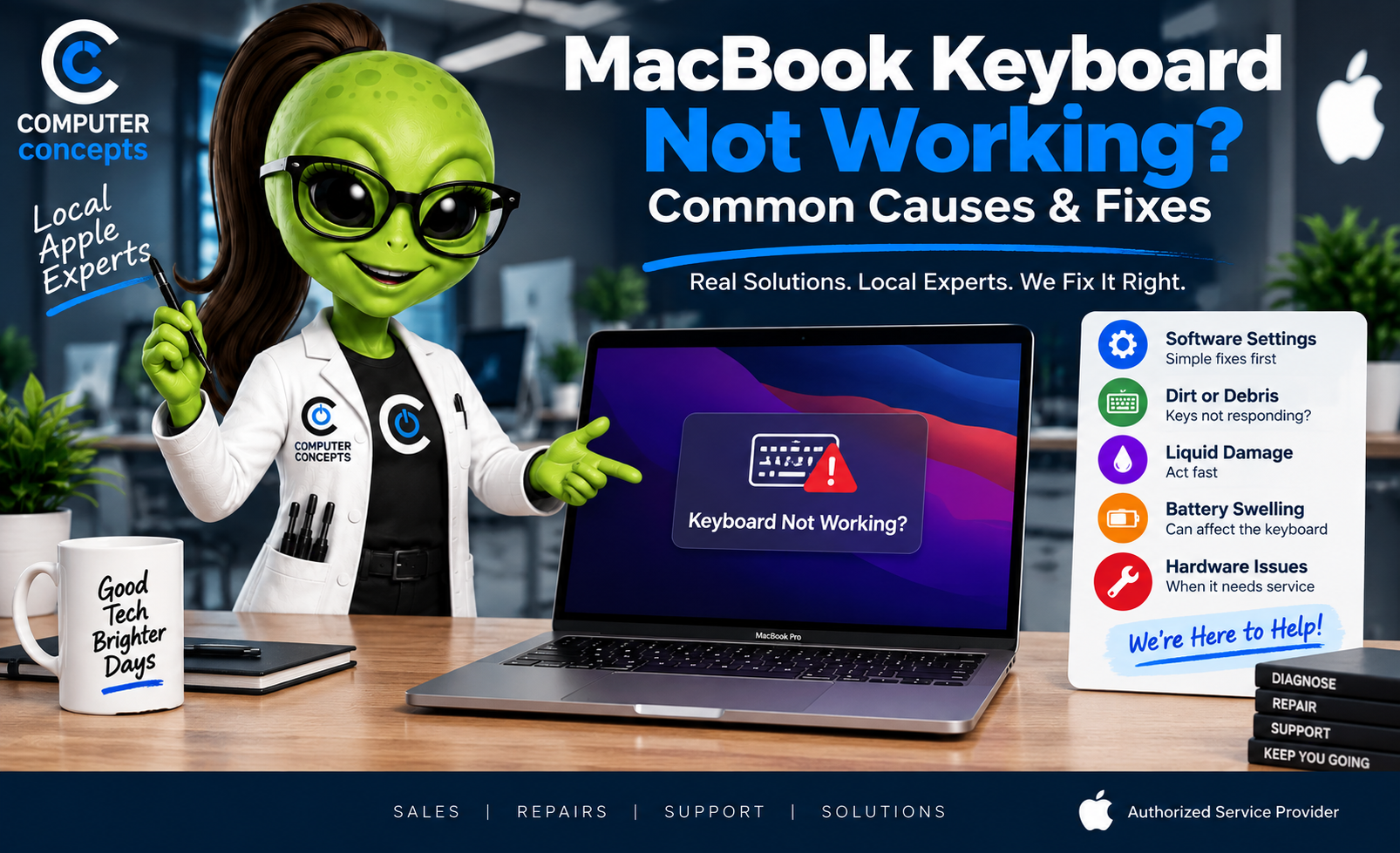
You open your MacBook, start typing, and suddenly something isn't right. Maybe one key won't respond. Maybe several keys type twice. Maybe the entire keyboard stopped working. Or perhaps the keys work sometimes—and then randomly don't.
Before assuming you need a new keyboard—or a new MacBook—it's worth figuring out what kind of keyboard problem you actually have. A MacBook keyboard can stop working because of:
- Software problems
- Accessibility settings
- Dirt or debris
- Liquid damage
- Physical key damage
- Battery swelling
- Internal hardware failure
- Previous accidental damage
Some problems are easy to correct. Others need professional service. Here's how to narrow it down safely.
1. Start by Identifying Exactly What the Keyboard Is Doing
“Keyboard doesn't work” can mean several different things. Pay attention to the symptoms. Is it:
- One key not responding?
- Several keys not responding?
- The entire keyboard dead?
- Keys typing twice?
- Keys repeating?
- Wrong characters appearing?
- Keys feeling sticky?
- A key physically loose or missing?
- Keyboard working only sometimes?
- Keyboard working at login but not inside an app?
- Trackpad having problems at the same time?
These details can help separate a software problem from a physical keyboard failure. Diagnose the symptom before replacing the part.
2. Restart Your MacBook
Yes, restart it. It sounds simple, but a restart can resolve temporary software problems affecting input devices. Go to: Apple menu → Restart After the Mac restarts, test the keyboard again.
If the keyboard suddenly works normally, you may have experienced a temporary software or application issue rather than a failed keyboard.
3. Test the Keyboard in More Than One App
Before blaming the hardware, determine whether the problem happens everywhere. Try typing in:
- Notes
- Safari
- TextEdit
- Spotlight
- Another application
If the keyboard works normally everywhere except one program, the MacBook keyboard itself may be fine. The problem could be related to that particular application, shortcut configuration, or software setting.
4. Check for a macOS or Application Problem
If the keyboard problem began suddenly, think about what happened immediately beforehand. Did you:
- Install an application?
- Install a macOS update?
- Change keyboard settings?
- Connect a new accessory?
- Install keyboard-remapping software?
- Change accessibility settings?
Software utilities that modify keyboard shortcuts or remap keys can sometimes produce confusing symptoms. Check: Apple menu → System Settings → Keyboard Review anything that may have recently changed.
5. Check Slow Keys and Other Accessibility Settings
Here's one that can make a perfectly functional keyboard appear broken. macOS includes accessibility features that change how the keyboard responds. Go to: Apple menu → System Settings → Accessibility → Keyboard; Look for settings such as Slow Keys.
With Slow Keys enabled, a key may need to be held down longer before macOS recognizes it. If this was enabled accidentally, you might think: “My keyboard barely works.” when the hardware is actually fine. Also review other accessibility options if the keyboard is behaving differently than expected.
6. Make Sure the Correct Keyboard Layout Is Selected
If pressing one key produces the wrong character, the physical keyboard may not be the problem. Your keyboard input source or layout could have changed. Check: System Settings → Keyboard → Text Input. Review your configured input sources. A different language or keyboard layout can make keys produce characters you weren't expecting. This is especially worth checking when:
- Symbols appear in unexpected places
- Certain punctuation keys seem wrong
- Letters don't correspond to the printed keycaps
7. One Key Not Working? Check for Dirt or Debris
If only one or two keys are affected, debris may be involved. Small particles can work their way around the keyboard. Common offenders include:
- Crumbs
- Dust
- Pet hair
- Dirt
- Sticky residue
A key may feel:
- Stiff
- Mushy
- Sticky
- Uneven
- Different from surrounding keys
Don't start prying keycaps off! MacBook keyboard mechanisms can be delicate, and removing a key incorrectly can turn a minor problem into a broken key mechanism. If the key needs to be removed for service, let someone familiar with that keyboard design handle it.
8. Be Careful With Compressed Air
Apple has published specific cleaning procedures for certain Mac notebook keyboards using compressed air. That doesn't mean you should hold an industrial air compressor against the keyboard and let it rip. Excessive pressure or improper technique can cause additional problems. If you're unsure how to clean the keyboard safely, have it professionally cleaned.
9. Sticky Keys May Mean More Than Dirt
A sticky key isn't always caused by a crumb. If something sugary has been spilled on the MacBook, residue may remain beneath the keyboard. Coffee, soda, sweet tea, energy drinks, juice, and other beverages can leave contamination even after the visible liquid dries. That means a key that “just feels sticky” could be evidence of previous liquid exposure. And the keyboard may not be the only component affected.
10. Did You Spill Liquid on the MacBook?
This changes everything. If the keyboard stopped working after a spill: Stop treating it like a keyboard problem. Liquid entering through the keyboard can potentially reach components underneath it. Depending on the spill, liquid may affect:
- Keyboard
- Trackpad
- Battery
- Logic board
- Connectors
- Charging circuitry
- Other internal components
If the spill just happened, disconnect power when safe and stop using the Mac. Don't repeatedly power it on to check whether it survived. And don't put it in rice. Liquid damage needs inspection—not wishful thinking.
11. Some Liquid-Damaged Macs Keep Working at First
This can be misleading. You spill something. The Mac still works. You wipe it off. Everything seems fine. Then several days or weeks later:
- Keys stop responding
- Trackpad acts strangely
- Charging becomes intermittent
- Mac randomly shuts down
- Other hardware problems appear
Liquid contamination and corrosion can create problems that aren't immediately obvious. If your keyboard issue appeared after a previous spill—even if that spill happened weeks ago—tell the technician. That history matters.
12. What if the Entire MacBook Keyboard Stops Working?
When every key stops responding, the diagnosis changes. Possible causes include:
- Software issue
- Internal connection problem
- Keyboard hardware failure
- Liquid damage
- Other internal hardware failure
Try an external USB or Bluetooth keyboard if you have one available. If the external keyboard works while the built-in keyboard doesn't, you've learned something useful. It doesn't automatically prove which internal part has failed, but it helps narrow the problem.
13. What if the Keyboard and Trackpad Stop Working Together?
This is an especially useful diagnostic clue. If both the built-in keyboard and trackpad stop working, the problem may involve more than individual keyboard keys. Possible causes can include:
- Internal connection problems
- Liquid damage
- Hardware failure
- Battery-related physical issues
- Other internal faults
This is a good example of why replacing a keyboard based solely on the symptom can be a mistake. Find the cause first.
14. Check for Battery Swelling
This is important. A swollen lithium-ion battery can place pressure on surrounding components. Warning signs may include:
- MacBook doesn't sit flat
- Bottom case appears bowed
- Trackpad becomes difficult to click
- Enclosure starts separating
- Keyboard or trackpad area looks raised
- Physical deformation appears around the case
If you suspect battery swelling: Stop using the MacBook and have it inspected. Do not:
- Puncture the battery
- Press the case back into shape
- Squeeze the MacBook
- Continue charging it unnecessarily
- Attempt to flatten the battery
A swollen battery requires appropriate handling.
15. What if Keys Type Twice?
You press: A and get AA or letters randomly repeat while you're typing. Possible causes include:
- Keyboard hardware problems
- Debris
- Liquid contamination
- Software/input settings
- Key-repeat settings
- Physical key mechanism issues
Check your keyboard settings first. If only certain physical keys consistently double-type, hardware becomes more suspicious.
16. What if a Keycap Fell Off?
Don't automatically glue it back on. Seriously. Don't use super glue. A MacBook key assembly may include:
- Keycap
- Scissor or other key mechanism
- Clips
- Supporting structure
Sometimes the keycap simply became detached. Other times the mechanism underneath is broken. Gluing the key back into place can make proper repair significantly more difficult. Bring the loose key with you if you still have it.
17. What if the Space Bar, Shift, Return or Other Large Key Stops Working?
Larger keys can have additional support mechanisms compared with standard letter keys. If one becomes:
- Loose
- Crooked
- Stuck
- Unresponsive
avoid repeatedly forcing it. The repair depends on what actually failed beneath the key. A broken keycap is different from a broken keyboard mechanism.
18. Does a Broken Key Mean the Entire Keyboard Needs Replacement?
Not always. It depends on:
- MacBook model
- Which key is damaged
- What part of the mechanism failed
- Whether the keyboard itself is damaged
- Whether liquid was involved
- Availability of appropriate service options
Sometimes a relatively small problem can be addressed without replacing everything. Other failures may require a larger assembly repair. That's why an inspection matters.
19. What About Butterfly Keyboard MacBooks?
Certain older MacBook models used Apple's butterfly keyboard design. Those keyboards became well known for issues involving keys that could:
- Stick
- Repeat
- Fail to register
- Feel inconsistent
Apple previously offered a Keyboard Service Program for eligible models, but that program has ended. If you have an older MacBook with keyboard trouble, we can still evaluate the machine and discuss available repair options. Before investing heavily in an older Intel Mac, it's also worth considering the computer's age, software support, overall condition, and replacement cost.
20. Could an External Keyboard Be a Temporary Solution?
Absolutely. If the built-in keyboard fails but the MacBook otherwise works properly, an external keyboard can sometimes keep you productive until the machine is repaired. This can be especially helpful if you urgently need to:
- Finish a project
- Back up files
- Access important documents
- Transfer data
- Continue working temporarily
But don't let a temporary workaround cause you to ignore a potentially serious issue. If the keyboard failed because of liquid damage or battery swelling, the underlying problem still needs attention.
21. Should You Reset Your MacBook to Fix the Keyboard?
Usually not as your first move. Don't erase the entire Mac because three keys stopped working. Start with basic troubleshooting and diagnosis. If the issue is clearly hardware-related, reinstalling macOS won't repair a broken keyboard mechanism. And wiping the Mac unnecessarily creates additional inconvenience and potential data risk if you don't have a good backup. Match the solution to the problem.
22. Should You Replace the Keyboard Yourself?
MacBook keyboard repair can be much more complicated than it appears in a YouTube video. Depending on the model, accessing or replacing keyboard-related components can involve significant disassembly. DIY repair also introduces risks involving:
- Battery damage
- Cable damage
- Connector damage
- Stripped screws
- Display damage
- Improper reassembly
If the Mac is under warranty or covered by AppleCare+, check your service options before opening it.
23. Is MacBook Keyboard Repair Covered by Apple's Warranty?
It depends on the cause. Apple's Limited Warranty may cover eligible manufacturing defects during the applicable warranty period. It generally doesn't cover accidental damage such as spilling coffee into the keyboard. AppleCare+ may provide coverage for eligible accidental damage, subject to the applicable terms and service fees. The important distinction is, "Did the keyboard fail because of an eligible hardware issue?" or "Was it physically or accidentally damaged?" The service path can be very different.
24. Have AppleCare+? Check Before Paying for Repair
If your MacBook has AppleCare+, don't automatically authorize an outside repair before checking your coverage. Computer Concepts is an Apple Authorized Service Provider, so we can help determine available Apple service options. Depending on the cause of the keyboard problem and your coverage, the repair may qualify for Apple service.
AppleCare+?
We can help.
25. How Much Does MacBook Keyboard Repair Cost?
There's no single universal price. Repair cost depends on:
- Exact MacBook model
- Age
- Cause of failure
- Extent of damage
- Parts required
- Warranty status
- AppleCare+ coverage
- Whether other components are affected
A loose keycap isn't the same repair as a liquid-damaged keyboard. And a keyboard issue caused by battery swelling isn't really just a keyboard problem. Get the machine diagnosed before assuming what needs replacement.
26. Is an Older MacBook Worth Repairing?
Maybe. Before investing in a keyboard repair on an older Mac, consider:
- Overall condition
- Intel vs. Apple silicon
- macOS support
- Battery condition
- Performance
- Storage
- Memory
- Other repairs needed
- Cost of an equivalent replacement
If the keyboard is the only problem and you'd happily continue using the Mac after repair, fixing it may make excellent sense. If the computer was already too slow and unable to run the software you need, replacement deserves consideration. A useful question is: “If the keyboard worked perfectly again, would I still be happy with this MacBook?”. If yes, investigate the repair.
27. Back Up Your Mac Before Service
If the keyboard still works well enough to use the computer, make sure your important data is backed up. Use:
- Time Machine
- Appropriate cloud storage
- External storage
- Another reliable backup method
If you can't operate the built-in keyboard, an external keyboard may help you complete a backup. If the Mac doesn't function properly and contains important data, tell your technician before service begins.
Computers can be replaced. Your data is unique.
When Should You Bring Your MacBook in for Service?
Professional diagnosis makes sense when:
- Multiple keys don't work
- The entire keyboard stopped working
- Keys repeatedly double-type
- Keyboard and trackpad fail together
- A spill occurred
- Keys remain sticky after basic cleaning
- A key mechanism is physically damaged
- MacBook case appears swollen
- Keyboard works intermittently
- External keyboard works but built-in keyboard doesn't
- Problem continues after restart and basic settings checks
You don't have to know what part failed. That's our job.
MacBook Keyboard Repair in Yorktown & Williamsburg, Virginia
If your MacBook keyboard isn't working properly, bring it to Computer Concepts. We're an Apple Authorized Sales & Service Provider serving Hampton Roads from our Yorktown and Williamsburg locations. Our Apple-trained technicians can help diagnose:
- Non-working MacBook keys
- Sticky keys
- Repeating keys
- Missing or damaged keys
- Entire keyboard failure
- Keyboard and trackpad issues
- Liquid damage
- Battery swelling
- Internal hardware problems
- Apple warranty repairs
- AppleCare+ service
- Out-of-warranty Mac repairs
We'll determine what's actually causing the problem before recommending the appropriate repair.
Diagnose first. Repair second.
AppleCare+?
We can help.
Out of warranty?
We can help with that too. Make an appointment through Apple or walk in.
Computer Concepts — Local Apple Experts
Quality repair. Real support. We fix it right.
Visit mycomputerconcepts.com.
Frequently Asked Questions
Why did my MacBook keyboard suddenly stop working?
Possible causes include a temporary software problem, accessibility or keyboard settings, debris, liquid exposure, internal connection issues, battery swelling, or keyboard hardware failure. The pattern of affected keys can help narrow down the cause.
Why are only a few MacBook keys not working?
When only specific keys fail, debris, contamination, physical key damage, or keyboard hardware issues become more likely. Avoid prying off the keycaps unless you know the correct procedure for that particular MacBook.
Why does my MacBook keyboard type letters twice?
Repeating characters can result from keyboard settings, debris, contamination, or a failing key mechanism. If the same physical keys repeatedly double-type, have the keyboard inspected.
Can liquid damage cause keyboard problems weeks later?
Yes. A MacBook may initially continue working after a spill, while contamination or corrosion later contributes to keyboard or other hardware problems.
Can a swollen MacBook battery affect the keyboard?
A swollen battery can place pressure on surrounding components and deform the MacBook's enclosure. If the case, keyboard, or trackpad appears raised or the Mac no longer sits flat, stop using it and have it inspected.
Should I replace my MacBook because the keyboard stopped working?
Not automatically. If the Mac still performs well and meets your needs, repairing the keyboard or the actual underlying problem may make much more sense than replacing the entire computer.
Can Computer Concepts repair MacBook keyboards?
Computer Concepts is an Apple Authorized Service Provider. We can diagnose MacBook keyboard problems and determine the appropriate Apple warranty, AppleCare+, or out-of-warranty service options.