
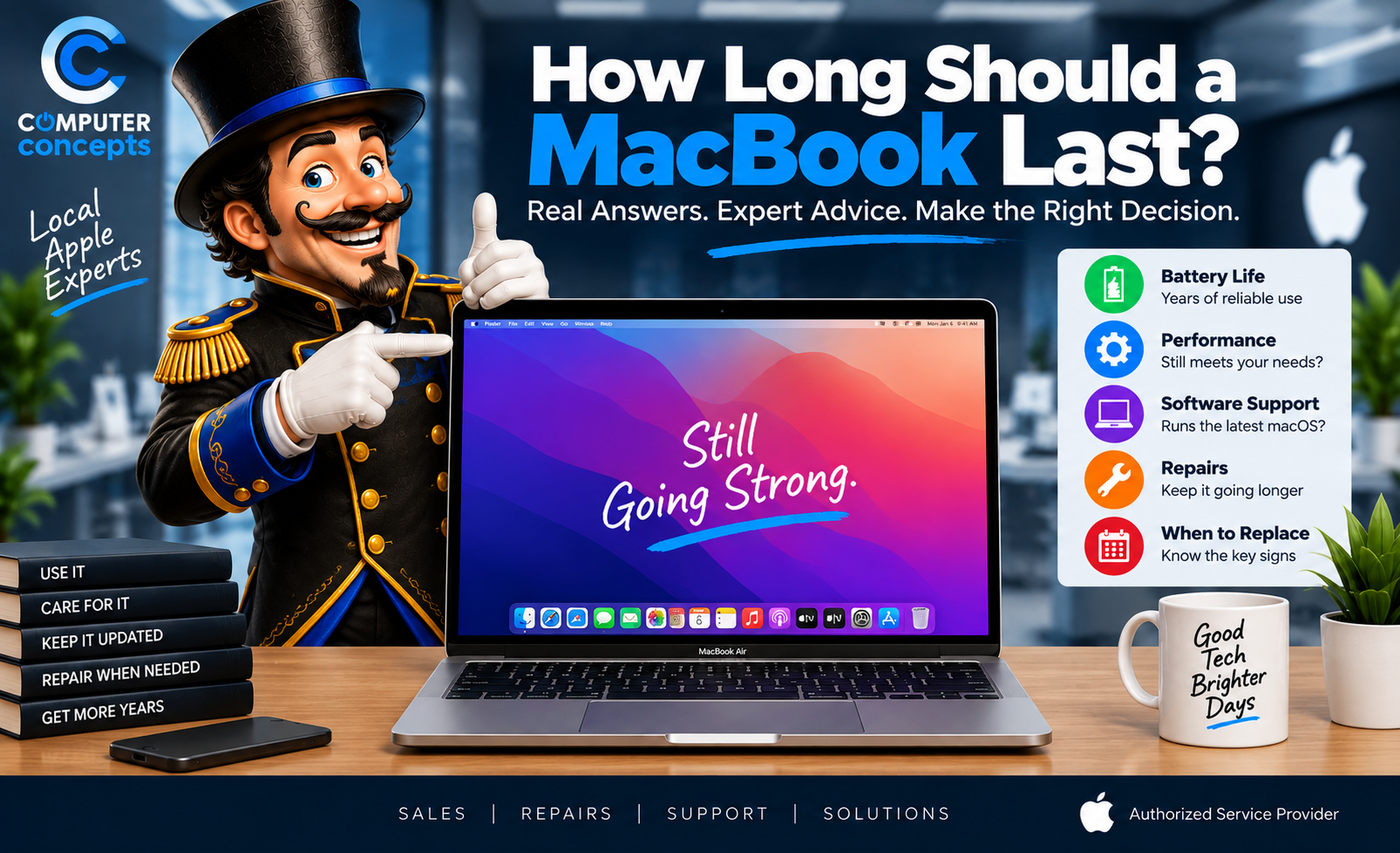
MacBooks have a reputation for lasting a long time. And they can. We regularly see Macs that have been in service for years and are still doing exactly what their owners need. But there's a big difference between “The MacBook still turns on.” and “The MacBook still makes sense to use every day.”
So how long should a MacBook actually last?
For many users, 5–8 years of useful service is a reasonable expectation, and some Macs can remain useful considerably longer. But there isn't a magic expiration date. Battery condition, workload, storage, memory, physical condition, software support, and how the Mac has been cared for all matter.
Here's how to tell whether your MacBook still has plenty of life left—or whether it's getting close to replacement time.
1. A MacBook Doesn't Automatically Become Old at Five Years
One of the biggest mistakes people make is replacing a computer simply because of its age. You might hear “It's five years old. You need a new one.” Not necessarily. If your MacBook:
- Runs the software you need
- Still receives appropriate security support
- Performs well
- Has enough storage
- Has enough memory
- Has no major hardware problems
- Still meets your needs
then its age alone isn't a reason to replace it. If it still does the job, it's still useful.
2. How Many Years Can You Expect From a MacBook?
There isn't one number that applies to everyone, but here's a practical way to think about it.
3 - 5 Years: A MacBook in this range may still have a lot of useful life remaining. You might begin noticing battery wear depending on usage, but a well-configured Mac should generally still be very capable if your workload hasn't outgrown it.
5 - 8 Years: This is where the decision becomes more individual. The Mac may still work extremely well, but you should start paying closer attention to:
- macOS support
- Battery health
- Application compatibility
- Storage capacity
- Performance
- Repair costs
A battery replacement or another reasonable repair can sometimes extend the machine's useful life significantly.
8+ Years: Some Macs absolutely continue working beyond eight years. But at this point, software compatibility and security support can become as important as the hardware itself. The computer may physically work while no longer supporting the operating system or applications you need. That's when replacement deserves serious consideration.
3. Apple Silicon Has Changed MacBook Longevity
Apple began transitioning the Mac lineup from Intel processors to Apple silicon in 2020. That transition matters when evaluating an older MacBook in 2026. Apple silicon Macs brought major improvements in:
- Performance per watt
- Battery efficiency
- Thermal efficiency
- Overall performance
- Integration between hardware and macOS
An M-series MacBook that's several years old may still feel extremely fast for everyday work. That's why processor generation can matter more than age alone.
4. What About Older Intel MacBooks?
There are still plenty of Intel Macs in use. And if yours does everything you need, there's nothing wrong with continuing to use it. But in 2026, Intel Mac owners should pay increasing attention to software support. Apple's macOS Tahoe 26 compatibility list includes only a small group of Intel-based Macs, alongside Apple silicon models.
That doesn't mean an Intel Mac suddenly stops working when it can't install the newest macOS. It does mean you should consider:
- Security updates
- Browser support
- Application requirements
- Business software
- Peripheral compatibility
- How long you intend to keep the machine
If you're facing an expensive repair on an older Intel MacBook, compare the investment carefully with moving to an Apple silicon Mac.
5. Your Battery Will Probably Age Before the MacBook Does
The battery is a consumable component. That's normal. It doesn't mean the computer is finished.
Apple states that MacBook batteries are designed to retain up to 80% of their original capacity at their maximum cycle count, with many modern MacBook models having a maximum cycle count of 1,000. Actual battery lifespan varies depending on:
- Usage
- Charge cycles
- Temperature
- Age
- Charging habits
- Workload
A worn-out battery can make a perfectly good MacBook feel like it's dying. Sometimes the computer doesn't need replacing - It just needs a battery.
6. Signs Your MacBook Battery Is Aging
Watch for:
- Service Recommended
- Short battery runtime
- Unexpected shutdowns
- Battery percentage changing unpredictably
- Mac only working reliably while plugged in
- Charging problems
- Excessive heat
- Physical swelling
You can check battery information through macOS. If the Mac says Service Recommended, that doesn't automatically mean you need a new computer. It means the battery deserves attention.
7. Never Ignore a Swollen Battery
Battery aging is normal. Battery swelling isn't something to ignore. Possible warning signs include:
- Bottom enclosure bulging
- MacBook no longer sitting flat
- Trackpad becoming difficult to click
- Case separating
- Keyboard or trackpad appearing raised
If you suspect the battery is swollen, stop using the Mac and have it professionally inspected. Don't:
- Puncture it
- Squeeze it
- Bend it
- Continue charging it unnecessarily
- Attempt to flatten the case
Lithium-ion batteries require appropriate handling.
8. Heat Can Shorten the Life of a MacBook
Heat is one of the enemies of electronics and batteries. Your MacBook is designed to manage temperature, but constantly operating under poor conditions doesn't help. Avoid routinely using your MacBook:
- On blankets
- On pillows
- On thick carpet
- In extremely hot environments
- Inside a hot vehicle
- With ventilation obstructed
A MacBook that runs hot constantly should be investigated. It may be:
- Heavy workload
- Software
- Background processes
- Dust
- Battery trouble
- Cooling issues
- Hardware problems
Don't assume constant overheating is “just because it's old.”
9. Dust Matters Too
Over time, dust and debris can accumulate inside computers. On models with active cooling, buildup can interfere with airflow and cooling performance. Symptoms may include:
- Fans running constantly
- Higher temperatures
- Reduced performance
- Unexpected shutdowns
- Excessive fan noise
Keeping the machine physically clean can help maintain proper cooling. That doesn't mean blasting compressed air randomly into every opening. Proper cleaning matters.
10. Storage Can Make an Otherwise Good Mac Feel Old
One of the most common problems we see isn't actually age. It's a full drive. A MacBook that's nearly out of storage may:
- Run slowly
- Struggle with updates
- Have trouble saving files
- Display storage warnings
- Perform poorly during demanding tasks
Before deciding your MacBook has reached the end of its life, check: Apple menu → System Settings → General → Storage. You may discover that the Mac isn't obsolete. It's simply full.
11. Memory Can Determine How Long Your Mac Remains Useful
When buying a MacBook, memory is worth thinking about long-term. Your workload may grow over the years. Maybe you originally used your Mac for:
- Web browsing
- Documents
Now you're doing:
- Video editing
- Music production
- Large Photoshop projects
- Software development
- Virtual machines
- Local AI workloads
- Large business applications
The Mac didn't necessarily become slower - Your workload became bigger.
Because modern MacBook memory isn't something you should expect to upgrade later, choosing enough memory when buying the Mac can significantly affect how long the computer remains suitable for your needs.
12. Storage Capacity Can Limit Longevity Too
The same idea applies to internal storage. A 256GB MacBook may be perfect for one person. Another person may outgrow it quickly. Photos, videos, music libraries, business data, games, and creative projects can consume enormous amounts of space.
External storage and cloud services can help. But if you're constantly moving files around just to keep the Mac usable, your storage requirements may have outgrown the machine. That doesn't mean the Mac is broken. It means your needs changed.
13. Software Support May Determine Lifespan Before Hardware Failure
This is one of the most important points in this entire article. Your MacBook might still:
- Turn on
- Charge
- Browse the web
- Look perfect
- Run quickly
But eventually, software support becomes a factor. Newer versions of:
- macOS
- Browsers
- Microsoft Office
- Adobe applications
- Security software
- Business applications
- Creative software
may require newer hardware or operating systems. That's why a computer's useful life isn't always the same as its physical life.
14. A MacBook Can Last Longer if You Repair It
Computers contain components that wear out or get damaged. That doesn't mean the whole machine needs replacement. Common repairs that can extend a MacBook's useful life include:
- Battery replacement
- Display repair
- Charging repair
- Keyboard repair
- Trackpad repair
- Port repair
- Cooling-related service
- Other hardware repairs
If everything else about the MacBook still works for you, replacing one failed component may make far more sense than replacing the entire computer.
Repair more. Waste less.
15. When Is a MacBook Too Old to Repair?
There isn't a universal cutoff. Instead, ask several questions. Does it still support the software you need?
If not, investing heavily in it may not make sense. Was it fast enough before it broke? If you already hated using it, fixing one component won't solve that. Does it have enough memory? If the workload has outgrown the hardware, repair won't change the specifications. Does it have enough storage? Constant storage problems may influence your decision. Is only one component failing? One reasonable repair can make sense.
Several expensive repairs at once may not. What would an equivalent replacement cost? Compare against the Mac you'd actually buy—not just the cheapest advertised Mac.
16. Is a Five-Year-Old MacBook Worth Repairing?
Very possibly. A five-year-old MacBook isn't automatically obsolete. If it:
- Performs well
- Has adequate memory
- Has adequate storage
- Supports your applications
- Is in good physical condition
then a battery, screen, or another reasonable repair may be a good investment. Age should be one factor, not the entire decision.
17. Is a Seven-Year-Old MacBook Worth Repairing?
This requires more consideration. A modest repair? Potentially. An expensive display or major hardware repair? Now we'd look much more carefully at:
- Exact model
- Intel vs. Apple silicon
- macOS support
- Application compatibility
- Specifications
- Overall condition
- Replacement cost
Sometimes repairing it still makes perfect sense. Other times, that money is better applied toward a replacement.
18. Can a MacBook Last 10 Years?
Yes. We've seen computers continue operating for a decade or longer. But the more useful question is: “Can MY MacBook remain useful for 10 years?”
That's different. A ten-year-old Mac might still be excellent for:
- Basic documents
- Certain offline applications
- Music playback
- Light tasks
while no longer being appropriate for:
- Current business environments
- Modern creative software
- Security-sensitive work
- Applications requiring a newer macOS
Physical survival and practical usefulness aren't the same thing.
19. Does AppleCare+ Make a MacBook Last Longer?
AppleCare+ doesn't magically extend the physical lifespan of the computer. But it can make eligible repairs more economical during the coverage period. Depending on the applicable plan and eligibility, AppleCare+ can help with:
- Accidental damage
- Hardware service
- Qualifying battery service
- Technical support
That can make it easier to repair a Mac rather than replace it after an accident. Always check the terms associated with your specific AppleCare+ plan.
20. Don't Forget the Charger
Sometimes the MacBook isn't dying. The charger is. Charging problems can come from:
- Power adapter
- Cable
- Outlet
- USB-C port
- MagSafe connector
- Debris
- Battery
- Internal charging circuitry
If your older Mac suddenly stops charging, don't immediately assume: “It's finally dead.” Have the charging system diagnosed. The solution may be much simpler than replacing the computer.
21. Liquid Damage Can Dramatically Affect Longevity
Liquid is different from normal aging. A MacBook can be running perfectly one day and suffer serious damage from a spill the next. If liquid gets into your Mac:
- Stop using it
- Disconnect power when safe
- Don't repeatedly turn it on
- Don't keep charging it
- Don't put it in rice
- Have it evaluated
Even if the computer initially works after a spill, contamination and corrosion can create problems later.
22. Physical Protection Helps
You don't need to treat your MacBook like a museum piece. But basic care helps. Avoid:
- Carrying it without protection
- Leaving drinks directly beside it
- Putting heavy objects on it
- Leaving small objects on the keyboard
- Closing the display on cables, pens, earbuds, or other objects
- Leaving it in extreme heat
- Tossing it loose into a packed bag
One accident can end the life of a MacBook long before its processor becomes obsolete.
23. Keep macOS and Your Applications Updated
Software maintenance matters too. Updates can provide:
- Security improvements
- Bug fixes
- Compatibility improvements
- Stability fixes
- Performance improvements
That doesn't mean blindly installing a major operating-system upgrade five minutes before an important presentation. Maintain a good backup and update responsibly.
24. Backups Don't Make Your Mac Last Longer—But They Protect What Matters Most
Eventually, every computer fails. Maybe in three years. Maybe in ten. Maybe tomorrow. No repair shop can promise that a storage device or logic board will never fail. That's why your most important files should never exist in only one place. Use:
- Time Machine
- Appropriate cloud services
- External backups
- Another reliable backup strategy
And verify that your backups actually work. Computers can be replaced. Your data is unique.
Signs Your MacBook Still Has Plenty of Life Left
Keep using it if it:
- Performs well
- Supports your software
- Receives appropriate security support
- Has enough memory
- Has enough storage
- Has manageable battery wear
- Doesn't have recurring hardware failures
- Still meets your needs
Don't replace a good computer simply because somebody tells you it's “old.”
Signs It May Be Time to Replace Your MacBook
Start seriously considering replacement when several of these appear together:
- No longer supports the software you need
- macOS/security support has become an issue
- Performance is inadequate
- Memory is insufficient
- Storage is consistently inadequate
- Multiple components need repair
- Repair cost is high relative to an equivalent replacement
- Battery, display, and other hardware all need attention
- Your workload has outgrown the machine
- You were already planning to upgrade
One problem doesn't necessarily mean replacement. Multiple limitations together change the equation.
How to Make Your MacBook Last Longer
A few habits can help you get more useful life from your Mac:
- Keep important data backed up.
- Don't run the storage completely full.
- Install appropriate software and security updates.
- Keep liquids away from the computer.
- Use the MacBook on surfaces that allow proper cooling.
- Don't ignore excessive heat or constant fan activity.
- Address battery swelling immediately.
- Use appropriate charging equipment.
- Protect the Mac while traveling.
- Fix small problems before they become bigger ones.
And when something starts acting strangely, get it diagnosed instead of guessing.
Should You Repair an Older MacBook or Buy a New One?
Here's one question we like: “If we fix this problem, will you be happy with the MacBook again?”
If the answer is: YES then repair deserves serious consideration. If the answer is: NO because it's already too slow, doesn't have enough storage, can't run your software, or no longer fits your needs, replacement may be the better investment. That question often makes the decision much easier.
Let Computer Concepts Help You Get More Life From Your Mac
Your MacBook doesn't need to be replaced just because it's getting older. Sometimes it needs a battery. Sometimes it needs a repair. Sometimes it needs a little maintenance. And sometimes, yes, it's finally time for a new Mac.
Computer Concepts is an Apple Authorized Sales & Service Provider serving Hampton Roads from our Yorktown and Williamsburg, Virginia locations. Our Apple-trained technicians can help with:
- MacBook diagnostics
- Battery service
- Charging problems
- Display repairs
- Overheating
- Keyboard and trackpad issues
- Apple warranty service
- AppleCare+ service
- Out-of-warranty repairs
- Data transfer and recovery
- Helping you decide whether repair or replacement makes sense
AppleCare+?
We can help.
Out of warranty?
We can help with that too.
Not sure whether it's worth fixing?
Bring it in.
Computer Concepts — Local Apple Experts
Quality repair. Real support. We fix it right.
Visit mycomputerconcepts.com.
Frequently Asked Questions
How long should a MacBook last?
For many users, 5–8 years of useful service is a reasonable expectation, although a well-maintained MacBook can remain useful considerably longer. Actual lifespan depends on hardware, software support, battery condition, workload, and how the computer is used.
Can a MacBook last 10 years?
Yes. Some MacBooks continue functioning for 10 years or longer. However, software compatibility and security support may become limiting factors before the hardware actually stops working.
Is a five-year-old MacBook considered old?
Not necessarily. A five-year-old Mac that still performs well, supports the required software, and has adequate memory and storage may have plenty of useful life remaining.
How long does a MacBook battery last?
Battery lifespan varies with age and usage. Apple publishes model-specific maximum cycle counts, and many modern MacBook batteries have a 1,000-cycle maximum cycle count specification. Battery capacity naturally declines over time.
Should I replace my MacBook when the battery dies?
Usually not for that reason alone. The battery is a replaceable consumable component. If the rest of the MacBook is still useful, battery service may make much more sense than replacing the computer.
Is an Intel MacBook still worth using in 2026?
It can be if it still meets your needs, but software support should be considered carefully. Apple's latest macOS compatibility requirements increasingly favor Apple silicon, so expensive repairs on older Intel Macs deserve a closer repair-versus-replace evaluation.
Can Computer Concepts tell me if my MacBook is worth fixing?
Yes. We can diagnose the MacBook, evaluate its condition and available repair options, and help you determine whether repair or replacement makes more sense.