
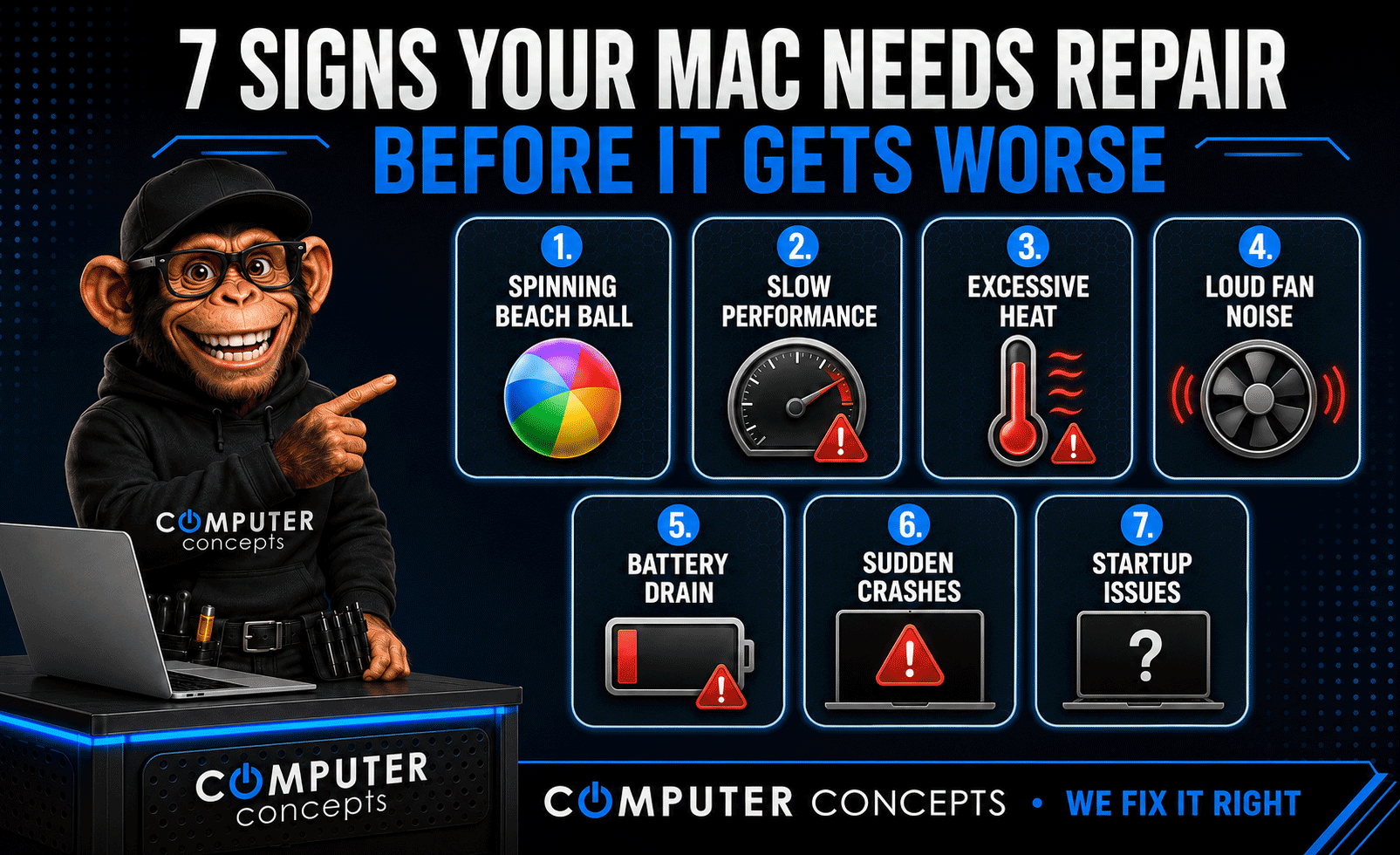
Most Mac problems do not happen overnight. They usually begin with small warning signs—a slower startup, shorter battery life, unusual heat, frequent freezing, or a fan that suddenly sounds louder.
Catching these problems early may help prevent a more expensive Mac repair, unexpected downtime, or permanent data loss. Here are seven signs your MacBook, iMac, Mac mini, or Mac Studio may need professional attention.
1. Your Mac Takes Longer to Start
A Mac that once started quickly but now takes more than a minute to become usable may have too many login items, limited storage space, outdated software, or a problem with its internal drive.
Start by removing unnecessary login items, installing available macOS updates, and checking your available storage. If startup continues getting slower—or you see folders with question marks or repeated error messages—schedule a Mac diagnostic.
2. The Battery Drains Much Faster
Rechargeable batteries naturally lose capacity over time. However, a sudden drop from all-day battery life to only a few hours can indicate a worn or failing MacBook battery, a power-hungry background process, or a charging problem.
Check the Battery section in System Settings for your battery-health status. If you see a service recommendation, unexpected shutdowns, swelling, or unusual heat, stop using the MacBook and have it inspected promptly. Never press down on a swollen battery or continue charging it unattended.
3. Your Mac Gets Hot During Light Use
Some warmth is normal during gaming, video editing, or other demanding work. Excessive heat while browsing the internet, checking email, or using basic office applications is more concerning.
Common causes include dust blocking airflow, a failing cooling fan, insufficient ventilation, or a background process consuming excessive resources. Keep the Mac on a hard, flat surface and check Activity Monitor for unusually high CPU usage. If it remains hot, professional internal cleaning or Mac repair may be needed.
4. Apps Frequently Freeze or Crash
An occasional application crash is not always serious. Repeated freezing across several programs can indicate low storage, outdated software, memory problems, corrupted macOS files, or a failing storage drive.
Restart the Mac, update macOS and your applications, and confirm that adequate storage is available. If crashes continue, back up your important files and have the computer diagnosed before the problem becomes more severe.
5. The Screen Flickers, Shows Lines, or Has Dim Areas
Flickering, vertical lines, discoloration, dark spots, or inconsistent brightness can point to a display, cable, graphics, or logic-board issue.
Take a screenshot when the problem appears. If the defect is visible in the screenshot on another device, the issue may involve software or graphics processing. If the screenshot looks normal, the display hardware may be responsible. Either way, recurring screen problems should be evaluated before the display stops working completely.
6. Charging and USB Ports Work Intermittently
A charging cable that only works at a certain angle, a loose USB-C connection, or accessories that disconnect unexpectedly can indicate debris, physical damage, or a worn port.
Inspect the port with good lighting, but never insert metal tools or liquids. Test another known-good cable or charger when available. If the connection remains unreliable, have the port professionally inspected. Continuing to force a damaged connector can make the repair more expensive.
7. Your Mac Makes an Unusual Noise
Clicking, grinding, buzzing, or a cooling fan that constantly runs at full speed should not be ignored. These sounds may indicate a failing fan, debris inside the computer, or—on older Macs—a mechanical hard-drive problem.
Back up your data immediately if you hear clicking or grinding. If the noise becomes louder, the Mac overheats, or you smell something unusual, shut it down and disconnect the power until it can be inspected.
Back Up Your Data Before Trouble Gets Worse
If your Mac is still operating, create a current backup before attempting major troubleshooting. Time Machine can protect documents, photos, and other important files. A second backup of irreplaceable data provides additional protection.
If the Mac is already clicking, repeatedly crashing, failing to start, or showing signs of physical damage, avoid repeatedly restarting it. Continued use can sometimes make data recovery more difficult.
When to Schedule a Mac Diagnostic
One minor symptom may have a simple explanation. Several warning signs appearing together—or any problem that gets worse from week to week—deserve professional attention.
Computer Concepts provides Mac diagnostics, computer repair, battery service, internal cleaning, storage upgrades, data recovery, and technical support for customers in Yorktown, Williamsburg, Newport News, Hampton Roads, and surrounding Virginia communities.
Do not wait for a manageable Mac problem to become a complete failure. Let Computer Concepts inspect the warning signs, explain your repair options, and help protect your device and important data.