
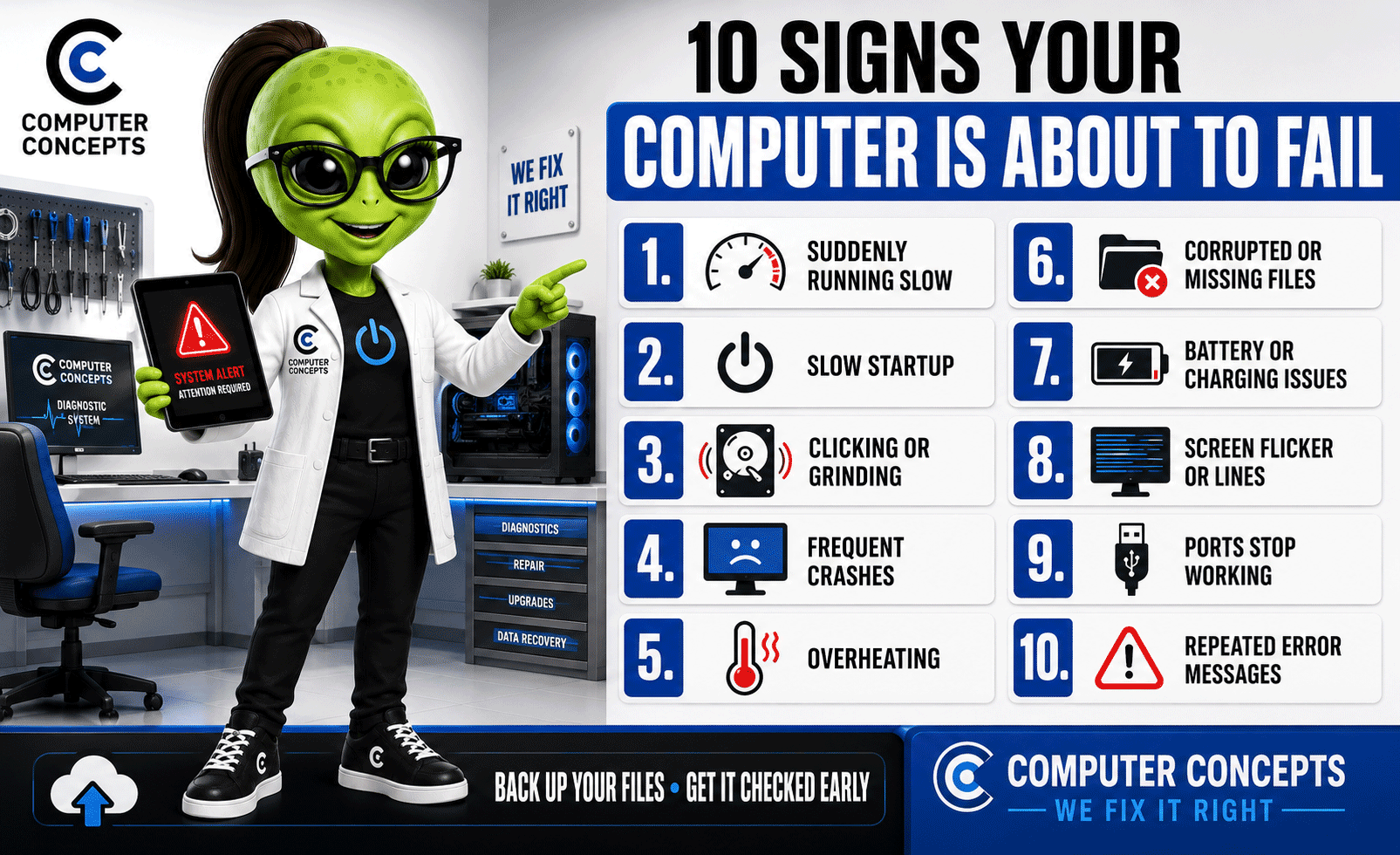
Computers rarely fail without warning. Slow performance, unusual noises, overheating, repeated crashes, and charging problems can all indicate that a laptop or desktop is developing a serious hardware or software issue.
Recognizing the warning signs early may help you avoid permanent data loss, unexpected downtime, and a more expensive computer repair. Here are ten signs your computer may be close to failing—and what you should do next.
1. Your Computer Is Suddenly Running Very Slowly
A computer that becomes noticeably slower may be dealing with malware, insufficient storage, failing memory, excessive background programs, or a deteriorating storage drive.
Before assuming the computer needs replacement, restart it, install available updates, and check how much storage space remains. If performance continues to decline, a professional computer diagnostic can identify whether the problem is caused by software or failing hardware.
2. Startup Takes Much Longer Than It Used To
If your computer once started quickly but now takes several minutes to reach the desktop, something may be wrong with the operating system, startup programs, or storage drive.
Occasional slow startups can happen after an update. However, consistently slow boot times—especially when accompanied by freezing or error messages—may be an early sign of hard-drive or solid-state-drive failure.
3. You Hear Clicking, Grinding, or Unusual Fan Noise
A computer should not make clicking or grinding sounds. These noises can indicate a mechanical hard drive is failing or a cooling fan is damaged or obstructed by dust.
A fan that constantly runs at maximum speed can also signal overheating, blocked airflow, or a background process placing excessive demand on the system.
If you hear clicking or grinding, back up your important files immediately and have the computer inspected. Continuing to use a failing drive can make professional data recovery more difficult and expensive.
4. The Computer Frequently Freezes or Crashes
An occasional application crash is not always serious. Frequent freezing, sudden restarts, blue screens, kernel panics, or crashes across several programs deserve attention.
Possible causes include:
- Failing RAM or storage
- Corrupted system files
- Driver conflicts
- Malware
- Overheating
- Power-supply problems
Record any error messages you see. That information can help a computer repair technician diagnose the problem more quickly.
5. The Computer Gets Extremely Hot
Some warmth is normal during gaming, video editing, or other demanding tasks. Excessive heat during basic activities such as web browsing or checking email is not.
Overheating may be caused by dust buildup, blocked vents, dried thermal compound, a failing fan, or a battery problem. Continued overheating can damage internal components and shorten the computer’s useful life.
Keep the computer on a hard, flat surface and make sure its vents are unobstructed. Avoid using canned air improperly, as it can push debris deeper into the device or damage a fan.
6. Files Become Corrupted, Disappear, or Will Not Open
Files that suddenly become unreadable, disappear, or generate repeated errors may indicate file-system corruption or a failing storage device.
Stop creating, downloading, or moving unnecessary files until your important information is safely backed up. Every additional write to a failing drive can overwrite recoverable data.
If the missing information is valuable, avoid repeatedly restarting the computer or running random recovery programs. Professional data-recovery assistance may offer a safer option.
7. The Battery Drains Quickly or the Computer Will Not Charge Reliably
Laptop batteries naturally wear down, but a sudden decline in battery life can indicate that replacement is approaching. Other warning signs include unexpected shutdowns, unreliable charging, a “Service Recommended” message, or the computer turning off when unplugged.
A swollen battery requires immediate attention. Stop using the device, unplug it if it is safe to do so, and do not press on, puncture, or attempt to remove the battery yourself. Battery swelling can damage the trackpad, keyboard, and case while also creating a safety hazard.
8. The Screen Flickers, Shows Lines, or Goes Black
Flickering, distorted colors, lines, dim areas, or an intermittent black screen may be caused by the display, graphics hardware, internal display cable, or power system.
Try connecting the computer to an external monitor. If the external display works normally, the problem may be limited to the built-in screen or display cable. If both displays show the same issue, the graphics system or motherboard may need further testing.
9. USB, Charging, or Display Ports Work Intermittently
A loose charging connection or unreliable USB port may seem like a minor inconvenience, but it can indicate physical damage, debris, corrosion, or a failing internal connection.
Do not force a cable into a damaged port or hold it at an angle to keep the computer charging. That can cause additional damage to the port, charging circuit, or motherboard.
Try a known-good cable and power adapter first. If the problem continues, have the port inspected before the computer stops charging or connecting entirely.
10. You See Repeated Error Messages or Repair Screens
Repeated disk errors, startup repair screens, missing operating-system messages, or warnings that the drive cannot be found can indicate serious software corruption or storage failure.
Write down or photograph the exact error message. Avoid repeatedly forcing the computer to restart, especially if it contains important files that have not been backed up.
What to Do When You Notice These Warning Signs
Take these steps before the problem becomes more serious:
- Back up important files immediately. Save documents, photographs, financial records, and other irreplaceable information to a separate drive or trusted cloud service.
- Write down the symptoms. Note when the issue began, how often it happens, and any error messages displayed.
- Avoid unnecessary software installations. Cleanup tools and questionable repair programs can make the problem worse.
- Disconnect unnecessary accessories. A damaged USB device, dock, or external drive can sometimes cause crashes or startup problems.
- Schedule a professional diagnostic. Proper testing can determine whether the computer needs a repair, upgrade, data recovery, or replacement.
When You Need a Computer Repair Expert
Some computer problems can be corrected with a restart, software update, or basic troubleshooting. Others require professional tools and experience.
Bring your computer to an expert if it repeatedly crashes, will not start, overheats, makes unusual noises, has a swollen battery, displays signs of liquid damage, or contains important files that you cannot access.
At Computer Concepts, we help diagnose and repair Windows PCs, Macs, laptops, desktops, and custom computers. Our technicians can assist with hardware diagnostics, computer repair, battery replacement, storage upgrades, malware removal, overheating issues, and data-recovery options.
If the computer is no longer economical to repair, we can help you understand your replacement options and discuss responsible electronics recycling. Our goal is to give you clear information so you can make the right decision for your device, your data, and your budget.
Computer trouble does not always mean your device is finished—but waiting too long can turn a manageable repair into permanent data loss. If something does not look, sound, or feel right, let Computer Concepts take a closer look.
Computer Concepts — We Fix It Right.